
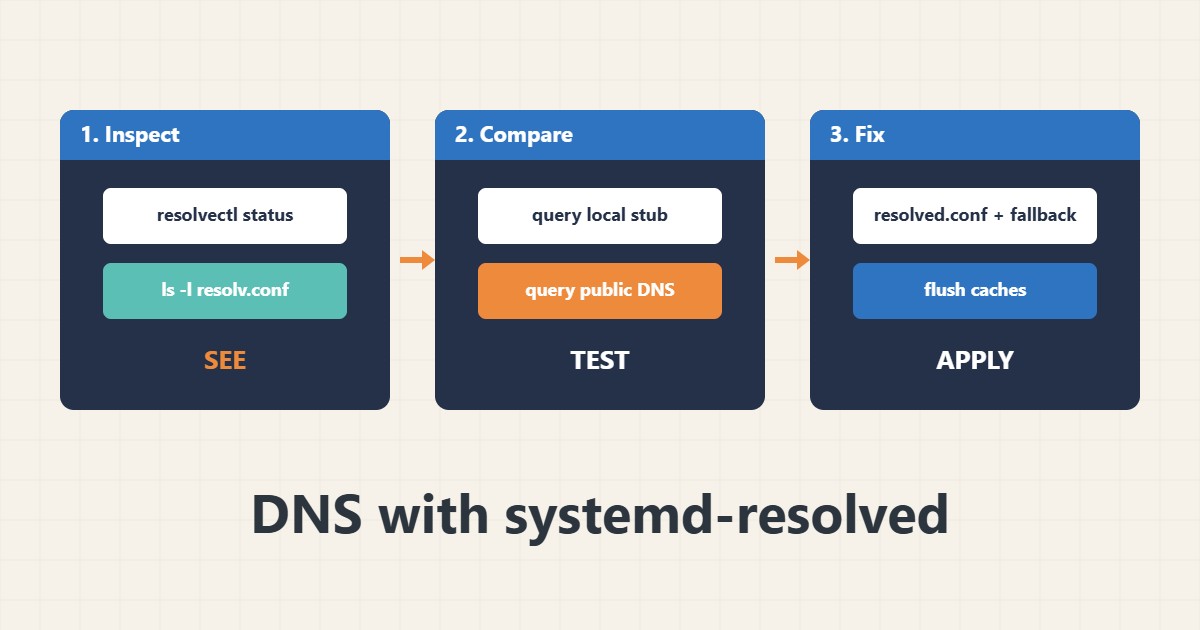
On many modern Linux servers /etc/resolv.conf points to a local stub address such as 127.0.0.53, and systemd-resolved decides which upstream DNS servers are really used. Editing resolv.conf by hand often does nothing or gets overwritten. This guide shows how to see which servers are used, how to test them and how to configure them correctly. Commands follow the systemd documentation; I did not run them on your server, and details depend on your distribution and network manager.
1. See what is really used
Check whether resolv.conf is a symlink and read the per-interface status:
ls -l /etc/resolv.conf              # often a symlink to the stub resolver
resolvectl status                 # per-interface DNS servers and domains
resolvectl query example.com      # resolve through systemd-resolved
The status shows the DNS servers, search domains and which link supplies them.
2. Compare with a public resolver
If the local stub fails but a public resolver answers, the problem is the configured upstream, not the domain:
resolvectl query example.com
dig +short example.com @1.1.1.1    # compare with a known public resolver
dig +short example.com @127.0.0.53  # the local stub resolver
If both fail, the record or domain may be wrong; see the TTFB guide for separating DNS time from server time.
3. Configure DNS the supported way
Set servers in resolved.conf or in your network manager, not by editing the generated resolv.conf. Keep a fallback:
# /etc/systemd/resolved.conf (example values)
[Resolve]
DNS=1.1.1.1 9.9.9.9
FallbackDNS=8.8.8.8
DNSStubListener=yes
Cache=yes
A mistake here can cut off remote access, so keep a console or second session open; see the SSH guide and the firewall guide.
4. Restart, flush and read logs
Apply the change and check statistics and logs:
sudo systemctl restart systemd-resolved
sudo resolvectl flush-caches
resolvectl statistics | head -n 12
journalctl -u systemd-resolved --since '30 min ago' | tail -n 20
Time problems can also break DNSSEC validation; see the clock drift and NTP guide.
5. Mistakes to avoid
These habits cause repeating DNS trouble:
Editing /etc/resolv.conf by hand      # generated file; changes are overwritten
Two resolvers fighting each other     # NetworkManager and systemd-resolved
Blaming the app before testing DNS    # resolvectl query takes seconds
Adding only one DNS server            # no fallback during an outage
When you change records for a migration, plan the TTL first; see the redirect guide for related web changes.
6. Illustrative example, not a measurement
Imagine a VPS (made-up) where apt and curl suddenly fail with “temporary failure in name resolution”. resolvectl status shows a DNS server from an old network that no longer answers, while a query to a public resolver works. After setting DNS and FallbackDNS in resolved.conf, restarting the service and flushing caches, name resolution works again.
7. Common mistakes
- Editing resolv.conf by hand.
- Running two resolver managers.
- Not testing against a public resolver.
- Setting a single DNS server.
- Changing DNS without console access.
- Ignoring clock problems with DNSSEC.
8. Frequently asked questions
Why is resolv.conf 127.0.0.53? That is the local stub resolver of systemd-resolved.
How do I flush the cache? resolvectl flush-caches.
Is Cloudflare or Google DNS better? Either works; choose based on policy and keep a fallback.
Does this apply to every distribution? No; check whether systemd-resolved is actually active.
9. Quick checklist
- Check resolv.conf.
- Read resolvectl status.
- Query the local stub.
- Query a public resolver.
- Fix the configuration.
- Flush caches.
- Read the logs.
If you need help reviewing performance or maintaining a server, see the server management services.
More server and WordPress guides are collected in the article archive.
Official references
resolvectl(1) · systemd-resolved.service(8) · resolved.conf(5) · resolv.conf(5)