
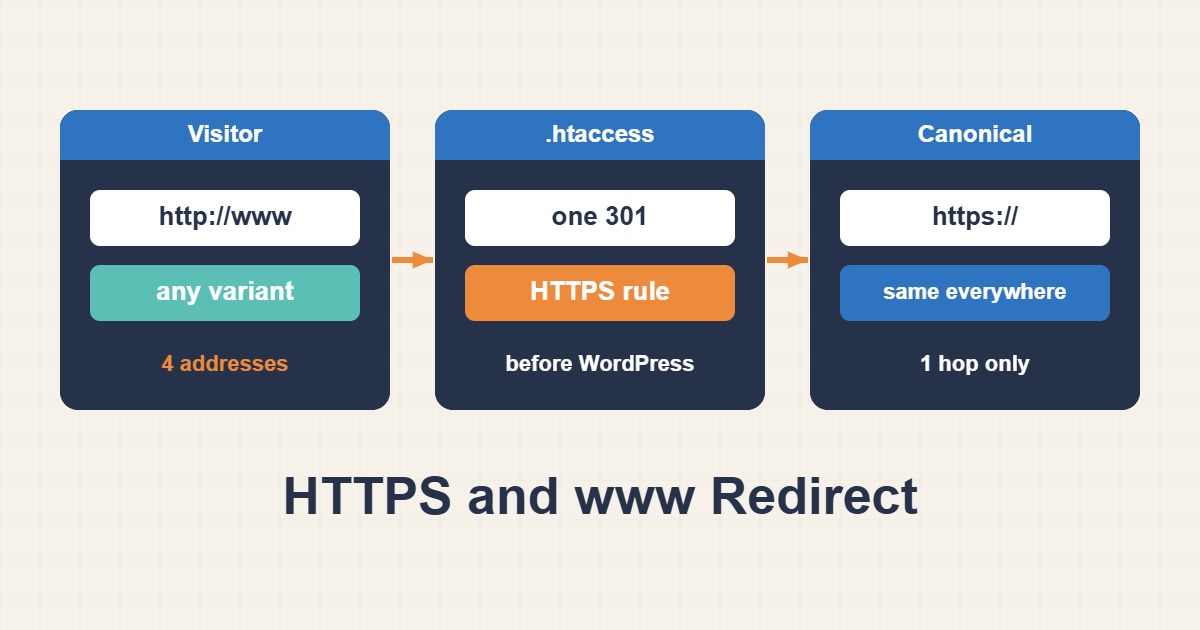
A website can usually be reached at four addresses: HTTP and HTTPS, each with and without www. If all four answer with content, search engines see duplicates, analytics split visitors, and cookies and logins behave differently. The fix is to pick one canonical address and redirect the other three to it with a permanent redirect. On cPanel you can do that in the Redirects tool or in .htaccess, and the same page can also cause a loop if the rules and WordPress disagree. This guide shows both methods, how to test the result and how to avoid loops.
1. Decide the canonical address
Choose one form and use it everywhere: HTTPS, and either the bare domain or the www name. Technically both work. The bare domain is shorter. The www form can be easier to attach to a CDN and to keep cookies scoped. What matters is consistency across the server redirect, the WordPress Address and Site Address, the sitemap, internal links and the canonical tags that your SEO plugin prints.
2. Use the Redirects tool in cPanel
In cPanel open Redirects. Choose the type: a permanent (301) redirect tells browsers and search engines that the move is final, while a temporary (302) one says it may change. Select the domain, the source path and the destination URL, and choose whether the redirect applies with or without www. For a whole-site HTTP to HTTPS redirect some cPanel versions also provide a Force HTTPS toggle in the Domains screen. These tools write the rules into .htaccess for you, so you do not have to edit it by hand.
3. Do it directly in .htaccess
If you want full control, edit .htaccess in File Manager or by SSH. This block sends every request to HTTPS on the bare domain in a single hop, and leaves the .well-known folder alone so certificate validation keeps working:
RewriteEngine On
RewriteCond %{REQUEST_URI} !^/\.well-known/
RewriteCond %{HTTPS} off [OR]
RewriteCond %{HTTP_HOST} ^www\. [NC]
RewriteRule ^ https://example.com%{REQUEST_URI} [L,R=301]
To use the www form instead, flip the host test and the target:
RewriteEngine On
RewriteCond %{REQUEST_URI} !^/\.well-known/
RewriteCond %{HTTPS} off [OR]
RewriteCond %{HTTP_HOST} !^www\. [NC]
RewriteRule ^ https://www.example.com%{REQUEST_URI} [L,R=301]
Replace example.com with your own domain. Put these lines at the top of the file, before the WordPress block, so the redirect runs first and only once.
4. Avoid redirect chains
A chain happens when HTTP goes first to HTTPS and then to the canonical host in a second step. Each hop adds latency and dilutes signals. The rule above handles both conditions in one redirect, because it checks for a missing HTTPS or the wrong host together. Test with curl to see how many hops a request takes:
curl -sIL --max-redirs 6 http://example.com/ | grep -iE '^(HTTP|location)'
curl -sIL --max-redirs 6 http://www.example.com/page/ | grep -iE '^(HTTP|location)'
curl -sIL --max-redirs 6 https://www.example.com/ | grep -iE '^(HTTP|location)'
Every starting address should arrive at the canonical HTTPS URL in one step and then return 200.
5. Redirect single pages and sections
For a moved page or a renamed section, use a specific rule rather than a global one:
Redirect 301 /old-page/ https://example.com/new-page/
RedirectMatch 301 ^/blog/(.*)$ https://example.com/articles/$1
Keep the old path, a permanent status and a full destination URL. For bigger migrations prepare a list of old and new addresses and test a sample after the change. Google’s guidance on redirects is in the references.
6. Set the WordPress addresses to match
If WordPress still thinks its address is http:// or the other host, it will redirect again on its own, and a loop is possible. Check both values and set them to the canonical form:
wp option get home
wp option get siteurl
wp option update home 'https://example.com'
wp option update siteurl 'https://example.com'
Then look for old absolute links in content. A dry run shows what would change before you apply it. The full method is in Migrate WordPress URLs Safely with WP-CLI Search-Replace:
wp search-replace 'http://example.com' 'https://example.com' --dry-run --skip-columns=guid
wp search-replace 'http://example.com' 'https://example.com' --skip-columns=guid
After HTTPS works, scan pages for insecure resources, which Fix WordPress Mixed Content After HTTPS explains.
7. What causes redirect loops
A loop means two rules keep sending a request to each other. The usual causes are these: the server redirects to HTTPS but a CDN or proxy talks to the server over HTTP; WordPress and .htaccess disagree about www; a plugin also forces HTTPS; or both the Redirects tool and manual rules are active. Start by seeing the chain with curl and noting which two addresses alternate.
8. Behind a proxy or CDN
When a proxy terminates HTTPS and forwards plain HTTP to cPanel, the server sees every request as HTTP and a redirect to HTTPS never ends. In that setup the rule must look at the header that the proxy sends, not at the connection itself. A typical condition looks like this, and it only works if the proxy really sets the header and the origin accepts requests only from it:
RewriteCond %{HTTP:X-Forwarded-Proto} !https
RewriteCond %{HTTPS} off
If you can, configure the proxy to connect to the origin over HTTPS instead and keep the simple rule.
9. Rule order matters
Apache reads .htaccess from top to bottom. Put canonical redirects first, WordPress rules last. If a caching plugin or a security plugin writes its own block, keep each block intact and do not merge them. After any edit, test a page, an image URL, the admin login and the REST API, because a mistaken rule can break any of them.
10. Browsers cache 301 redirects
A permanent redirect can stay in a browser’s cache for a long time. If you test a wrong rule and fix it, your own browser may keep following the old one. Use curl or a private window to see the true behavior. Use a temporary redirect while you are still experimenting, and switch to permanent once you are sure.
11. Search engines and sitemaps
Permanent redirects pass the old address’s signals to the new one over time. Update the sitemap and internal links to the canonical form so crawlers do not keep hitting redirects. Do not add HSTS until every subdomain works over HTTPS, because browsers remember it and an error cannot be undone quickly.
12. Common mistakes
- Letting all four address variants return content.
- Chaining two redirects instead of one.
- Redirecting the certificate validation folder.
- Leaving WordPress addresses on the old scheme or host.
- Using a 302 for a permanent change.
- Testing only in a browser that cached an earlier redirect.
13. When the site returns a server error
A typo in .htaccess can produce a 500 error for the whole site. Restore the previous version of the file, or comment out the new lines, then apply the change again carefully. Fix WordPress 500 Internal Server Error describes how to approach 500 errors systematically.
14. A worked example
A site answers on both http://www.example.com and https://example.com. The owner picks the bare HTTPS address, adds the single-hop rule before the WordPress block, sets WordPress to the same address and tests the three other variants with curl. Each returns one 301 and then 200. The sitemap and canonical tags already used the same form. This is an illustration of the process, not a measurement from a real site.
15. Quick checklist
- Choose HTTPS plus bare domain or www.
- Redirect the other variants once, with a 301.
- Keep
.well-knownoutside the rule. - Set WordPress home and site URLs to the same address.
- Test every variant with curl and count the hops.
- Update sitemap and links, and check for mixed content.
More server guides are collected in the article archive.
Official references
cPanel: Redirects · Apache: mod_rewrite · Apache: When not to use mod_rewrite · Google Search Central: Redirects and Google Search