
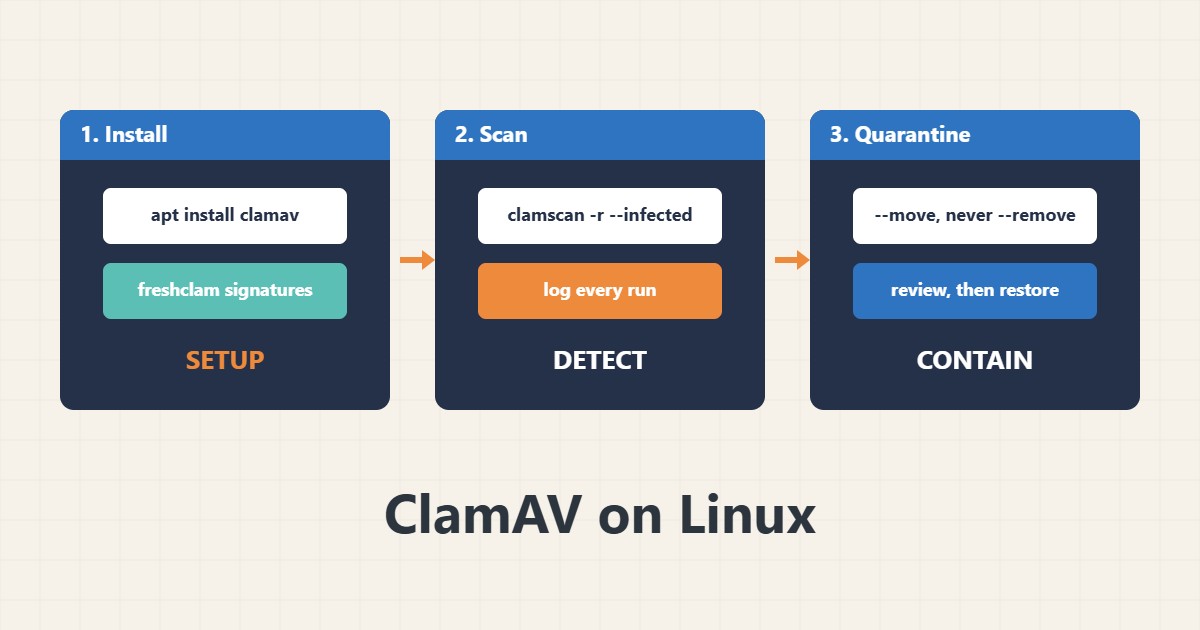
ClamAV is a free scanner that finds known malware signatures in files. On a web server it is useful for checking uploads and web roots, but it is not a complete defense: many WordPress backdoors are custom or obfuscated and are not in any signature database. This guide shows a careful setup that reports and quarantines instead of deleting. Commands follow the ClamAV documentation; I did not run them on your server, and shared hosting usually does not give you shell access to install it.
1. Install and update signatures
Install the scanner, update signatures once manually and keep the updater service running:
sudo apt install clamav clamav-freshclam
sudo systemctl stop clamav-freshclam
sudo freshclam                     # update signatures
sudo systemctl enable --now clamav-freshclam
clamscan --version
Out-of-date signatures give a false sense of safety.
2. Scan the web root
Scan recursively, report only infected files and exclude cache folders. Keep a log:
clamscan -r --infected --exclude-dir='^/var/www/example/wp-content/cache' \
  --log=/var/log/clamav/scan-$(date +%F).log /var/www/example
grep -E 'FOUND|Infected files' /var/log/clamav/scan-$(date +%F).log
A hit is a lead to investigate, not proof by itself. Matches can be false positives.
3. Quarantine instead of deleting
Move suspects to a protected folder and review them before removing anything:
# Do NOT auto-delete. Move suspects aside for review
mkdir -p /root/quarantine
clamscan -r --infected --move=/root/quarantine /var/www/example/wp-content/uploads
ls -l /root/quarantine
If a site is really infected, follow the cleanup steps in the WordPress recovery guide and change credentials as described in the login hardening guide. Keep backups; see the backup guide.
4. Schedule a low-impact scan
Use a lock, low CPU priority and a log so the scan never overlaps or slows the site:
# Weekly scan with a lock and a log (cron example)
17 3 * * 0 flock -n /var/lock/clamscan.lock nice -n 15 clamscan -r --infected -l /var/log/clamav/weekly.log /var/www
For scheduling options see the systemd timers guide.
5. Know the limits
These habits give a false sense of security:
clamscan --remove on a live site       # may delete legitimate files
Scanning / with no excludes           # /proc, /sys and caches waste time
Never updating signatures             # old signatures miss new malware
Trusting 'no virus found' as clean    # custom backdoors are often not detected
The best protection is updates, least privilege and backups; scanning is only one extra layer. See the sudoers guide for privilege hygiene.
6. Illustrative example, not a measurement
Imagine a small agency server (made-up) that hosts client uploads. A weekly scan flags one file in an uploads folder. The admin moves it to quarantine, checks the file, finds it is a known test signature in a document and restores it. The scan reports and logs, and nothing was deleted automatically.
7. Common mistakes
- Using –remove automatically.
- Never updating signatures.
- Scanning everything without excludes.
- Treating a clean scan as proof of safety.
- Running scans during peak traffic.
- Ignoring the log.
8. Frequently asked questions
Does ClamAV replace updates and backups? No, it only detects known signatures.
Will it slow my server? It can; use nice, a lock and off-peak times.
Should it run as a daemon? The daemon (clamd) is faster for frequent scans but uses more memory.
What if it finds something? Quarantine, investigate and restore from a clean backup if needed.
9. Quick checklist
- Install ClamAV.
- Update signatures.
- Scan with logging.
- Exclude cache folders.
- Quarantine, do not delete.
- Schedule a low-impact scan.
- Keep updates and backups.
If you need help reviewing performance or maintaining a server, see the server management services.
More server and WordPress guides are collected in the article archive.
Official references
ClamAV: Scanning · ClamAV: Signature management (freshclam) · ClamAV: Installing · WordPress: Hardening