
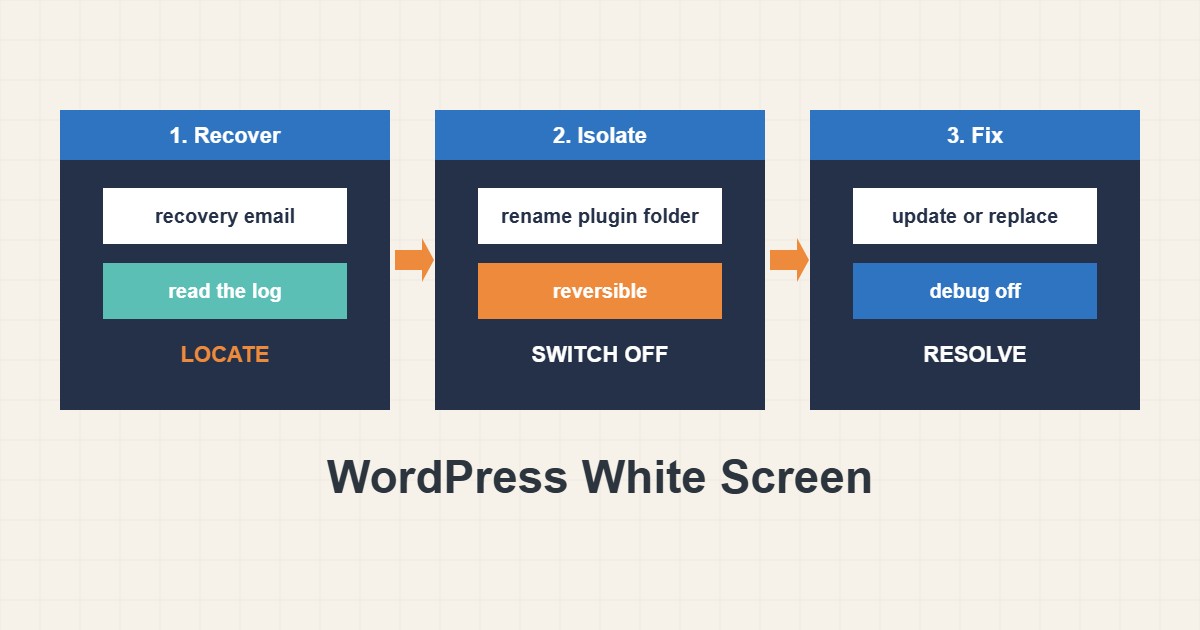
“There has been a critical error on this website” or a plain white page usually means PHP stopped on a fatal error, most often in a plugin, a theme or after an update. The dangerous reaction is to delete things. The safe reaction is to find the one component that failed, switch it off in a way you can undo, and keep the evidence. This guide goes from the gentlest tool, recovery mode, to reversible renames and WP-CLI, and ends with how to prevent a repeat.
1. Check email and recovery mode first
Since WordPress 5.2, a fatal error sends an email to the administrator address with a special recovery link. Open it, log in, and WordPress pauses the plugin or theme that caused the error and tells you which one. Deactivate or update that component from the dashboard. Check the spam folder and the address in Settings, General; if the address is old, you will not receive the link, which is one reason to keep it current.
2. Read the real error
The white page hides the message but a log has it. Turn on logging without showing errors (see the update guide for the safe backup habit before changes), reproduce the problem and read the end of the log:
tail -n 30 wp-content/debug.logA line such as “Uncaught Error” followed by a path under wp-content/plugins/ names the plugin. “Allowed memory size exhausted” points to memory, not code. On cPanel the log files are explained in the resource limits guide and the PHP error logs guide.
3. Switch off the suspect with a reversible rename
If you cannot log in, use File Manager, FTP or SSH. Renaming a folder deactivates the plugin without losing its files or settings:
cd wp-content
# Rename one suspect plugin folder (reversible)
mv plugins/example-plugin plugins/example-plugin.off

# Or disable all plugins at once to test
mv plugins plugins.off && mkdir plugins
Reload the site. If it returns, the plugin was the cause; rename folders back one by one to find which one. Rename, do not delete, so you can restore the exact state and report the bug to the author.
4. Use WP-CLI when you have shell access
WP-CLI can deactivate a plugin or switch a theme even when the site is broken, if you skip loading plugins and themes:
wp plugin list --status=active --fields=name,version
wp plugin deactivate example-plugin --skip-plugins --skip-themes
wp theme list --fields=name,status
wp theme activate twentytwentyfour --skip-plugins --skip-themes
If a theme is the cause, activating a default theme brings the site back so you can fix the custom one. Keep notes of every change you make.
5. Check memory, PHP version and the last change
Ask what changed last: a plugin update, a PHP version switch or a new snippet. Going back one step is often the fastest fix; the PHP version guide explains switching versions. If memory is the problem, raise the limit only moderately and find the plugin that uses so much.
6. Illustrative example, not a measurement
Imagine the log says a plugin file at wp-content/plugins/example-plugin/main.php called a function that does not exist after a PHP upgrade (made-up case). Renaming that one folder brings the site back within a minute. You then update the plugin, or choose a different one, and rename it back only when a compatible version is installed. Nothing was deleted, and the log line told you exactly where to look.
7. Common mistakes
- Deleting plugins or the whole wp-content folder in panic.
- Disabling all plugins when the log already names one.
- Ignoring the recovery email.
- Raising the memory limit to a huge value without finding the cause.
- Leaving debugging on after the fix.
- Making several changes before testing.
8. Frequently asked questions
Will renaming a plugin folder lose my settings? Usually no. Settings are stored in the database, so they return when the plugin is active again.
I do not get the recovery email. What now? Use the log and rename method. Also check that the administrator email in Settings is correct.
Is the white screen always a plugin? No. It can be a theme, PHP version, memory or a corrupted file. The log tells which.
Should I restore a backup immediately? If the site is business critical and a good backup exists, yes, but still find the cause or it will return.
9. Quick checklist
- Check email for the recovery link.
- Turn on logging and read the error.
- Rename the named plugin or theme folder.
- Test the site and the admin.
- Use WP-CLI if you have shell access.
- Fix, update or replace the component.
- Turn debugging off and note the cause.
If you need help reviewing performance or maintaining a server, see the server management services.
More server and WordPress guides are collected in the article archive.
Official references
WordPress Documentation: FAQ Troubleshooting · WordPress: Debugging in WordPress · Make WordPress Core: Fatal error recovery mode · WP-CLI: wp plugin deactivate