
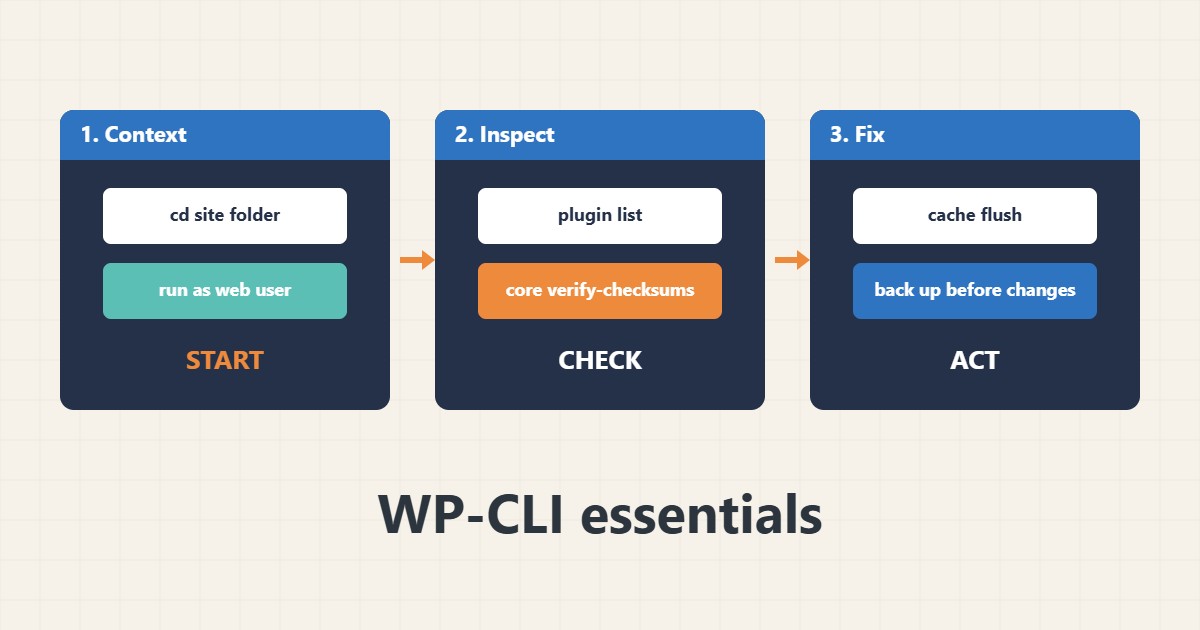
WP-CLI lets you inspect and manage a WordPress site from the command line, which is faster and more repeatable than clicking through the dashboard, and it still works when the dashboard is broken. The main rules are to run it as the right user, from the right directory and to know which commands are read-only. This guide collects a safe set of everyday commands. Commands follow the WP-CLI documentation; I did not run them on your server, and shared hosting may not give shell access.
1. Run it as the right user in the right place
Run WP-CLI from the site folder as the web user so new files get the correct owner. Start with read-only information:
cd /var/www/example
sudo -u www-data wp --info              # PHP version, WP-CLI version, paths
sudo -u www-data wp core version
sudo -u www-data wp option get siteurl
sudo -u www-data wp option get home
If the version or PHP is wrong, see the PHP version guide.
2. Check plugins, themes and core
List what is installed, see available updates and verify core files against official checksums:
sudo -u www-data wp plugin list --fields=name,status,update,version
sudo -u www-data wp theme list
sudo -u www-data wp core check-update
sudo -u www-data wp core verify-checksums
Updates should follow a backup and test; see the safe update guide and the backup guide. Changed core files can be a sign of compromise.
3. Review users without exposing passwords
List users and administrators, and set passwords through a prompt rather than on the command line:
sudo -u www-data wp user list --fields=ID,user_login,roles
sudo -u www-data wp user list --role=administrator
# Reset a lost password without sending the new one to chat or tickets
sudo -u www-data wp user update 2 --prompt=user_pass
Unknown administrators deserve attention; see the admin risk guide and the login hardening guide.
4. Cache, rewrite rules, cron and database
These commands fix common small problems and check health:
sudo -u www-data wp cache flush
sudo -u www-data wp rewrite flush
sudo -u www-data wp cron event list
sudo -u www-data wp db check
For scheduled-task problems see the WP-Cron guide.
5. Mistakes to avoid
These habits cause damage:
Running wp as root                 # creates root-owned files in wp-content
wp plugin update --all on live        # without a backup or test
wp db reset / wp site empty           # destructive; never run casually
Pasting a password into the command   # stays in shell history
Read a command’s help before running it: wp help <command>.
6. Illustrative example, not a measurement
Imagine a site (made-up) whose dashboard shows a white screen. From the shell, the admin lists plugins, sees one with a pending update and an error in the log, deactivates it with WP-CLI and the site loads again. The same session verifies core checksums and finds no modified files.
7. Common mistakes
- Running wp as root.
- Updating everything on live without a backup.
- Using destructive commands casually.
- Typing passwords into commands.
- Forgetting –path when outside the site folder.
- Ignoring checksum warnings.
8. Frequently asked questions
Do I need WP-CLI installed? Yes, it is a separate command-line tool.
Why run as the web user? So files created by WP-CLI have the right owner.
Is verify-checksums safe? Yes, it only reads and compares files.
Does it work on shared hosting? Only if the host allows SSH and installs it.
9. Quick checklist
- Go to the site folder.
- Run as the web user.
- Check versions and URLs.
- List plugins and users.
- Verify core checksums.
- Back up before changes.
- Avoid destructive commands.
If you need help reviewing performance or maintaining a server, see the server management services.
More server and WordPress guides are collected in the article archive.
Official references
WP-CLI: Commands · WP-CLI Handbook · WP-CLI: wp core · WP-CLI: wp plugin