
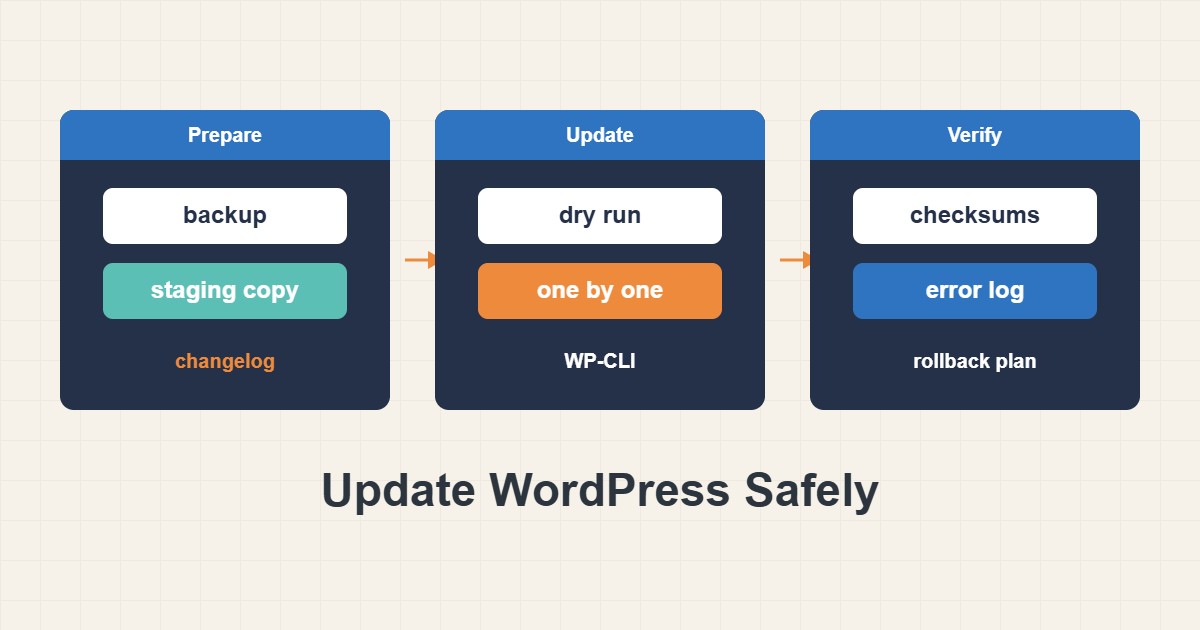
Most hacked and broken WordPress sites share one cause: updates that were skipped for months, or applied in a hurry with no way back. Updating is not optional, but doing it safely is a process, not a button. This guide gives a routine that works on a small site: check what is outdated, take a backup you can restore, preview the changes, update in small steps, verify the result and know how to roll back. It uses WP-CLI for precision, but every step has a dashboard equivalent.
1. Know what you are about to change
Start by listing what is outdated and taking an export before touching anything:
# 1) What is outdated, and a restorable backup (WP-CLI, run in the WordPress folder)
wp core check-update
wp plugin list --update=available
wp theme list --update=available
wp db export ~/before-update-$(date +%F).sql
The export is a safety net only if it can be restored. Load it into a test database at least once, as in Verify MySQL Backups by Restoring Them, and keep a copy off the server, as in cPanel Backups: Full Backup and Safe Restore. Also read the changelog of anything that jumps a major version, because a note such as “requires PHP 8.1” can break a site on an older PHP, which you can check against Change the PHP Version in cPanel Safely.
2. Prefer a staging copy for risky updates
A staging copy lets you update first and break nothing public. Use it for major versions of themes and builders, for WooCommerce and for anything that touches checkout. For a small blog with a few well-known plugins, patch and minor updates are often safe straight on the live site after a backup, but the larger the jump, the stronger the reason to test first. Keep staging out of search engines and make sure it cannot send real email or take real payments.
3. Preview the updates
Ask WP-CLI what it would do before it does it:
# 2) Preview only: shows what would change, updates nothing
wp plugin update --all --dry-run
The output lists each plugin with its current and new version. Look for big jumps, for plugins you no longer use, and for anything you do not recognize. Remove unused plugins instead of updating them, because deleted code cannot be exploited. Write the list in your notes so you know what changed if something breaks.
4. Update in small steps
Updating everything at once makes the cause of a failure hard to find. Update one item or one small group at a time, then test:
# 3) Update one item at a time, then test the site before the next one
wp plugin update example-plugin
After each step, load the home page, a post, the login page and, if you have them, a contact form and the checkout. Order the updates sensibly: WordPress core first, then themes and plugins, then any must-use code. If something breaks, you know exactly which step to undo.
5. Verify after updating
Run integrity checks and look at the error log:
# 4) After updating: integrity checks and recent errors
wp core verify-checksums
wp plugin verify-checksums --all
tail -n 50 wp-content/debug.log   # only if WP_DEBUG_LOG is on
The checksum commands compare core and wordpress.org plugin files with their official versions, which is useful both after an update and when you suspect tampering. They cannot check premium plugins that are not hosted on wordpress.org. The error log only exists if debug logging is on, so turn it on briefly while testing and turn it off again.
6. Know how to roll back
Recent WordPress versions can roll back a failed plugin auto-update that causes a fatal error, but that safeguard does not catch visual or logic problems, so keep your own way back:
# 5) Roll back one plugin to a known-good version
wp plugin install example-plugin --version=1.2.3 --force

# If the update changed the database, restore the export instead
wp db import ~/before-update-2026-10-17.sql
Reinstalling an older plugin version fixes code problems. If the new version already changed the database, the old code may not understand it, and the export from step one is the real rollback. Decide in advance which one you would use.
7. Choose how automatic you want to be
WordPress installs minor core security releases automatically by default, and plugin and theme auto-updates can be switched on per item in the dashboard. You can control core behavior in the configuration file:
// 6) wp-config.php: core updates for minor (security) releases only
define('WP_AUTO_UPDATE_CORE', 'minor');
A good policy for a small site is automatic minor core updates, automatic updates only for plugins you trust and that rarely break, and manual updates for everything that touches revenue. Automatic does not mean unwatched, so look at the site after the usual update window.
8. A worked example
This example is illustrative, not a record of a real site. A site has 14 plugins, 3 with updates available, and one of them jumps from 4.x to 5.x. You export the database, preview, update the two small ones, test, then update the big one alone. The checkout page now shows an error. Because you changed one thing, you roll that plugin back to the previous version, the checkout works again, and you open a ticket with the author instead of guessing.
9. Common mistakes
- Updating with no backup, or with a backup that was never tested.
- Updating everything at once, then not knowing what broke the site.
- Ignoring the PHP version a new release requires.
- Leaving unused plugins installed and out of date.
- Testing only the home page and missing checkout or forms.
10. Frequently asked questions
How often should I update? Check at least weekly, and apply security releases quickly. A fixed day and time makes it a habit.
Are nulled or pirated plugins safe to update? No. They often contain malicious code and do not get official updates, so replace them with licensed versions.
Can I update on shared hosting without SSH? Yes, use the dashboard with the same routine: backup, small steps, test.
Does updating cause downtime? Usually only seconds. For large updates you can enable maintenance mode in WP-CLI with wp maintenance-mode activate and turn it off afterwards.
What if the dashboard is unreachable after an update? Rename the plugin folder over FTP or the file manager to disable it, then reload. That is a temporary measure, so restore or roll back properly afterwards.
11. Quick checklist
- List what is outdated and read changelogs for big jumps.
- Export the database and confirm it restores.
- Preview with a dry run and remove unused plugins.
- Update core first, then one plugin or theme at a time, testing after each.
- Run checksum checks and read the error log.
- Keep the rollback commands in your notes and decide on an update policy.
If you need help reviewing performance or maintaining a server, see the server management services.
More server and WordPress guides are collected in the article archive.
Official references
WordPress: Updating WordPress · WP-CLI: plugin update · WP-CLI: core verify-checksums · WP-CLI: db