
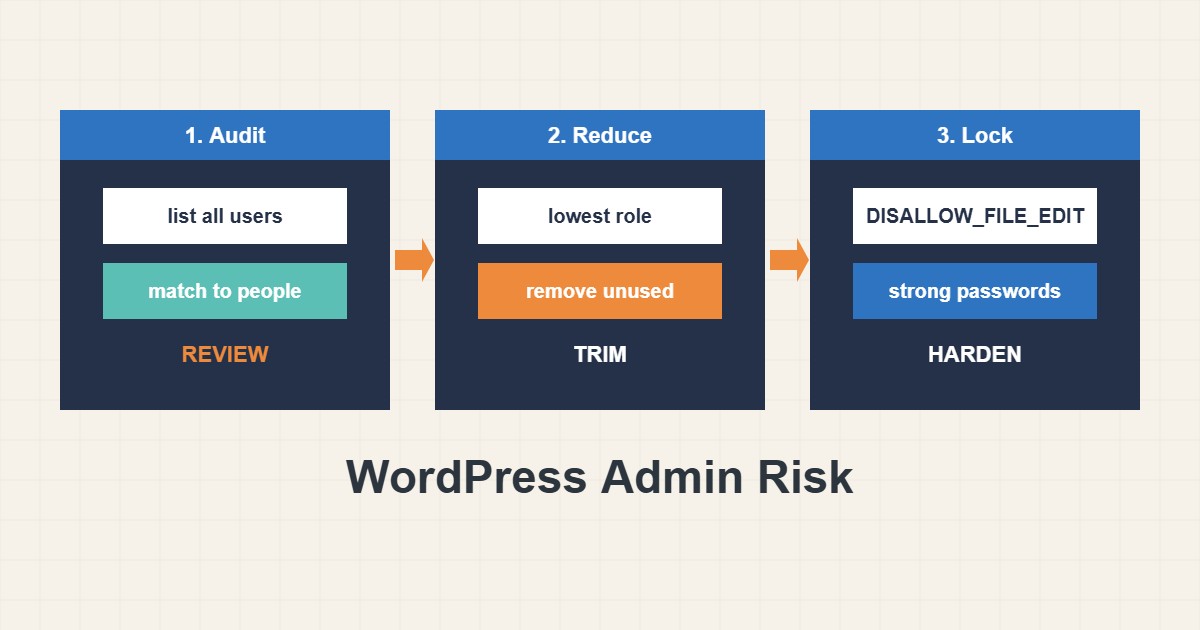
Most WordPress compromises do not start with a clever exploit. They start with an administrator account that should not exist: a former agency, a forgotten test user or a developer who now only needs to write posts. Every administrator can install code, so every administrator account is a way into the whole server. This guide shows how to review who has access, give each person the lowest role that lets them work, remove what is unused, and turn off the built-in file editor so a stolen login cannot edit PHP files from the browser.
1. List every user and role
Open Users in the dashboard and filter by Administrator. If you have WP-CLI, one command prints everything with registration dates:
wp user list --fields=ID,user_login,user_email,roles,user_registered --orderby=user_registeredWrite down who each account belongs to. Anyone you cannot identify needs a question, not a guess. Pay attention to old accounts, shared accounts used by several people and accounts whose email address is no longer valid.
2. Give the lowest role that works
WordPress has five standard roles. Administrators manage everything, Editors manage all content, Authors publish their own posts, Contributors write but cannot publish and Subscribers only have a profile. A person who writes articles needs Author or Editor, not Administrator. Keep one or two administrators you trust, and use a separate everyday account for normal work so a hacked browser session does not hold the highest rights.
3. Remove or demote unused accounts
Before deleting a user, check what they own: WordPress asks whether to reassign their posts to another user, and you should choose that rather than delete content. If you are unsure whether an account is still needed, demote it to Subscriber first and watch for complaints. Also review Application Passwords in each profile, since they are separate credentials for the REST API. Back up the site before large cleanups; the safe update guide describes a practical backup routine.
4. Turn off the dashboard file editor
The theme and plugin editors let an administrator change PHP code from the browser. An attacker who gets one login can add a backdoor in seconds. Disable the editors with one constant:
// wp-config.php, before the line 'That's all, stop editing!'
define('DISALLOW_FILE_EDIT', true);

// Stronger, but blocks ALL updates and installs from the dashboard:
// define('DISALLOW_FILE_MODS', true);
DISALLOW_FILE_EDIT removes only the editors and is safe for most sites. The stronger DISALLOW_FILE_MODS also blocks plugin and theme installs and updates from the dashboard, so use it only if you update through another process. Restore from a copy of wp-config.php if something goes wrong.
5. Strengthen what remains
Use unique long passwords with a password manager and turn on two-factor for administrators; rate limits and XML-RPC are covered in the login hardening article on this site. Log out sessions after a staff change: changing the secret keys in wp-config.php signs everyone out at once, which is useful after a suspected compromise.
6. Illustrative example, not a measurement
Imagine the command prints the following (made-up data):
ID  user_login  roles          user_registered
1   owner       administrator  2022-03-01
7   designer    administrator  2023-09-12
12  oldagency   administrator  2021-05-20
User 12 was created in 2021 for an agency that no longer works with you. The safest path is to confirm with the agency, reassign any posts, and delete or demote the account. User 7 is a designer who only edits pages, so Editor is enough. The result is one administrator instead of three, with the same work still possible.
7. Common mistakes
- Giving everyone Administrator because it is easier.
- Deleting a user without reassigning their content.
- Sharing one login among several people.
- Forgetting application passwords and old API users.
- Enabling DISALLOW_FILE_MODS and then wondering why updates disappeared.
- Not knowing who owns each administrator account.
8. Frequently asked questions
How many administrators should a site have? As few as possible, often one or two people you trust.
Does disabling the file editor stop all attacks? No. It removes one easy path. You still need updates, strong passwords and backups.
Is it safe to rename the admin username? Create a new administrator with a different name, log in with it and delete the old one, reassigning content.
What if I cannot access the old account owner? Demote the account first, keep the content and note the decision.
9. Quick checklist
- List all users and roles.
- Match each account to a real person.
- Lower roles to the minimum needed.
- Remove or demote unused accounts, reassigning content.
- Review application passwords.
- Add DISALLOW_FILE_EDIT to wp-config.php.
- Use unique passwords and two-factor.
If you need help reviewing performance or maintaining a server, see the server management services.
More server and WordPress guides are collected in the article archive.
Official references
WordPress Documentation: Roles and Capabilities · WordPress: Hardening WordPress · WP-CLI: wp user list · WordPress: Editing wp-config.php