
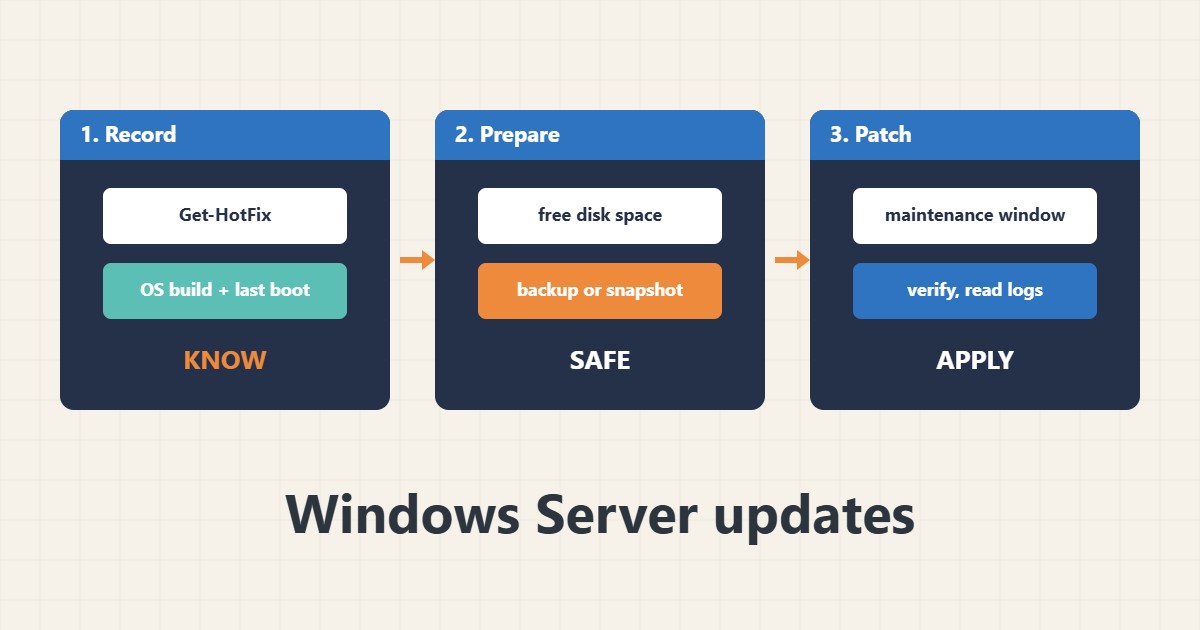
Updates close security holes, but an unplanned update can also restart a server at the wrong time or fail halfway. A safe routine is boring: know what is installed, take a backup, patch in a window, confirm services afterwards and read the logs if something fails. Commands follow the Microsoft documentation; I did not run them on your server, and options differ between Windows Server versions.
1. Know what is installed
Record the OS build, the latest installed updates and the last boot time before changing anything:
Get-ComputerInfo | Select-Object OsName, OsVersion, WindowsBuildLabEx
Get-HotFix | Sort-Object InstalledOn -Descending | Select-Object -First 10 HotFixID, InstalledOn, Description
(Get-CimInstance Win32_OperatingSystem).LastBootUpTime
Keep this record with your change notes.
2. Prepare: space, services and a way back
Check free disk space, the update services and that a recent backup or snapshot exists:
# Before patching: a restore point is not enough on servers. Take a VM snapshot or backup first.
Get-PSDrive C | Select-Object Used, Free          # free space for the update cache
Get-Service wuauserv, TrustedInstaller | Select-Object Name, Status
wbadmin get versions
See the backup guide for tested backups. If disk space is low, free it safely first.
3. Patch in a maintenance window
Use the menu tool or your management tool, patch one server or a small group first, and check for pending reboots:
# Server Core or any server: interactive menu
sconfig
# Check pending reboot flags before and after
Test-Path 'HKLM:\SOFTWARE\Microsoft\Windows\CurrentVersion\WindowsUpdate\Auto Update\RebootRequired'
After the restart verify the services and the site; see the firewall guide for rules that may need review.
4. Read the logs when something fails
Generate the readable update log and look at the client events:
Get-WindowsUpdateLog -LogPath C:\Temp\WindowsUpdate.log
Select-String -Path C:\Temp\WindowsUpdate.log -Pattern 'FATAL|Error|0x8' | Select-Object -Last 15
Get-WinEvent -FilterHashtable @{LogName='System'; ProviderName='Microsoft-Windows-WindowsUpdateClient'} -MaxEvents 20 | Select-Object TimeCreated, Id, Message
Combine with the restart timeline from the Event Log to see what happened and when.
5. Mistakes to avoid
These habits turn patching into outages:
Patching all servers at once                # one bad update takes down everything
Automatic restart in business hours        # unexpected downtime
Updating with less than a few GB free      # failed installs and rollbacks
No snapshot or backup before patching      # no quick way back
Document the order of servers so dependencies come back in the right order.
6. Illustrative example, not a measurement
Imagine two web servers (made-up) behind a load balancer. The admin takes a snapshot, patches the first server on Sunday morning, verifies the website and the application pool, and only then patches the second. If the first had failed, the second would still serve traffic.
7. Common mistakes
- Patching everything at once.
- Automatic restarts at business hours.
- Not checking free disk space.
- No backup before patching.
- Skipping verification afterwards.
- Ignoring pending reboot flags.
8. Frequently asked questions
How often should I patch? Regularly, often monthly, and sooner for critical security fixes.
Do I always need to reboot? Many updates require it; plan for it.
Can I roll back an update? Some can be uninstalled, but a snapshot is the reliable way back.
Where are the update logs? Use Get-WindowsUpdateLog and the System event log.
9. Quick checklist
- Record installed updates.
- Check free space.
- Take a backup or snapshot.
- Patch in a window.
- Check pending reboot.
- Verify services and the site.
- Read logs on failure.
If you need help reviewing performance or maintaining a server, see the server management services.
More server and WordPress guides are collected in the article archive.
Official references
Microsoft: Sconfig · Microsoft: Get-HotFix · Microsoft: Windows Update log files · Microsoft: Get-WindowsUpdateLog