
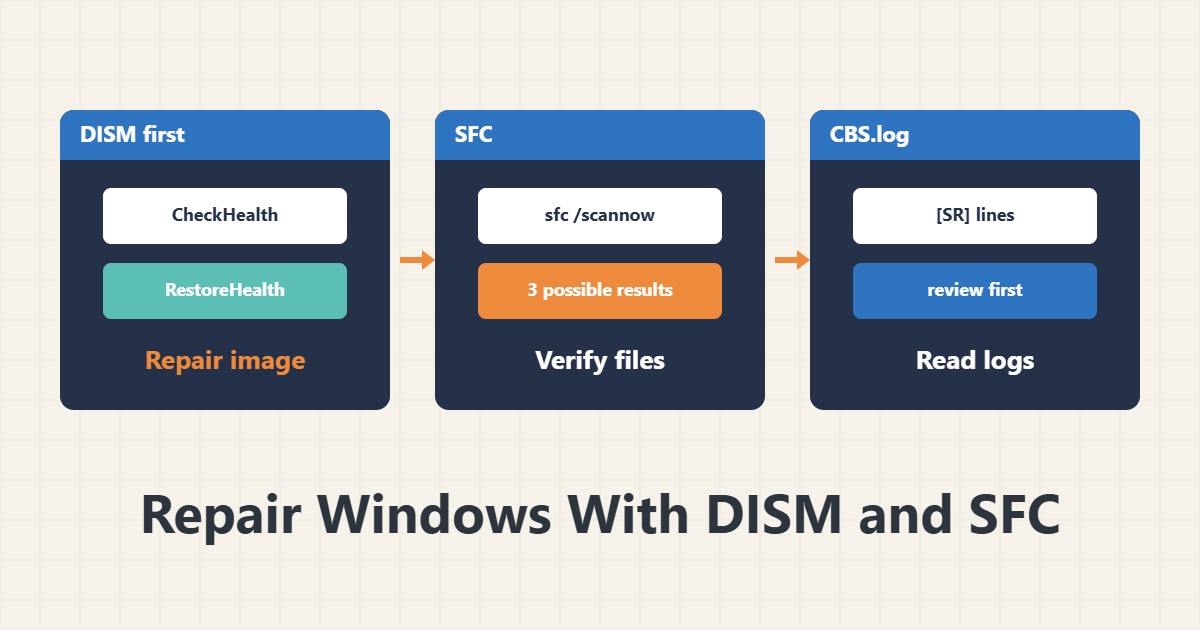
When Windows Server shows errors after a partial update or a service will not start, system files may be corrupt. Two built-in tools help: DISM and SFC. The order matters, because SFC needs a healthy source to repair from.
1. Prerequisites
Run both commands in PowerShell or Command Prompt as Administrator. Take a backup or snapshot first, and schedule a maintenance window if the server is critical. A full run can take several minutes.
2. DISM first
DISM /Online /Cleanup-Image /CheckHealth
DISM /Online /Cleanup-Image /ScanHealth
DISM /Online /Cleanup-Image /RestoreHealth
CheckHealth only shows recorded corruption. ScanHealth is more thorough. RestoreHealth repairs and normally fetches a healthy file from Windows Update. If the server has no internet access, use installation media.
3. Then SFC
sfc /scannowThis compares protected files with a healthy copy. At the end it gives one of three messages: no violations found, corruption found and repaired, or corruption found but not all repaired. In the third case, run DISM again and then repeat SFC.
4. Read the logs
findstr /c:"[SR]" C:\Windows\Logs\CBS\CBS.log > "%userprofile%\Desktop\sfc-details.txt"The SFC log is CBS.log, and lines containing [SR] show the details. The DISM log is in the Logs\DISM folder. Review the output before sharing it, because it contains server names and paths.
5. After the repair
Restart the server if needed and test the problem service. If the corruption returns, check disk health with smartctl or the hardware tools and review your Windows Server update process.
6. Illustrative example, not a measurement
Suppose a service would not start after an update. DISM RestoreHealth succeeded and SFC reported repaired files. After a restart the service started. This scenario is an invented illustration, not a measurement.
7. Common mistakes
- Running SFC before DISM.
- Running without Administrator rights.
- Interrupting the command midway.
- Ignoring the “unable to fix” message.
8. Frequently asked questions
Is SFC alone enough? Not if the healthy source is damaged; run DISM first.
How long does it take? Usually a few minutes to half an hour.
Does it use the internet? RestoreHealth uses Windows Update by default.
9. Quick checklist
- A backup was taken.
- DISM RestoreHealth was run.
- sfc /scannow was run.
- The CBS log was reviewed.
- The service was tested after restart.
If you need help reviewing performance or maintaining a server, see the server management services.
More server and WordPress guides are collected in the article archive.
Official references
Microsoft Learn: sfc · Microsoft Learn: repair a Windows image · Microsoft Learn: DISM image management