
Disks rarely fail without hints. Before the end they usually report reallocated sectors or read errors, and smartctl reads exactly those signals from SMART. This guide covers which numbers matter and when to take your backup more seriously.
1. Install and take a first look
Install smartmontools and read only the overall status first:
sudo apt install smartmontools
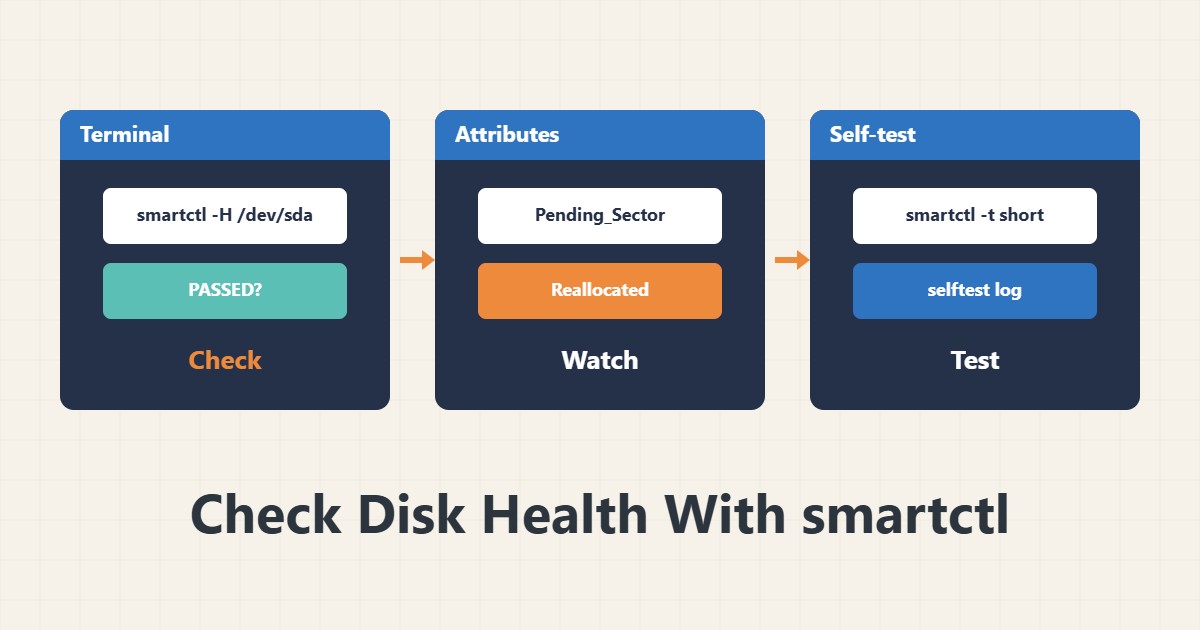
sudo smartctl -H /dev/sda
PASSED means the drive has not declared itself failing yet; it is not a guarantee of health. If you see FAILED, take a backup first and plan a replacement afterwards.
2. Attributes worth watching
See the full output with sudo smartctl -a /dev/sda and focus on these:
Reallocated_Sector_Ct: sectors the drive has already replaced.Current_Pending_Sector: suspicious sectors waiting to be remapped.Offline_Uncorrectable: errors that could not be corrected.UDMA_CRC_Error_Count: usually a cable or connector problem, not the disk itself.
Zero for the first three is good. A number that keeps growing between checks matters more than a small, stable one.
3. Short and long self-tests
sudo smartctl -t short /dev/sda
sudo smartctl -l selftest /dev/sda
The short test takes a few minutes. The long test (-t long) reads the whole surface and can take hours, so run it in a quiet window. Results appear in the self-test log.
4. NVMe, RAID and virtual servers
For NVMe use sudo smartctl -a /dev/nvme0 and look at Percentage Used and Media and Data Integrity Errors. Behind a hardware RAID controller you must name the controller type, for example -d megaraid,0. On most VPS plans the virtual disk exposes no SMART; physical disk health is the provider’s job.
5. Check on a schedule
One reading is not enough. Schedule a weekly check with a systemd timer and keep the output so you can see the trend. No alert replaces a tested backup.
6. Illustrative example, not a measurement
Suppose Current_Pending_Sector reads 0, 0 and 8 across three weekly checks. These numbers are invented for explanation, not a real measurement. A jump from zero to eight means it is time for a full backup and a replacement plan, not time to wait for FAILED.
7. Common mistakes
- Trusting PASSED and ignoring the individual attributes.
- Running a long test on a busy server at peak hours.
- Blaming the disk when UDMA_CRC_Error_Count is high and the cable is the problem.
- Expecting SMART from a VPS virtual disk.
8. Frequently asked questions
Does PASSED mean the disk is healthy? Not necessarily; it only means the manufacturer failure threshold has not been crossed.
How often should I check? Weekly is enough for an important server, and the trend matters more than any single number.
Is the long test dangerous? It only reads, but it creates I/O load, so run it when the server is quiet.
9. Quick checklist
- smartmontools is installed.
- Overall status read with -H.
- Three key attributes recorded.
- Short test run and result reviewed.
- Periodic check and a tested backup are in place.
If you need help reviewing performance or maintaining a server, see the server management services.
More server and WordPress guides are collected in the article archive.