
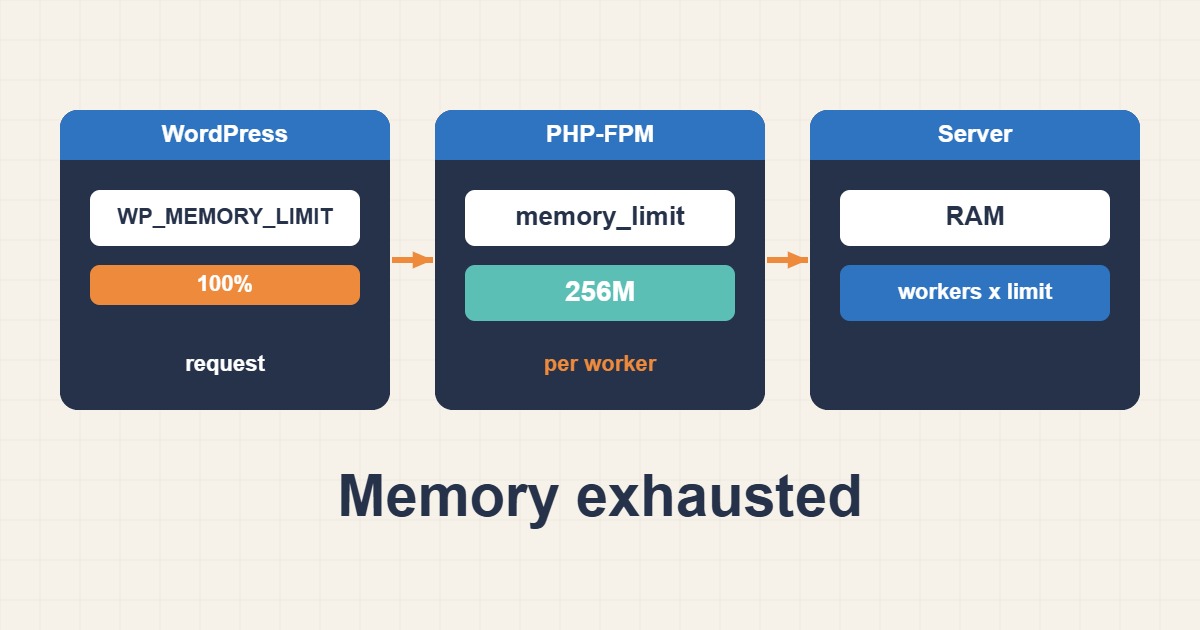
The message “Allowed memory size of 134217728 bytes exhausted” is one of the most common WordPress fatal errors. It means a PHP request tried to use more memory than its limit allows, so PHP stopped it, and you see a white screen, a 500 error or a broken admin page. Simply raising the limit sometimes works, but it can also hide a plugin that leaks memory or a query that loads far too much data. This guide shows how to read the error, find the right limit to change, and fix the cause instead of only the symptom.
1. Read the error message carefully
A typical log line looks like this:
PHP Fatal error: Allowed memory size of 134217728 bytes exhausted (tried to allocate 20480 bytes) in /var/www/example.com/public_html/wp-content/plugins/example/file.php on line 120The first number is the limit in bytes, here 128 MB. The “tried to allocate” part is only the last small step that crossed the limit and is rarely the real culprit. The file path is more useful: it names the plugin, theme or core file that was running when memory ran out. That points to where to look first, although the code that consumed the memory may have run earlier.
2. Know which limit applies
Several settings exist and they are easy to confuse. PHP itself has memory_limit, set in php.ini or a pool file. WordPress has WP_MEMORY_LIMIT for front-end requests and WP_MAX_MEMORY_LIMIT for admin tasks such as image processing. WordPress tries to raise PHP’s limit up to these values, but it cannot go beyond what the server allows. Check what is actually in effect:
php -i | grep memory_limit
php -r 'echo ini_get("memory_limit"), PHP_EOL;'
wp eval 'echo WP_MEMORY_LIMIT, " ", WP_MAX_MEMORY_LIMIT, PHP_EOL;'
The command line may use a different php.ini from the web service, so a value shown in the terminal is not proof of what PHP-FPM uses. Confirm the web value with a temporary phpinfo() page that you delete afterwards, or check the pool configuration directly.
3. Raise the limit in wp-config.php
The quickest change is in wp-config.php, above the line that says to stop editing:
define( 'WP_MEMORY_LIMIT', '256M' );
define( 'WP_MAX_MEMORY_LIMIT', '512M' );
This only works if the server’s memory_limit is at least as high. If PHP is capped at 128M, WordPress cannot exceed it, and the error continues.
4. Raise the limit in PHP configuration
For a server you control, set memory_limit in a PHP configuration file rather than in many sites. A small drop-in file keeps the change visible and easy to revert:
; /etc/php/8.3/fpm/conf.d/90-memory.ini
memory_limit = 256M
Validate the configuration and reload PHP-FPM so the new value takes effect:
sudo php-fpm8.3 -t
sudo systemctl reload php8.3-fpm
On Apache with mod_php you can use php_value memory_limit 256M in .htaccess, but this does not work with PHP-FPM or CGI, and it can cause a 500 error when the directive is not allowed.
5. Do not just set it to unlimited
Setting memory_limit = -1 removes the safety net. A runaway script can then consume all RAM and trigger the kernel’s out-of-memory killer, which may stop MySQL or the whole web service. Troubleshoot Linux OOM Killer and High Memory Usage explains what happens at that point. Choose a finite value that fits your hardware and the number of workers.
6. Do the memory arithmetic for PHP-FPM
Each PHP-FPM worker can use up to memory_limit. If the pool allows 20 workers and the limit is 256M, the theoretical worst case is 5 GB. In practice most requests use far less, but heavy ones such as imports and image regeneration can approach the limit together. Compare the limit and worker count with real RAM, and read Tune PHP-FPM and Fix 504 Gateway Timeout: A Practical Pool Guide for how to size a pool.
7. Turn on a safe debug log
To see exactly which request fails, log errors to a file instead of printing them to visitors:
define( 'WP_DEBUG', true );
define( 'WP_DEBUG_LOG', true );
define( 'WP_DEBUG_DISPLAY', false );
Reproduce the problem and read the log:
tail -n 50 /var/www/example.com/public_html/wp-content/debug.log
sudo tail -n 50 /var/log/php8.3-fpm.log
Turn debugging off afterwards, and make sure the log file cannot be downloaded from the web, because it can reveal paths and plugin names.
8. Find the plugin or theme at fault
If the log shows one plugin repeatedly, test with it disabled. When the cause is unclear, isolate by deactivating everything and enabling items one by one. WP-CLI makes this quick and also works when the admin panel itself crashes:
wp plugin deactivate --all
wp plugin activate example-plugin
wp theme activate twentytwentyfour
Do this on a staging copy when possible. Deactivating plugins on a live shop or membership site can change behavior for real users.
9. Look for heavy operations
Memory spikes often come from specific jobs: importing large CSV or XML files, generating many image sizes, building a backup inside PHP, running a page builder with huge layouts, or a plugin that loads thousands of posts with no limit. If the error appears only in the admin during one task, process that task in smaller batches or run it through WP-CLI, which often has a higher limit and no web timeout.
10. Large queries and autoloaded data
Some plugins call functions that load every post or option at once. The WordPress options table loads rows marked as autoload on every request, so a bloated autoload set raises memory use everywhere. If memory use is high on every page, inspect the size of autoloaded options before assuming you need a larger limit.
11. Check OPcache and stale code
After you update plugin files, PHP may keep serving old compiled code, which can produce confusing errors that look like memory problems. If the error appears right after a deployment, read Fix Stale PHP Code After Deployment with OPcache and clear OPcache properly before changing limits.
12. Common mistakes
- Editing
wp-config.phpwhile PHP’s own limit is lower. - Checking CLI
php.iniand assuming PHP-FPM uses it. - Setting unlimited memory on a small server.
- Forgetting to reload PHP-FPM after changing a pool or ini file.
- Leaving debug logging on and publicly readable.
- Raising the limit repeatedly without finding the leaking plugin.
13. When a bigger limit is the right answer
Some workloads genuinely need more memory, such as large WooCommerce stores, big media libraries and heavy page builders. In that case raise the limit in steps, watch real usage, and make sure the server has the RAM to back it. A modest increase with monitoring is better than a large number chosen at random. If memory use keeps growing after each increase, the problem is a leak or a bad query, not a limit that is too small.
14. A worked example
A site shows a white screen when an administrator opens a media import page. The log names a plugin file and a 128 MB limit. The CLI reports 256M but the pool file sets 128M, so the web process never had the higher value. After setting 256M in the PHP-FPM drop-in file and reloading, the import runs in smaller batches without errors. This is an illustration of the process, not a measurement from a real site.
15. Quick checklist
- Read the log line and note the limit and the file path.
- Find which limit is in effect for the web process.
- Raise
memory_limitand the WordPress constants in steps. - Validate and reload PHP-FPM.
- Check worker count against total RAM.
- Isolate the plugin or task that needs the memory, then fix it.
More server guides are collected in the article archive.
Official references
PHP manual: memory_limit · WordPress: Increasing memory allocated to PHP · WordPress: Debugging in WordPress · PHP manual: FPM configuration