
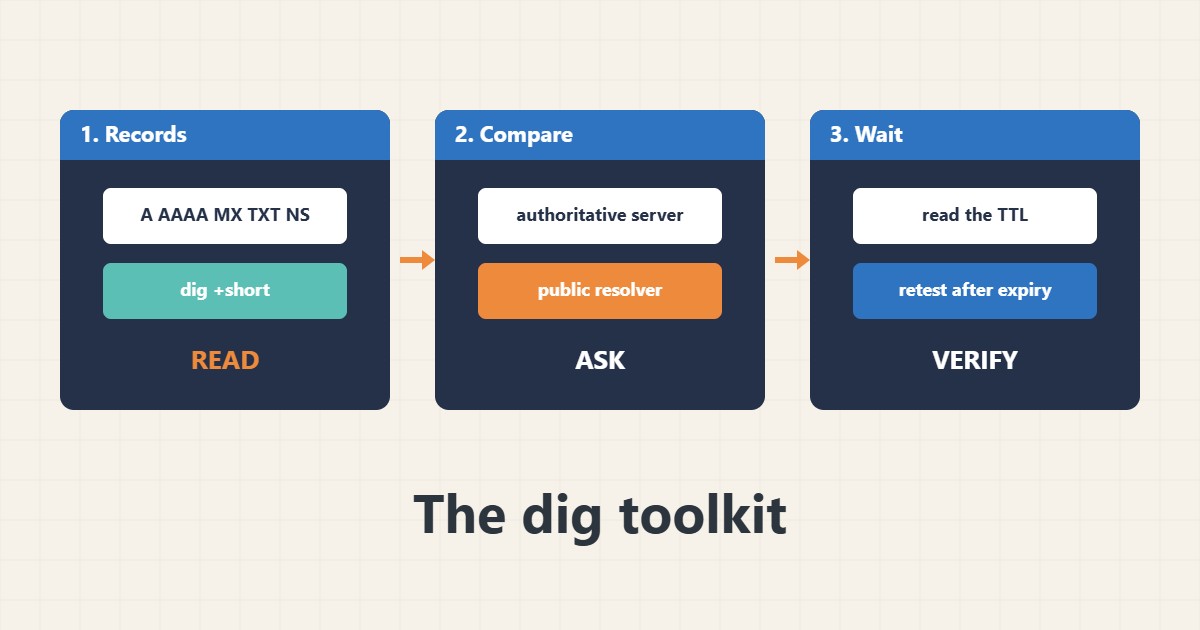
When a website or mailbox stops working after a DNS change, guessing wastes hours. The dig command shows exactly what a DNS server answers. This guide covers the few commands you need: reading common record types, asking the authoritative server, comparing resolvers, reading TTL values and checking email records. Commands follow the BIND documentation; I did not run them against your domain, so replace example.com with your own name.
1. Read the common records
Start with the short form for each record type:
dig +short example.com A
dig +short example.com AAAA
dig +short example.com MX
dig +short example.com TXT
dig +short example.com NS
An empty answer means no such record exists for that exact name.
2. Ask the authoritative server
Find the name servers, then ask one directly and compare with a public resolver. If they differ, the change has not propagated or is cached:
dig example.com NS +short                 # find the authoritative servers
dig @ns1.example-dns.net example.com A +noall +answer +authority
dig @1.1.1.1 example.com A +noall +answer   # what a public resolver says
Propagation is mostly caching; see the redirect guide for a related web-side check and plan TTLs before migrations.
3. Read TTL and trace the path
The number before the record type is the remaining cache time in seconds. Trace shows each delegation step:
dig +noall +answer example.com A      # note the TTL column (seconds left in cache)
dig +trace example.com A | tail -n 15
dig -x 203.0.113.10 +short                 # reverse lookup
Lower the TTL before a planned change, not after.
4. Check email records
Mail problems often come from missing or duplicate TXT records:
dig +short TXT example.com | grep -i spf
dig +short TXT _dmarc.example.com
dig +short TXT selector1._domainkey.example.com
dig +short MX example.com
Remember one SPF record per name. For DNS trouble on the server itself see the systemd-resolved guide.
5. Mistakes to avoid
These errors lead to wrong conclusions:
Testing only through your own ISP resolver  # may show a cached old answer
Forgetting the www and the apex separately # two different names
Editing DNS then testing at once           # TTL keeps the old value for a while
Publishing two SPF records                 # only one is allowed
Always note which resolver answered.
6. Illustrative example, not a measurement
Imagine a company (made-up) that moved its website to a new IP, but some users still see the old site. dig against the authoritative server shows the new IP, while a public resolver still returns the old one with 2,800 seconds of TTL left. The record is correct, so the team waits for the cache to expire instead of changing it again.
7. Common mistakes
- Testing through one resolver only.
- Mixing up apex and www.
- Testing immediately after an edit.
- Publishing duplicate SPF records.
- Ignoring the TTL.
- Not checking AAAA records.
8. Frequently asked questions
What does +short do? It prints only the answers without extra detail.
What does +trace do? It follows the DNS delegation from the root down.
Why do resolvers differ? Caching and propagation delays.
Is nslookup enough? It works, but dig gives clearer and more detailed output.
9. Quick checklist
- Query A, AAAA, MX, TXT.
- Find the NS records.
- Ask the authoritative server.
- Compare a public resolver.
- Read the TTL.
- Check SPF and DMARC.
- Wait for caches, then retest.
If you need help reviewing performance or maintaining a server, see the server management services.
More server and WordPress guides are collected in the article archive.
Official references
BIND 9: dig · RFC 1035: Domain names · RFC 4408 (SPF background) · RFC 7489: DMARC