
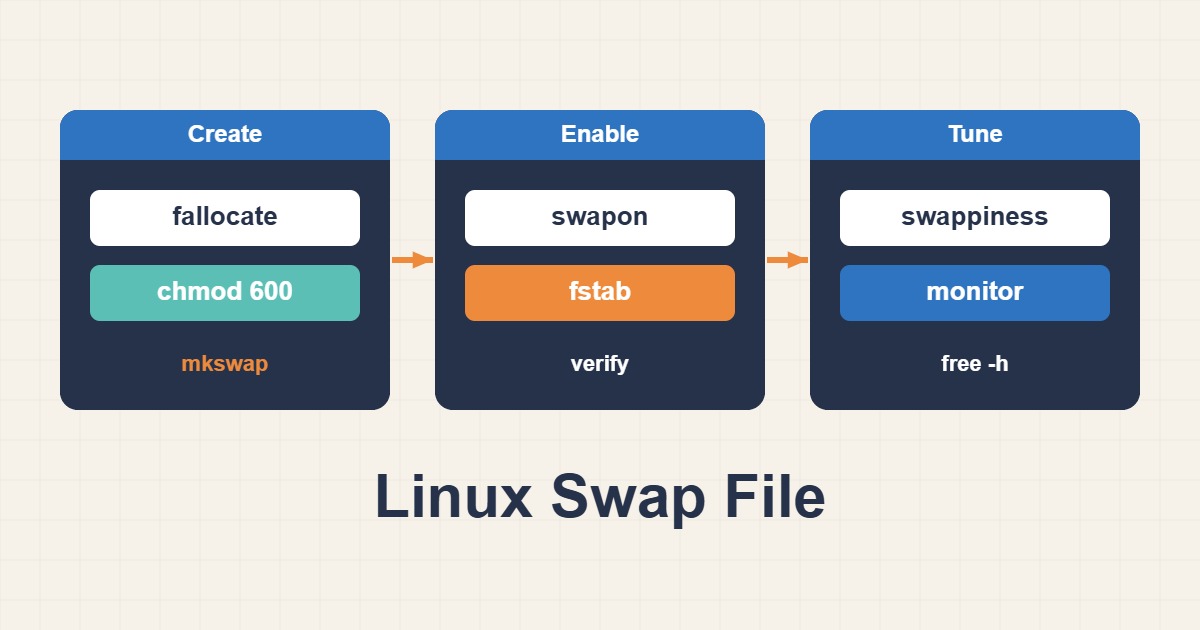
A Linux server that runs out of memory does not always fail loudly. Sometimes it just gets slow, and sometimes the kernel’s OOM killer quietly ends your database. A small swap file will not fix a real memory shortage, but it gives the kernel room to push rarely used pages out of RAM and buys you time to notice the problem. This guide shows how to add a swap file on Linux the safe way: check what you have, create the file with the right permissions, make it survive a reboot, and tune swappiness without breaking anything.
The commands below are written for a typical systemd-based distribution such as Ubuntu or Debian. Read each one before you run it, and keep a second SSH session open while you edit system files.
1. What swap is for, and what it is not
Swap is disk space the kernel can use when RAM is under pressure. It moves anonymous memory pages that nothing has touched for a while to disk, which frees RAM for the page cache or for active processes. It is a safety margin, not extra memory. Disk is orders of magnitude slower than RAM, so a machine that swaps constantly is not fine, it is thrashing.
That is why swap is worth having even on a server with plenty of RAM: a small amount lets the kernel evict genuinely idle pages instead of killing a process during a short spike.
2. Check the current state first
free -h
swapon --show
cat /proc/sys/vm/swappiness
df -h /
If swapon --show prints nothing, no swap is active. Look at the free space on the filesystem that will hold the file, and note the current swappiness value, which is 60 on most distributions. Also check whether the host is a container: inside many containers you cannot create swap at all, because it belongs to the host.
3. Decide how much swap to add
There is no single correct number. A practical starting point is about the size of RAM on a small server with 1 or 2 GB, around half of RAM for 4 to 8 GB, and a fixed 2 to 4 GB beyond that. If you want hibernation you need at least as much swap as RAM, but servers rarely hibernate. You can always add a second file later, so start modestly and measure.
4. Create the swap file
This sequence creates a 2 GB file, locks its permissions down, formats it as swap and enables it:
sudo fallocate -l 2G /swapfile
sudo chmod 600 /swapfile
sudo mkswap /swapfile
sudo swapon /swapfile
swapon --show
The chmod 600 step matters. Swap can contain passwords and keys that were in memory, so only root may read it, and swapon warns if the permissions are too open. If fallocate is not supported on your filesystem, or swapon complains about holes in the file, write real blocks instead:
sudo dd if=/dev/zero of=/swapfile bs=1M count=2048 status=progressSome filesystems need special handling. On Btrfs, use btrfs filesystem mkswapfile in a recent btrfs-progs release or follow the Btrfs documentation for swap files, and on ZFS prefer a dedicated swap partition or zram rather than a file.
5. Make it permanent in /etc/fstab
A swap file enabled with swapon disappears at the next reboot. Back up /etc/fstab before you edit it, then add one line:
sudo cp /etc/fstab /etc/fstab.bak
echo '/swapfile none swap sw 0 0' | sudo tee -a /etc/fstab
sudo swapoff /swapfile
sudo swapon -a
swapon --show
Turning the file off and running swapon -a proves the new fstab line works, which is much safer than discovering a typo at the next boot. If swapon --show lists the file again, you are done. Keep the backup until the server has rebooted cleanly once.
6. Tune swappiness without overdoing it
vm.swappiness controls how eagerly the kernel swaps anonymous pages compared with dropping page cache. The default of 60 is a general-purpose balance, and lower values make the kernel prefer reclaiming cache first. Many database and application hosts run with a value between 1 and 10, but test your own workload before copying a number from a blog post, including this one.
sudo sysctl vm.swappiness=10
echo 'vm.swappiness=10' | sudo tee /etc/sysctl.d/99-swap.conf
sudo sysctl --system
The first command changes the running kernel, the second makes the choice persistent, and the third reloads every sysctl file. Do not set it to 0 as a way of disabling swap: it changes the behaviour but does not remove swap, and it makes the machine more likely to reach the OOM killer before using the swap you just created.
7. Watch how swap is actually used
vmstat 1 5
free -h
swapon --show
In vmstat, the si and so columns show memory swapped in and out per second. A little swap in use with si and so near zero is healthy: idle pages parked on disk. Sustained non-zero values mean the working set no longer fits in RAM, and the right fix is to find the memory consumer or add RAM, not to add more swap. The guide on Linux OOM Killer and high memory usage shows how to find the process, and high load average and I/O wait explains what heavy swapping looks like from the disk side.
8. Swap and service memory limits
If you limit services with cgroups, swap interacts with those limits. With systemd, MemoryMax= caps a service’s RAM and MemorySwapMax= caps how much swap it may use; setting the latter to 0 stops a limited service from spilling onto disk. See Limit Service CPU and Memory with systemd and cgroups for the full picture.
9. Remove swap safely
sudo swapoff /swapfile
sudo sed -i '\|^/swapfile |d' /etc/fstab
sudo rm /swapfile
swapoff has to read every swapped page back into RAM first, so it can fail or take a long time if memory is tight. Make sure there is free RAM and check free -h before you start. Remove the fstab line before you delete the file, or the next boot will complain about a missing swap file.
10. Common mistakes
- Leaving the file readable by other users. Use
chmod 600. - Forgetting the fstab line, so swap vanishes after a reboot.
- Putting the swap file on a nearly full disk. Check disk usage and inodes first.
- Treating swap as a replacement for RAM on a machine that is constantly swapping.
- Setting swappiness from a copied snippet without measuring.
11. When swapon fails
Most failures come from three causes. An Invalid argument error usually means the file has holes or sits on a filesystem that does not support swap files, so recreate it with dd or move it to another filesystem. Operation not permitted often means you are inside a container or a restricted virtual machine where swap is controlled by the host. A warning about permissions means you skipped chmod 600; fix it and run swapon again. After every fix, read swapon --show instead of assuming it worked.
12. zram as a low-memory alternative
On very small machines, zram creates a compressed swap device inside RAM. It trades some CPU time for more usable memory and avoids slow disk writes, which suits a 512 MB or 1 GB host. Treat it as a separate design choice: do not stack a large zram device and a large disk swap without understanding their priorities, and measure both CPU use and latency under your real workload before keeping it.
13. A worked example on a 2 GB VPS
Take a small VPS that runs WordPress and MySQL and has no swap. The monthly backup job pushes memory over the limit for a minute, and the OOM killer ends MySQL. A 2 GB swap file with vm.swappiness=10 is a sensible first fix. The illustrative output below shows what a healthy result looks like afterwards: a little swap used, almost no swap traffic.
$ free -h
               total   used   free  shared  buff/cache  available
Mem:           1.9Gi  1.2Gi  120Mi   30Mi       600Mi      560Mi
Swap:          2.0Gi  180Mi  1.8Gi

$ vmstat 1 3
procs -----memory---- ---swap-- -----io----
 r  b   swpd   free   si   so    bi    bo
 1  0 184320 122880    0    0     8    12
These numbers are an example, not a measurement from a real server. The point is the pattern: swpd is non-zero because idle pages were parked on disk, while si and so stay at zero because nothing is being swapped back in under pressure. If the backup job still triggers the OOM killer, the next step is to look at the job itself rather than at swap.
14. Quick checklist
- Run
free -handswapon --show; confirm there is no swap and enough disk space. - Create the file, set
chmod 600, runmkswapandswapon. - Add the line to
/etc/fstaband test it withswapoffplusswapon -a. - Set
vm.swappinessin/etc/sysctl.d/and reload withsysctl --system. - Watch
vmstat; if swapping is constant, find the memory consumer.
More server troubleshooting guides are collected in the article archive.
Official references
swapon(8) · mkswap(8) · fstab(5) · Kernel documentation: /proc/sys/vm