
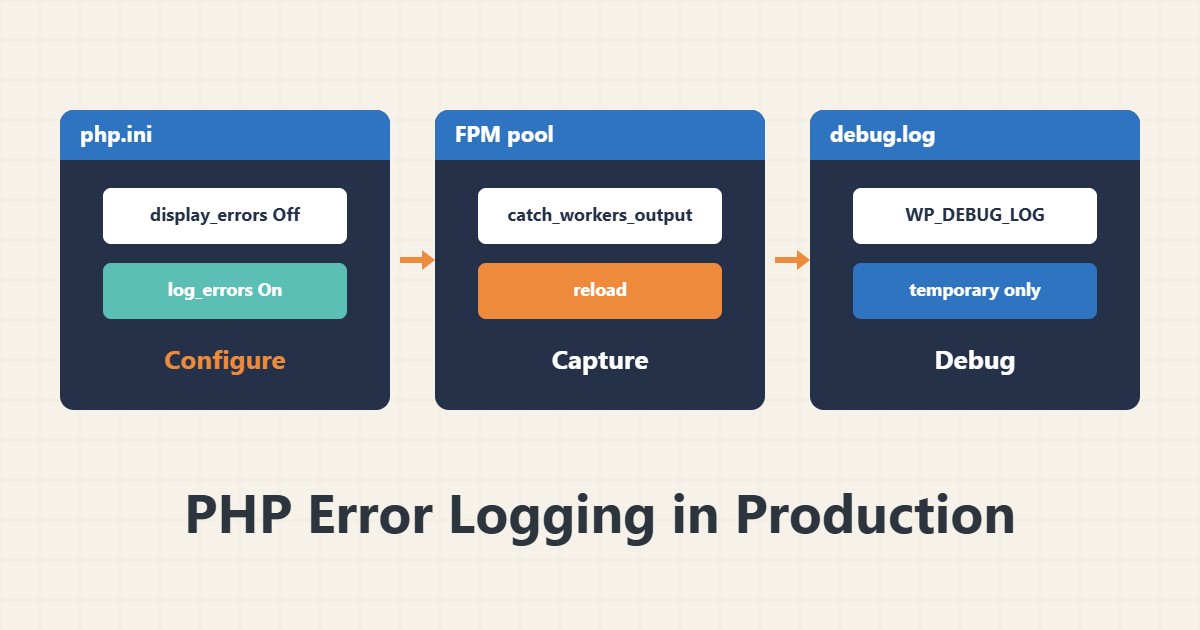
A PHP error printed on the page reveals file paths and internals to everyone, but if it is logged nowhere, you cannot see the problem. The right approach is display off and logging to a file on.
1. php.ini settings
display_errors = Off
log_errors = On
error_log = /var/log/php/error.log
error_reporting = E_ALL
The log path must exist and the PHP user (for example www-data) must be able to write to it. Use php --ini to see the active ini file and php -i | grep error_log for the current value; for PHP-FPM the ini in the fpm folder differs from the CLI one.
2. FPM worker output
; in the pool file
catch_workers_output = yes
This routes worker stderr output to the FPM log. After changing the ini or the pool, reload the PHP-FPM service.
3. WordPress
define( 'WP_DEBUG', true );
define( 'WP_DEBUG_LOG', true );
define( 'WP_DEBUG_DISPLAY', false );
These three lines in wp-config.php write errors to wp-content/debug.log without printing them on the page. Turn them on only for the troubleshooting window and switch them off afterwards. Block public access to debug.log. For more hardening see wp-config.php and safe PHP settings.
4. Reading and searching
tail -f /var/log/php/error.log
grep -E 'Fatal|Warning' /var/log/php/error.log | tail -20
A Fatal usually produces a white screen or a 500. The last Fatal before the time of the problem is the main clue.
5. Log rotation
A log without rotation fills the disk. Configure logrotate for this file.
6. Illustrative example, not a measurement
Suppose a site returned 500 for no visible reason and the error page said nothing. After turning on log_errors, the log showed a Fatal about the memory limit. Only that limit was then corrected. This scenario is an invented illustration, not a measurement.
7. Common mistakes
- display_errors on in a public site.
- A log path without write permission.
- Leaving WP_DEBUG_LOG on after the work.
- Putting debug.log in a downloadable path.
8. Frequently asked questions
Why is the log empty? A path or permission problem, or an ini that FPM does not read.
What should error_reporting be? In production E_ALL with display off is useful for troubleshooting.
Are Nginx or Apache logs not enough? PHP itself records application errors.
9. Quick checklist
- display_errors is off.
- log_errors is on and the path is writable.
- Reload was done.
- The WordPress debug.log is temporary and blocked.
- Log rotation is set.
If you need help reviewing performance or maintaining a server, see the server management services.
More server and WordPress guides are collected in the article archive.
Official references
PHP manual: error handling configuration · WordPress: debugging