
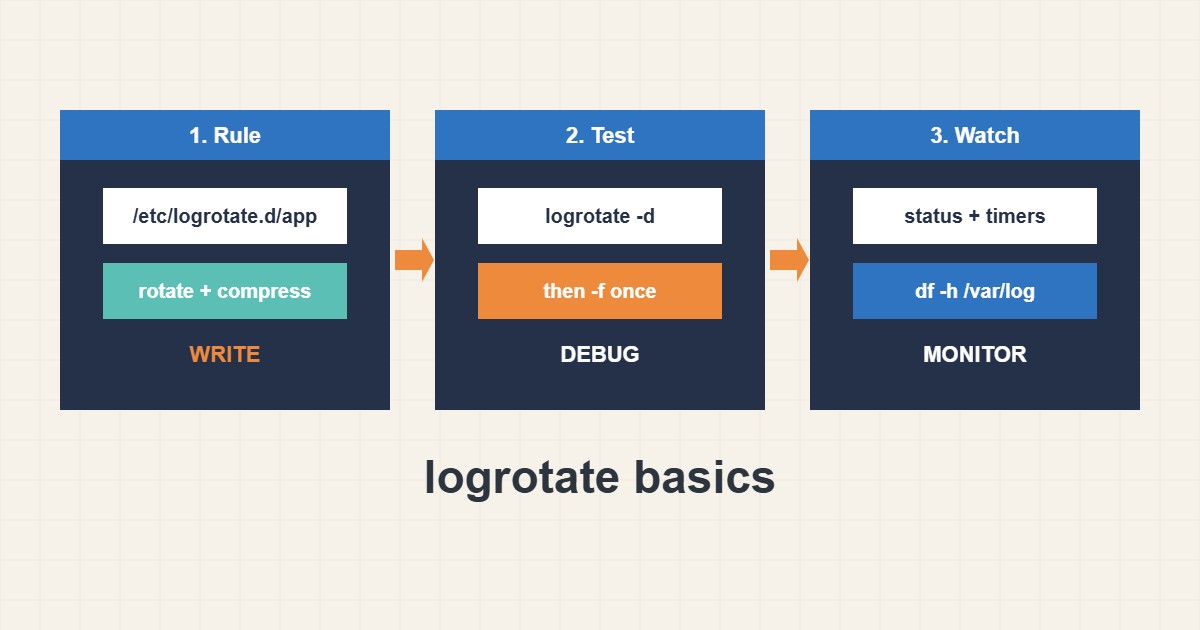
A full disk is one of the most common reasons a server suddenly stops working, and unrotated logs are a usual cause. logrotate renames, compresses and deletes old logs on a schedule. This guide shows a safe rule for your own application, how to test it without changing anything, and the mistakes that leave the app writing into a renamed file. Commands follow the logrotate manual; I did not run them on your server, and paths differ between distributions.
1. Write a rule in /etc/logrotate.d
Put one file per application in /etc/logrotate.d/. This example keeps fourteen daily logs, compresses them and tells the app to reopen its log file:
# /etc/logrotate.d/myapp
/var/log/myapp/*.log {
    daily
    rotate 14
    compress
    delaycompress
    missingok
    notifempty
    create 0640 myapp adm
    sharedscripts
    postrotate
        systemctl reload myapp >/dev/null 2>&1 || true
    endscript
}
delaycompress leaves yesterday’s log uncompressed, which helps programs that still hold it open. missingok and notifempty avoid errors and empty rotations.
2. Test before you trust it
Debug mode prints what logrotate would do and changes nothing. Only after it looks right force one real rotation:
sudo logrotate -d /etc/logrotate.d/myapp     # debug: shows what it would do, changes nothing
sudo logrotate -f /etc/logrotate.d/myapp     # force one rotation now
ls -lh /var/log/myapp/
A syntax mistake in one file can stop rotation for others, so always test after editing.
3. Make the app reopen its log
After a rename, a running program may keep writing to the old file descriptor. Use postrotate to reload or signal the service, or use copytruncate as a last resort when the app cannot reopen logs. Copytruncate can lose a few lines, so prefer a reload when possible. Reloading a service is covered in the systemd service guide.
4. Check that it actually runs
On most systems logrotate runs from a daily timer or cron job. Confirm the last run, then check disk usage so you know whether the retention fits:
cat /var/lib/logrotate/status | grep myapp
systemctl list-timers | grep logrotate
journalctl -u logrotate -n 20 --no-pager
df -h /var/log
du -sh /var/log/* | sort -h | tail -n 5
If you also back up logs, align retention with your backup plan; see the rsync backup guide.
5. Choose retention carefully
Keep what you need for troubleshooting and compliance, not everything forever. Very long retention and missing reload hooks are the classic mistakes:
/var/log/myapp/*.log {
    rotate 3650        # keeps ten years of logs on disk
    # no postrotate: the app keeps writing to the old, renamed file
}
Size-based limits such as maxsize help when a log can grow fast between daily runs.
6. Illustrative example, not a measurement
Imagine a server (made-up) whose disk reaches 100% overnight. du shows one application log of many gigabytes with no rotation rule. After adding a daily rule with compression and a reload hook, logrotate -d shows the planned actions, a forced run creates a compressed archive, and the app keeps writing to a fresh file.
7. Common mistakes
- Not testing with logrotate -d.
- Forgetting the reload hook.
- Keeping logs forever.
- Rotating a log the app never reopens.
- Using copytruncate everywhere.
- Never checking disk usage.
8. Frequently asked questions
Where do logrotate rules live? Main settings are in /etc/logrotate.conf and per-app files in /etc/logrotate.d/.
What does delaycompress do? It compresses a log one rotation later, which is safer for programs still writing to it.
Is copytruncate safe? It can lose lines written during the copy. Use a reload hook when you can.
How do I rotate by size? Use size or maxsize in the rule.
9. Quick checklist
- Create /etc/logrotate.d/app.
- Choose rotate count and compression.
- Add a reload hook.
- Run logrotate -d.
- Force one run with -f.
- Check status and timers.
- Monitor disk usage.
If you need help reviewing performance or maintaining a server, see the server management services.
More server and WordPress guides are collected in the article archive.
Official references
logrotate(8) manual · Debian: logrotate(8) · journalctl manual · du(1) manual