
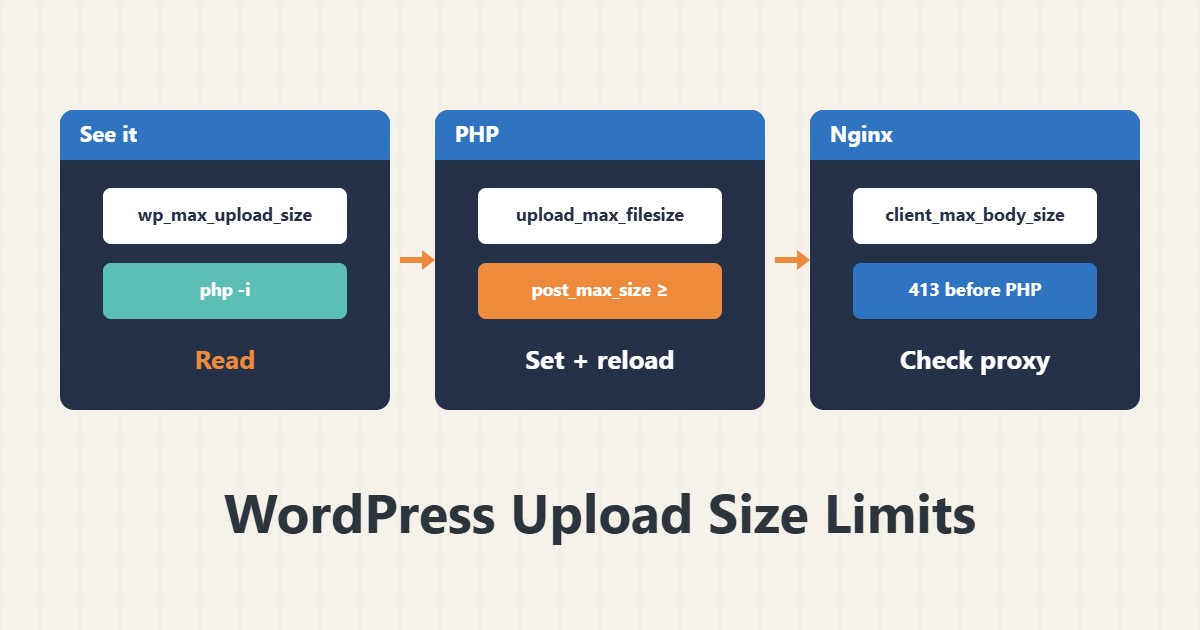
When WordPress says a file exceeds the maximum upload size, it is not just one number. The limit comes from several layers and the lowest number wins. This guide shows where each layer is and how to change it properly.
1. See the current maximum
wp eval 'echo size_format(wp_max_upload_size());'
php -i | grep -E 'upload_max_filesize|post_max_size|max_execution_time|memory_limit'
The first command shows the number WordPress really applies. The second shows PHP command-line values, which may differ from web PHP. In the dashboard, Site Health, Info section also shows the maximum upload.
2. Two PHP values
upload_max_filesize = 64M
post_max_size = 72M
max_execution_time = 120
memory_limit = 256M
post_max_size must be greater than or equal to upload_max_filesize, because it covers the whole request body. These numbers are samples and must match your needs and server memory. A larger upload also needs more execution time.
3. Where to set them
Depending on the host, the setting is in php.ini, a .user.ini file, the MultiPHP INI Editor in cPanel or a PHP-FPM pool file. After changing, reload PHP-FPM. If the pool uses php_admin_value, .user.ini settings do not override it.
4. The web server layer
client_max_body_size 64m;In Nginx the default client_max_body_size is one megabyte, and larger bodies get a 413 error. This happens before the request reaches PHP, so you never see WordPress’s message. If Nginx sits behind a proxy or CDN, check that layer’s limit too. For the configuration structure see the try_files guide.
5. After the change
Test and reload PHP-FPM and Nginx, then read the maximum again. For PHP values, check the PHP error log and see the pool state in PHP-FPM status. Raise the number only as far as you need.
6. Illustrative example, not a measurement
Suppose uploading a 50 MB video failed and WordPress showed a 2 MB limit. After raising upload_max_filesize and post_max_size in PHP and reloading, the number became 64 MB. But Nginx still returned 413 until client_max_body_size was also fixed. This scenario is an invented illustration, not a measurement.
7. Common mistakes
- Changing only upload_max_filesize and forgetting post_max_size.
- Not reloading after the change.
- Ignoring client_max_body_size in Nginx.
- Raising memory and execution time blindly.
8. Frequently asked questions
Why did editing php.ini have no effect? Web PHP may read another file, or it was not reloaded.
Where does the 413 error come from? Usually the web server or a proxy, before PHP.
Can I set it for one site only? Yes, with .user.ini or a separate pool.
9. Quick checklist
- The current maximum was read.
- post_max_size is larger than the upload value.
- The setting was made in the right layer.
- client_max_body_size was checked.
- Services were reloaded.
If you need help reviewing performance or maintaining a server, see the server management services.
More server and WordPress guides are collected in the article archive.
Official references
PHP manual: upload_max_filesize · PHP manual: file upload pitfalls · Nginx: client_max_body_size