
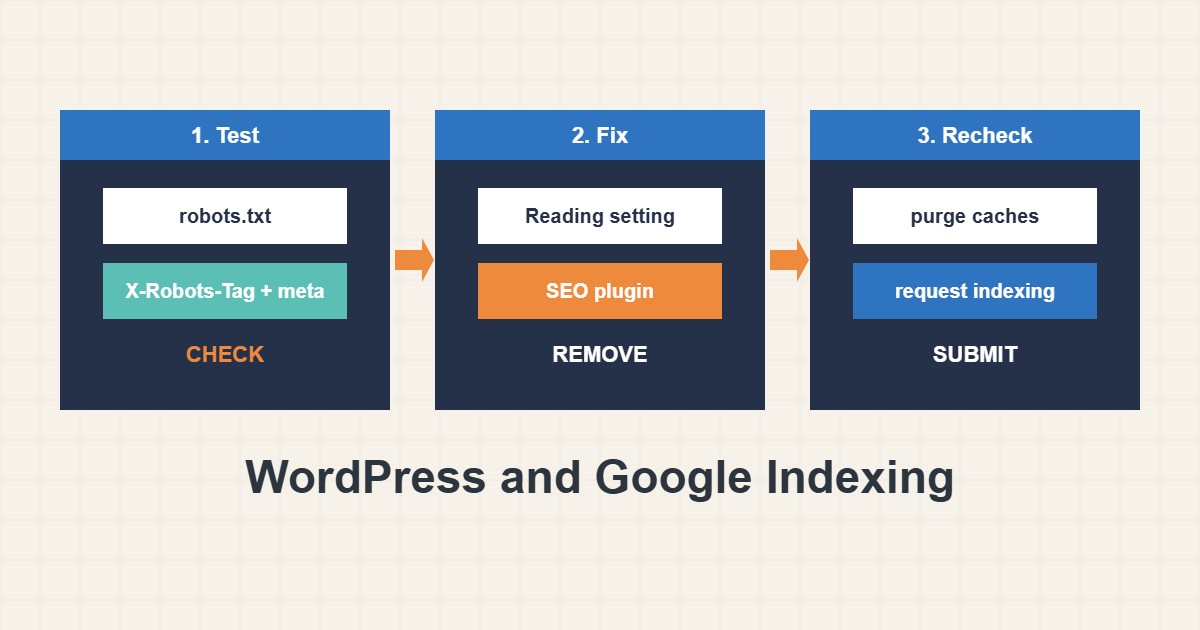
A new or migrated WordPress site that never appears in Google often has a self-inflicted cause: a staging setting left on, a plugin that adds noindex, or a robots.txt that blocks everything. These are quick to check and quick to fix, but easy to confuse. This guide shows the three places that can block search engines, how to test each from the command line, and how to reopen the site safely. It does not promise rankings; it only removes a blocker you created yourself.
1. Know the difference: crawling and indexing
robots.txt controls whether a crawler may fetch a URL. A noindex directive, in a meta tag or the X-Robots-Tag header, tells search engines not to keep a page in their index. They are different tools. A page blocked by robots.txt cannot be read, so a noindex tag on it will never be seen, and the bare URL can still appear in results without a description. Fixing the wrong layer wastes days.
2. Test all three layers
Run these checks against your real domain:
# 1. robots.txt
curl -s https://example.com/robots.txt

# 2. Header-level noindex
curl -sI https://example.com/ | grep -i x-robots-tag

# 3. Meta robots in the HTML
curl -s https://example.com/ | grep -i '<meta name="robots"'
If robots.txt contains a rule that disallows everything, or the header or meta tag says noindex, you found the blocker. Check a few URLs, not only the home page, because a plugin may add noindex to specific post types or archives. The same checks are quick to repeat after each change.
3. Check the WordPress Reading setting
In Settings, Reading, the option Discourage search engines from indexing this site is meant for development. When it is ticked, WordPress adds a noindex signal and may serve a robots.txt that disallows everything, like this:
User-agent: *
Disallow: /
With WP-CLI you can read the value and fix it:
wp option get blog_public     # 1 = visible, 0 = discouraged
wp option update blog_public 1
Staging copies should keep it ticked on purpose; see the safe staging guide for how to keep a copy private. The usual accident is copying the staging database or settings to the live site.
4. Check plugins and a physical robots.txt
SEO plugins can set noindex per page, per type or site-wide, and some write a physical robots.txt file that replaces WordPress’s virtual one. Look at the plugin settings for a global noindex switch and at individual posts. For a normal public site, a simple robots.txt is enough:
User-agent: *
Disallow: /wp-admin/
Allow: /wp-admin/admin-ajax.php

Sitemap: https://example.com/sitemap.xml
Keep it short. Do not block CSS or JavaScript your pages need, and do not use robots.txt to hide private data, since it is public.
5. Ask search engines to re-check
After removing the blocker, test a URL in Search Console with the URL inspection tool, request indexing for the important pages and submit the sitemap. Allow time: reindexing takes days to weeks and there is no guarantee. If the site is on a CDN or has page cache, purge the cache so the old noindex header is gone from the delivered page. For cache and TTFB topics see the TTFB guide.
6. Illustrative example, not a measurement
Imagine a migrated site where the three commands show a robots.txt with Disallow: / and no other blocker (made-up case). The Reading setting was copied from staging as discouraged. Un-ticking it fixes robots.txt and the meta signal together. The owner then inspects the home page in Search Console, requests indexing and waits, instead of changing plugins that were never the cause.
7. Common mistakes
- Blocking a page in robots.txt and expecting noindex on it to work.
- Leaving the Reading option ticked after launch.
- Forgetting that a cache may serve an old noindex header.
- Testing only the home page.
- Blocking CSS and JS files.
- Using robots.txt to hide private files.
8. Frequently asked questions
Does robots.txt remove a page from Google? Not reliably. It stops crawling; to remove a page use noindex while it stays crawlable, or remove it in Search Console.
How long until my site appears? It varies from days to weeks and nothing guarantees indexing.
Should staging be noindex? Yes, and also password protected.
Can a plugin override the Reading setting? Yes, SEO plugins can add their own noindex rules.
9. Quick checklist
- Fetch robots.txt and read it.
- Check the X-Robots-Tag header.
- Check the meta robots tag on several URLs.
- Untick the Reading option on the live site.
- Review SEO plugin noindex settings.
- Purge caches.
- Request indexing and submit the sitemap.
If you need help reviewing performance or maintaining a server, see the server management services.
More server and WordPress guides are collected in the article archive.
Official references
Google Search Central: Introduction to robots.txt · Google Search Central: Robots meta tag and X-Robots-Tag · WP-CLI: wp option get · WordPress Documentation: Reading Settings