
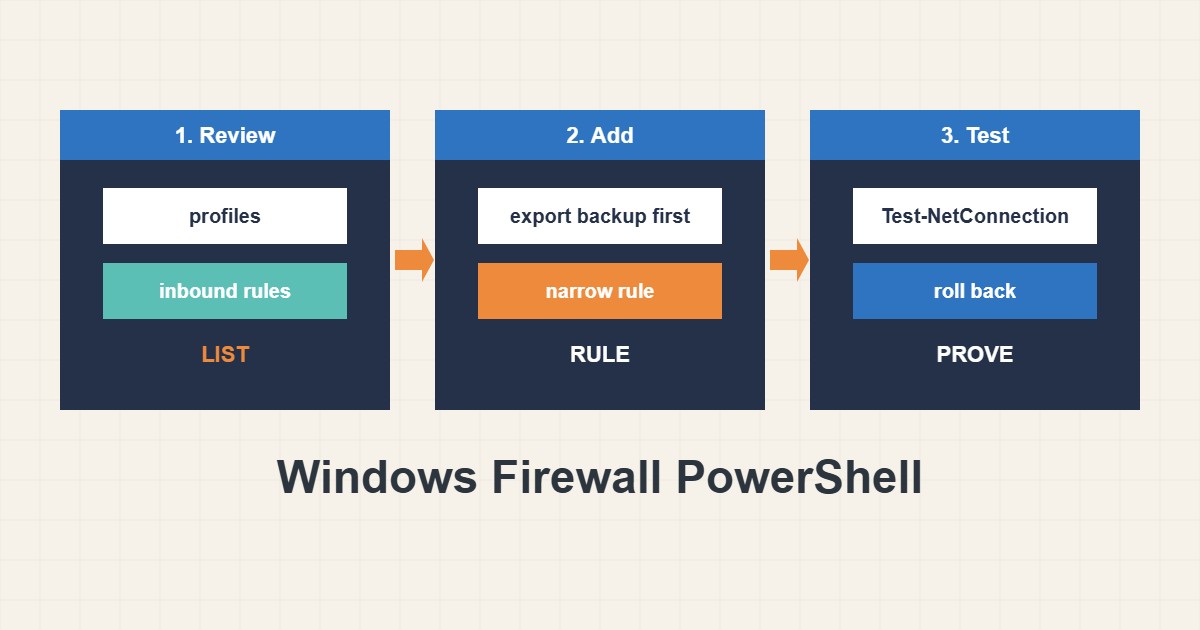
A wrong firewall change on a remote Windows Server can cut your own RDP session. PowerShell makes the work repeatable, but only if you review first, back up the policy, create narrow rules and know how to undo them. This guide gives a safe sequence for Windows Server. The cmdlets come from Microsoft’s documentation, but I did not run them on a real server, so test on a non-critical machine first.
1. Review the current state
Check which profiles are enabled and their default actions, then list enabled inbound rules. You cannot judge a change without knowing what already exists:
Get-NetFirewallProfile | Select Name, Enabled, DefaultInboundAction, DefaultOutboundAction
Get-NetFirewallRule -Enabled True -Direction Inbound | Select DisplayName, Profile, Action | Sort DisplayName
Windows has Domain, Private and Public profiles. A rule applies only to the profiles you choose, so check which one your network adapter uses.
2. Back up, then add a narrow rule
Always export the policy before changes. Create rules with a clear name, a specific port and, where possible, a limited remote address:
# Export a backup of the current policy first
netsh advfirewall export "C:\Backup\firewall-before.wfw"

# Allow HTTPS from one admin network only
New-NetFirewallRule -DisplayName "Allow HTTPS Admin" -Direction Inbound -Protocol TCP -LocalPort 443 -RemoteAddress 203.0.113.0/24 -Action Allow -Profile Domain,Private
Keep a second administration path, such as the hypervisor console, before you touch rules that affect remote access. For general firewall concepts see the firewall guide.
3. Test and verify
Confirm the rule has the intended port and address, and test the connection from the allowed network. Rolling back is a single command if you kept the export:
Get-NetFirewallRule -DisplayName "Allow HTTPS Admin" | Get-NetFirewallPortFilter
Get-NetFirewallRule -DisplayName "Allow HTTPS Admin" | Get-NetFirewallAddressFilter
Test-NetConnection -ComputerName server01 -Port 443

# Remove or disable a rule you created
Disable-NetFirewallRule -DisplayName "Allow HTTPS Admin"
netsh advfirewall import "C:\Backup\firewall-before.wfw"
4. Avoid broad rules
The most dangerous mistakes are rules with no port or address limits and disabling the firewall to “see if it fixes it”:
New-NetFirewallRule -DisplayName "Open all" -Direction Inbound -Action Allow   # no port, no address
Set-NetFirewallProfile -Profile Domain,Public,Private -Enabled False   # turns the firewall off
Disabling the firewall removes protection from every service on the machine. Instead, create a temporary, narrow rule, test, then remove it.
5. Keep rules organised
Use consistent names, group rules and record why each one exists. Review the list on a schedule and remove rules for decommissioned services. Rules created by applications may be duplicated; review before deleting anything you did not create.
6. Illustrative example, not a measurement
Imagine a web server (made-up) that must accept HTTPS only from an office network for an internal admin page. A narrow inbound rule limits port 443 to that range. Test-NetConnection succeeds from the office and fails from elsewhere, which confirms the rule. If something breaks, importing the saved policy returns the server to its earlier state.
7. Common mistakes
- Changing rules without a backup.
- Creating allow rules with no port or address.
- Disabling the firewall to troubleshoot.
- Ignoring which profile is active.
- Having no second access path.
- Deleting rules created by applications.
8. Frequently asked questions
Which profile applies to my server? Usually Domain on a domain-joined server, otherwise Private or Public. Check the network adapter’s category.
Is netsh still useful? Yes, for export and import of the whole policy, while PowerShell is better for rules.
Can I allow only one IP? Yes, use -RemoteAddress with an address or range.
How do I undo a rule? Disable or remove it, or import the saved policy.
9. Quick checklist
- Review profiles and rules.
- Export the policy.
- Create a narrow rule.
- Limit the remote address.
- Test from the allowed network.
- Keep a second access path.
- Document and review regularly.
If you need help reviewing performance or maintaining a server, see the server management services.
More server and WordPress guides are collected in the article archive.
Official references
Microsoft Learn: New-NetFirewallRule · Microsoft Learn: Get-NetFirewallRule · Microsoft Learn: Windows Firewall · Microsoft Learn: Test-NetConnection