
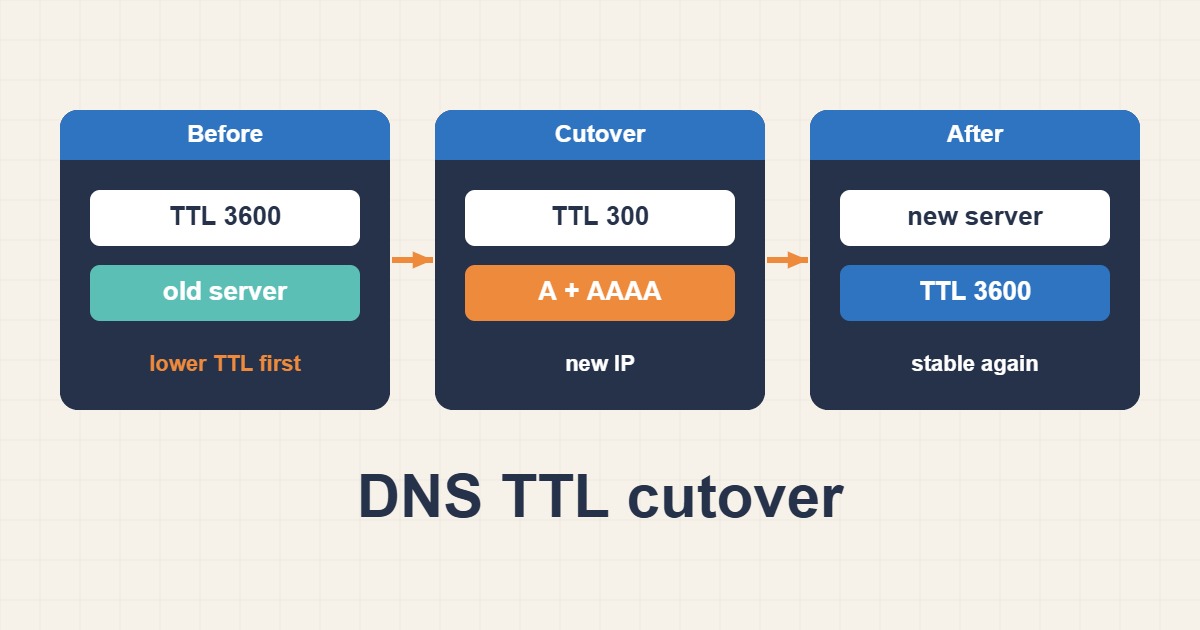
When you move a website to a new server, the files and database are only half of the job. Visitors still find you through DNS, and DNS answers are cached by resolvers around the world for as long as each record’s TTL allows. If you change the IP address without planning for that, some people reach the new server and others reach the old one for hours or even a day. This guide shows how to plan TTLs for a clean cutover, check the result with dig, and avoid the traps that cause split traffic, lost email and long rollbacks.
1. What TTL really means
TTL is the number of seconds a resolver may keep an answer before asking again. A record with a TTL of 3600 can be reused for up to an hour after a resolver last fetched it. Because every resolver fetched it at a different moment, the old answer disappears gradually, not at a single time. The TTL is also a promise from the zone owner, not a command, and a few resolvers hold records longer than they should.
2. The core rule: lower it before you move
A lower TTL only helps if resolvers have already seen it. If the current TTL is 24 hours, you must lower it at least 24 hours before the cutover, otherwise caches that fetched the long-lived answer will keep it for the rest of its life. Plan the order: lower the TTL, wait one full old-TTL period, change the address, then raise the TTL again after the new server is stable.
3. Look at the current records
Record the starting state before touching anything:
dig +noall +answer example.com A
dig +noall +answer example.com MX
dig +noall +answer example.com NS
Note the TTL shown in the second column of each answer, and save the output. It is your rollback reference, and it also reminds you about records that people forget during a move, such as MX and TXT for email.
4. Choose a sensible low TTL
Values between 60 and 300 seconds are common for the cutover window. Very low values increase query load on your DNS provider and some providers enforce a minimum. A 300-second TTL is a practical compromise for most sites: you can switch back within minutes if something is wrong, and the extra traffic is negligible for a normal website.
5. A simple timeline
The following zone excerpt shows the idea. Addresses use documentation ranges and are only examples:
example.com.   3600  IN  A   198.51.100.10   ; before: 1 hour
example.com.   300   IN  A   198.51.100.10   ; lowered at least 1 hour earlier
example.com.   300   IN  A   203.0.113.20    ; cutover to the new server
example.com.   3600  IN  A   203.0.113.20    ; raised again after it is stable
The important part is the gap before the change. Keep the low TTL in place through the migration window and for a while afterwards, so a rollback is as quick as the cutover.
6. Prepare the new server first
Do not touch DNS until the new server is ready. Copy files and the database, install certificates, and test the site using a hosts-style override that points your own browser or curl to the new address without changing DNS:
curl -sI --resolve example.com:443:203.0.113.20 https://example.com/ | head -n 5
curl -s --resolve example.com:443:203.0.113.20 https://example.com/ | head -c 300
If the application stores absolute URLs, check them as described in Migrate WordPress URLs Safely with WP-CLI Search-Replace. Issue the certificate in advance too, so HTTPS works the moment traffic arrives.
7. Do the cutover
Change the A or AAAA record to the new address, and remember to update the IPv6 record as well. If one record still points to the old server, a part of your visitors will keep going there. After the change, ask both your authoritative server and public resolvers what they return:
dig +noall +answer example.com A @ns1.example-dns.net
dig +noall +answer example.com A @1.1.1.1
dig +noall +answer example.com A @8.8.8.8
The authoritative answer should change immediately. Public resolvers will follow as their cached copies expire, and you can read the remaining time with dig:
dig +noall +answer +ttlunits example.com A @1.1.1.1
dig +short example.com SOA
8. Keep the old server alive
For at least the old TTL plus a safety margin, keep the old server running and serving the same content, or redirecting to the new one. During that window some visitors still arrive there. If the site writes data, such as orders or comments, decide how to avoid losing writes made on the old server, for example by putting it in read-only mode or syncing the database again after the last visitor leaves.
9. Don’t forget email and other records
Changing the web server does not have to change email, but a careless zone edit can. Check that MX, SPF, DKIM and DMARC records are unchanged unless you really intend to move mail:
dig +noall +answer _dmarc.example.com TXT
dig +noall +answer example.com TXT | grep -i spf
If email is also moving, treat it as a separate cutover with its own plan, because lost mail is harder to recover than a slow page.
10. Moving name servers is different
Changing the NS records at the registrar is controlled by the parent zone, and its TTL is often much longer, commonly a day or two, and you cannot lower it yourself. If you only need a new IP, edit the A record at your current DNS provider and leave the name servers alone. If you must change DNS providers, copy the full zone to the new provider first, confirm it matches, and only then switch the NS records. DNSSEC adds another trap, so see Fix DNSSEC SERVFAIL and the Chain of Trust before changing providers on a signed domain.
11. Negative caching and stale answers
If a name briefly did not exist, resolvers may cache that absence for the period set in the SOA record. This is negative caching, and it can make a newly created record seem missing. Some resolvers can also serve expired data when upstream servers fail. Both behaviors mean you should test with more than one resolver and avoid assuming that every user sees the same answer.
12. Test from several places
Query your authoritative servers, two or more public resolvers and your own machine. If your computer still shows the old address, clear its local cache, and remember that browsers keep their own cache too:
sudo resolvectl flush-caches
sudo resolvectl statistics
If a user reports an error such as a domain that cannot be found, Fix DNS_PROBE_FINISHED_NXDOMAIN Errors helps separate a DNS problem from a local one.
13. Common mistakes
- Lowering the TTL at the same moment as the change instead of earlier.
- Forgetting the AAAA record and leaving IPv6 visitors on the old server.
- Shutting down the old server before caches expire.
- Copying only the A record when switching DNS providers and losing MX or TXT.
- Leaving a very low TTL forever without a reason.
- Assuming every resolver obeys the TTL exactly.
14. A worked example
A site has a TTL of 3600 and moves on Saturday night. On Friday evening the administrator lowers the TTL to 300 and saves the dig output. After an hour, the new server is tested with a local override. At the agreed time the A and AAAA records change, the authoritative answer updates at once, and public resolvers settle within minutes. The old server stays online for a day, then the TTL goes back to 3600. This is an illustration of the plan, not a measurement from a specific site.
15. Quick checklist
- Record the current A, AAAA, MX, TXT and NS answers.
- Lower the TTL at least one old-TTL period before the move.
- Prepare and test the new server with a local override.
- Change all address records, then query authoritative and public resolvers.
- Keep the old server running until caches expire.
- Raise the TTL again after the new server is stable.
More server guides are collected in the article archive.
Official references
RFC 1035: Domain Names, Implementation and Specification · RFC 2308: Negative Caching of DNS Queries · RFC 8767: Serving Stale Data to Improve DNS Resiliency