
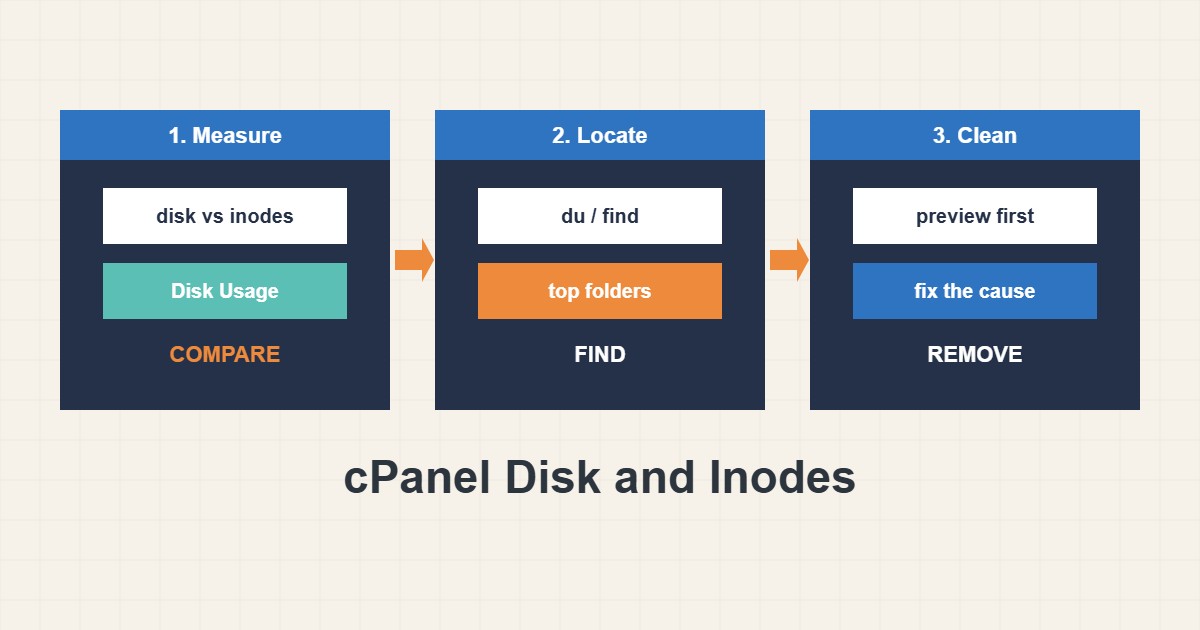
A cPanel account has two separate limits that people confuse: disk space (how many megabytes your files use) and inodes (how many files and folders you have). A site can be far below its disk quota and still stop working because a cache folder holds millions of tiny files. Symptoms include failed uploads, WordPress that cannot write, backups that fail and mail that bounces. This guide finds what is using space and inodes, in order, and removes only what is clearly safe. Menu names vary a little between cPanel versions.
1. Read the two numbers first
Open the cPanel home page and look at the statistics panel: disk usage and file usage (inodes) are shown separately. In Files, the Disk Usage tool lists folders by size and can show hidden ones. Its numbers are refreshed periodically, so a folder you just emptied may still look big for a while. Decide which limit you are hitting: a full disk is solved by deleting big files, while an inode limit is solved by deleting many small ones, and the two need different searches.
2. Find the biggest folders
If you have Terminal access, a read-only command lists the largest items, including hidden folders that the file manager hides by default:
# Largest items in your home directory (read-only)
cd $HOME
du -xsh .[!.]* * 2>/dev/null | sort -h | tail -15
Typical large items are old backup archives left in the home directory, a copy of the site in a forgotten folder, the mail directory, log files and the uploads folder. Write down the top five before you delete anything.
3. Find the folders with the most files
For an inode problem, count files instead of size:
# Files per top-level folder: the inode view
for d in $HOME/.[!.]* $HOME/*/; do [ -d "$d" ] && echo "$(find "$d" -xdev 2>/dev/null | wc -l) $d"; done | sort -n | tail -10
The result is a list of folders with their file counts. The usual causes are page cache folders, thumbnail-heavy upload directories, session or temporary folders, old mail messages and the folder of an abandoned plugin. A folder with hundreds of thousands of entries is the first target. This command can take a while on a large account, so run it once and do not repeat it in a loop.
4. Check mail separately
Mail is the most overlooked consumer. Use Email Disk Usage to see each mailbox, then empty the Trash and Spam folders, remove huge attachments and delete accounts nobody uses. Ask the owner before deleting messages, because mail is data a person may need. If mail is large and still wanted, move it to a bigger mailbox plan or archive it instead of deleting it. See the email delivery guide for related issues.
5. Clean what is safe, with a preview
Before you remove log files, list them first:
# Preview old error logs first, delete nothing yet
find $HOME/public_html -name error_log -type f -size +10M -printf '%s %p\n'
An error_log file grows without limit while an error repeats, so a huge file means there is a bug to fix as well as a file to remove. Cache folders can be emptied from the cache plugin’s own settings, which is safer than deleting by hand. Move old backup archives out of the account, ideally to another place, once you confirmed you can restore from them; the cPanel backup guide explains how. Never delete wp-config.php, the database, or a folder you do not recognize.
6. Prevent the problem from returning
Set the cache plugin to expire old files, turn on log rotation or delete error logs on a schedule, avoid leaving staging copies, and keep backups off the account. If the limit is close even after cleaning, the account may simply need a bigger plan, and that is a legitimate answer. A limit that is reached again every few weeks usually means a leaking folder, not a small plan; see the resource limit guide for related limits.
7. Illustrative example, not a measurement
Imagine the inode command prints the following (made-up numbers):
2310000 /home/user/public_html/wp-content/cache
  41000 /home/user/mail
  18000 /home/user/public_html/wp-content/uploads
The cache folder holds about 2.3 million entries, far more than anything else. The disk may look half empty, but the file count explains the failures. The next step is to purge the cache with the plugin and set a shorter expiry, then check the count again later.
8. Common mistakes
- Looking only at disk space when the real limit is inodes.
- Deleting a folder because it is big without knowing what it is.
- Forgetting hidden folders, which the default file listing skips.
- Deleting email without asking its owner.
- Keeping backup archives inside the same account that they protect.
- Emptying the cache by hand while the plugin keeps creating files.
9. Frequently asked questions
Why does cPanel still show a full disk after I deleted files? The usage figure is refreshed periodically, and files in the Trash or in a mailbox may still count. Wait for the refresh and check again.
What is an inode in simple terms? It is one entry for a file or folder. An account can have a low size and a high inode count if it holds many small files.
Is it safe to delete error_log? Usually yes, because it is only a log, but read the last lines first. A growing file means the cause should be fixed.
Should I buy more space? Only after cleaning and finding the leak. More space without a fix just delays the same problem.
10. Quick checklist
- Compare disk usage and inode usage on the home page.
- List the largest items, including hidden ones.
- Count files per folder if inodes are the problem.
- Review email usage and ask owners first.
- Preview before deleting logs, and fix the cause of huge logs.
- Move old backups out of the account.
- Set expiry for caches and recheck in a week.
If you need help reviewing performance or maintaining a server, see the server management services.
More server and WordPress guides are collected in the article archive.
Official references
cPanel Documentation: Disk Usage · cPanel Documentation: Email Disk Usage · Linux man-pages: du(1) · Linux man-pages: find(1)