
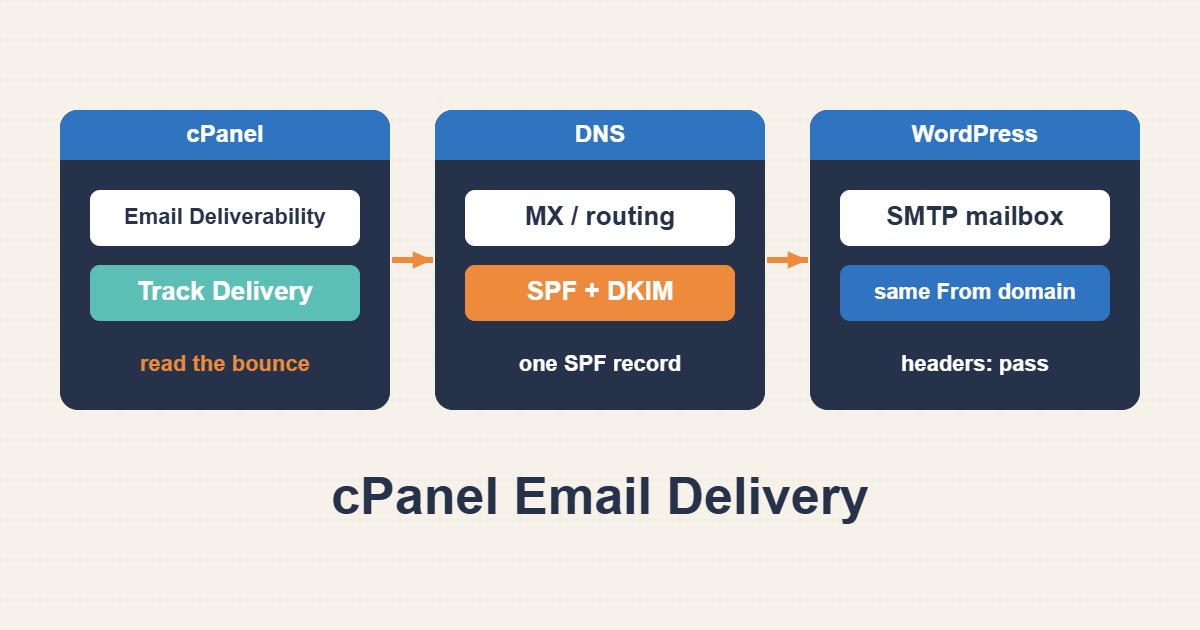
“My email is not arriving” can mean five different problems: mail that is never accepted, mail that is accepted but rejected later, mail that is delayed, mail that lands in spam, and mail that WordPress never sends at all. cPanel gives you several tools to tell them apart, but you have to use them in the right order. This guide separates sending from receiving, shows how to read bounce messages, how to fix routing and DNS, and how to make WordPress send mail in a way that receivers trust. Menu names vary between hosts, and some providers restrict mail features.
1. Split the problem in two
First decide the direction. Is the problem with mail your domain receives, or with mail your domain sends? They use different settings. Receiving depends on MX records, mail routing, mailboxes and quota. Sending depends on authentication, the sending server’s reputation, limits and how the application hands mail over. Test both with a message to and from an outside mailbox, such as a personal account at a large provider.
2. Run the Email Deliverability tool
In cPanel open Email Deliverability. For each domain it reports whether the DNS records for mail are valid, usually the SPF record and DKIM key, and sometimes the reverse DNS of the server. It can offer to repair the records. This works automatically only if this server also hosts your DNS zone. If DNS is managed elsewhere, such as at a registrar or CDN, copy the suggested records there by hand, because a repair in cPanel will not change them. For what each record does, see SPF, DKIM and DMARC: Setup and Troubleshooting. Verify with dig after you edit:
dig +short MX example.com
dig +short TXT example.com
dig +short TXT default._domainkey.example.com
dig +short TXT _dmarc.example.com
A domain should have exactly one SPF record. Two separate SPF records are invalid and cause failures that look random.
3. Check MX and email routing
If you receive no mail, open the MX Entry or email routing screen. The routing setting tells the server whether it is the destination for this domain’s mail. Choose Local Mail Exchanger when mailboxes live on this server, and Remote Mail Exchanger when they live elsewhere, for example with a separate email service. A classic fault is a domain whose MX points to an external provider while cPanel still thinks mail is local. Messages sent from the same server then look for a mailbox that does not exist and bounce with “user unknown”.
4. Use Track Delivery
Track Delivery in cPanel lists the messages the server tried to send or receive and what happened to them: delivered, deferred or failed. Search by recipient or sender and open the details. The status and the reply text from the other server show the real reason, which is far better than guessing. If the problem is old, remember that the log keeps a limited history.
5. Read bounce messages
A bounce message is a diagnosis. The first digits tell you the class: 4xx means a temporary problem and the server will retry, 5xx means a permanent rejection. Typical examples look like this:
550 5.1.1 : Recipient address rejected: User unknown
550 5.7.1 Message rejected due to local policy
452 4.2.2 Mailbox full
421 4.7.0 Try again later
“User unknown” means the address does not exist or routing is wrong. “Rejected due to local policy” or similar wording points to spam filtering, authentication failure or a blocked IP. “Mailbox full” means quota. A 421 or 4.7.0 reply often means the receiver is rate limiting you. If mail is stuck on the server itself, Troubleshoot a Deferred Postfix Mail Queue explains how to read a deferred queue.
6. Check quota, forwarders and catch-all
A full mailbox or a full hosting quota stops new mail. Look at the disk usage of the account as well as each mailbox. Forwarders can create loops, for example when address A forwards to B and B forwards back to A. A catch-all or default address that accepts everything attracts spam and can make your server send lots of rejections to forged senders. Setting the default address to fail unknown recipients at delivery time is safer.
7. Know your sending limits
Shared hosting limits how many messages a domain may send per hour, and failures can count against you too. A newsletter or a burst of WooCommerce notifications can exceed it, after which the server refuses or defers the rest. Ask the host for the exact limit and plan around it. Large mailings belong on a dedicated email service rather than on shared hosting.
8. Why WordPress mail fails
By default WordPress sends through PHP’s mail function. The message often leaves with a generic sender, no proper authentication alignment, and from an IP shared with other customers. Many receivers distrust that and place it in spam or reject it. You can check whether WordPress itself can send:
wp eval 'var_dump( wp_mail( "you@example.org", "Test from WordPress", "If you read this, wp_mail works." ) );'A result of true only means PHP accepted the message for sending. It does not prove delivery, so also check Track Delivery.
9. Send through an authenticated mailbox
The reliable approach is an SMTP plugin that logs in as a real mailbox on your domain. Create a dedicated mailbox, for example noreply@example.com, and enter these values, taking the exact server name from the connection settings shown in cPanel:
Host:      mail.example.com
Port:      465 (SSL/TLS) or 587 (STARTTLS)
Username:  noreply@example.com   (the full mailbox address)
Password:  the mailbox password, stored only in the plugin settings
From:      noreply@example.com
Use the From address of that same domain so SPF, DKIM and the visible sender line up. Keep the password only in the plugin settings, never in chat or tickets. Send a test message from the plugin and look at the result.
10. Check authentication in the message headers
Send a test message to an outside mailbox and view the original headers. You are looking for passing results for SPF, DKIM and DMARC, ideally all three aligned with the visible From domain:
Authentication-Results: mx.example.net;
  spf=pass smtp.mailfrom=example.com;
  dkim=pass header.d=example.com;
  dmarc=pass header.from=example.com
If one fails, fix that record first. If your SPF record needs to include another sending service as well as your own server, add its include in the same single record, and keep the total number of DNS lookups within the limit that the standard allows. An example of a combined record looks like this, with a placeholder provider name:
v=spf1 +a +mx include:_spf.mail-provider.example ~all11. Reputation and blacklists
If authentication passes but mail is still rejected, the IP address may have a poor reputation or be on a blacklist, which is a real risk on shared IPs. Look up the server’s IP in public blacklist lookup services, read the rejection text for the list name and follow that list’s delisting process, or ask your host to do it. If the IP is shared, the host may need to move your account or give you a dedicated address. Large providers also expect bulk senders to authenticate and to offer an easy unsubscribe.
12. When it works for some people only
If mail arrives at some providers but not others, compare their bounce messages. One provider may reject on a missing DKIM signature while another accepts. Test with several different receivers and send from the same address each time so the results are comparable. If the mail is accepted but filed in spam, content, formatting and reputation matter more than DNS. For authentication problems with sending through your own server, Fix Postfix SASL Authentication Failures covers a related case.
13. Common mistakes
- Having two SPF records for one domain.
- Leaving routing on Local while mailboxes live elsewhere.
- Running Email Deliverability repair while DNS is hosted elsewhere and assuming it worked.
- Sending WordPress mail with a From address from another domain.
- Ignoring the exact reply text in Track Delivery.
- Pasting mailbox passwords into tickets or chats.
14. A worked example
An online shop’s order emails go to spam. Email Deliverability shows a valid SPF but no DKIM key because DNS is hosted at a registrar. The owner copies the DKIM record there, creates a dedicated mailbox, configures an SMTP plugin with it and sends a test. The headers now show SPF, DKIM and DMARC passing, and the message arrives in the inbox. This is an illustration of the process, not a measurement from a real shop.
15. Quick checklist
- Decide whether the problem is sending or receiving.
- Run Email Deliverability and verify the records with dig.
- Match routing to where the mailboxes really live.
- Read Track Delivery and the bounce text.
- Send WordPress mail through an authenticated mailbox of the same domain.
- Check headers for SPF, DKIM and DMARC, then reputation.
More server guides are collected in the article archive.
Official references
cPanel: Email Deliverability · cPanel: Track Delivery · WordPress: wp_mail() · RFC 5321: Simple Mail Transfer Protocol