
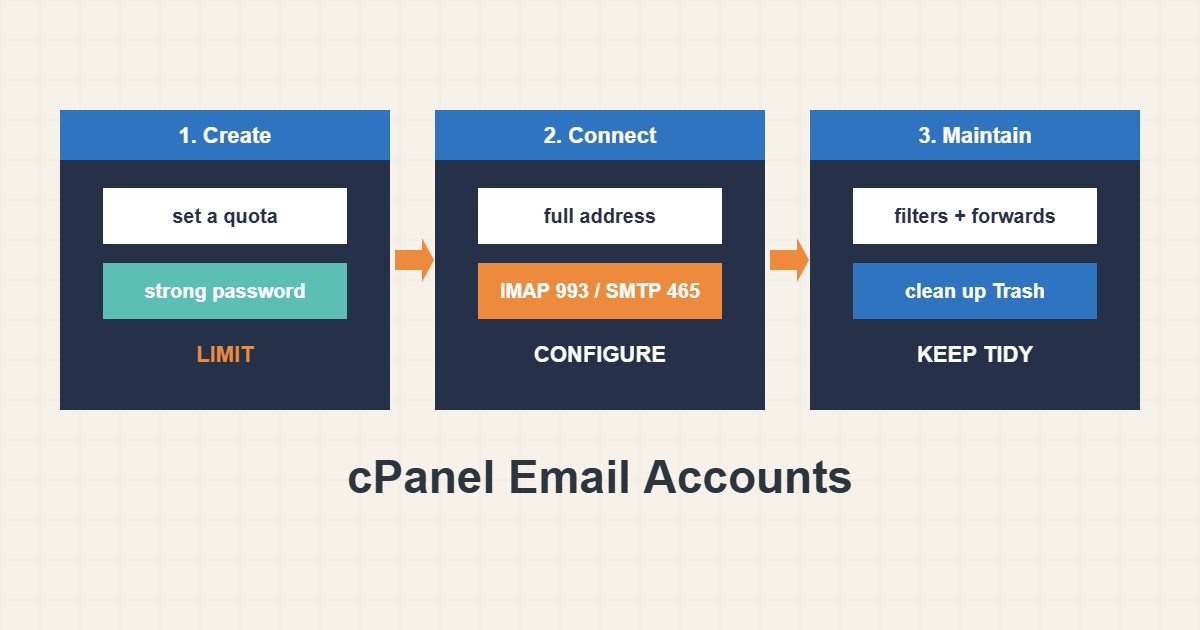
Setting up business email on cPanel looks easy: create an address, type a password, done. Problems appear later, when the mailbox fills up and bounces mail, a phone cannot connect, a catch-all address collects spam or forwarding silently breaks. This guide covers the decisions that matter when you create email accounts in cPanel: quota, strong passwords, correct client settings, forwarding and filters, and a basic check that the server is reachable. For sending problems and spam rejections, use the separate delivery guide. Menu names vary a little between cPanel versions.
1. Create the account with a quota in mind
Open Email Accounts in cPanel and choose Create. Pick the domain, the name before the @ and a strong password; the built-in password generator is a good choice and a password manager stores it. Set a quota that fits the person’s use rather than “unlimited”: an unlimited mailbox can fill the whole account and stop every other mailbox and the website. Share the password with the user through a safe channel, not in an open chat, and ask them to change it.
2. Use the right client settings
Phones and mail programs need the server name, ports and the full address as the username. The Connect Devices page in cPanel shows the exact values for your server. The common pattern is:
Username:       info@example.com   (the full address)
Incoming IMAP:  mail.example.com, port 993, SSL/TLS
Outgoing SMTP:  mail.example.com, port 465 SSL/TLS (or 587 STARTTLS)
Authentication: required for outgoing mail
Use the secure ports. Plain unencrypted ports leak passwords and many networks block them. A wrong username (a short name instead of the full address) is the most common reason for “cannot log in”. Remember that the hostname must match the certificate, so use the hostname cPanel gives you.
3. Check the connection when a client will not connect
If a program cannot reach the server, check from a computer whether the mail port answers and presents a valid certificate:
# Does the mail server answer on IMAPS and show a valid certificate?
openssl s_client -connect mail.example.com:993 -servername mail.example.com </dev/null 2>/dev/null | openssl x509 -noout -subject -enddate
The result shows who the certificate was issued to and when it expires. An expired or mismatched certificate explains certificate warnings in mail clients; see the AutoSSL guide for renewal problems. If the connection itself fails, a firewall on your network or the server may block the port.
4. Forwarders, filters and the default address
A Forwarder sends a copy of mail for one address to another. It is useful for aliases such as sales@, but forwarding to an outside provider can make messages look suspicious and be rejected there, so test it and avoid forwarding spam. Email Filters can sort mail on arrival. Review the Default Address: a catch-all that accepts every possible name collects a lot of junk, so most sites do better by sending unknown addresses to a failure message instead of to a mailbox.
5. Webmail and housekeeping
Webmail opens from Email Accounts or from the /webmail address of your domain, and it is the easiest way to test a new mailbox. Ask users to empty Trash and Spam and to archive old mail. When space is a problem, check mailboxes first in Email Disk Usage. If mail is going missing or arriving in spam, SPF, DKIM and DMARC are the next step, covered in the delivery guide.
6. Protect the accounts
Use unique passwords, change a password when a person leaves and delete accounts nobody uses. Compromised mailboxes are a common source of spam that causes a host to throttle or suspend sending. If you see a sudden jump in outgoing messages, change the password and review the account at once.
7. Illustrative example, not a measurement
Imagine a mailbox with a 2 GB quota that is 95 percent full (made-up numbers). Senders start to get bounce messages that the mailbox is full, and the owner thinks the domain is broken. The fix is to empty Trash and Spam, archive old attachments to another place and raise the quota only if the person really needs more. Without a quota, the same mailbox could have grown until the whole account ran out of space.
8. Common mistakes
- Creating mailboxes with unlimited quota.
- Sending passwords in a public or unencrypted message.
- Using a short name instead of the full address as the username.
- Enabling a catch-all address and never reading it.
- Forwarding to an outside address without testing it.
- Keeping the accounts of people who left.
9. Frequently asked questions
Which ports should I use? Use IMAP 993 with SSL/TLS and SMTP 465 with SSL/TLS or 587 with STARTTLS. Confirm the values in Connect Devices on your server.
Why does my phone say the certificate is invalid? The hostname in the client may not match the certificate, or the certificate expired. Use the hostname given by cPanel.
Do I need IMAP or POP3? IMAP keeps mail on the server and works on several devices. POP3 downloads and often removes it. IMAP is usually the better choice.
Can I move a mailbox to another host? Yes, with an IMAP copy tool or a backup of the mail folder. Do it in a planned window and test afterwards.
10. Quick checklist
- Create the mailbox with a sensible quota.
- Generate a strong password and share it safely.
- Use the full address and the secure ports.
- Test the certificate if a client cannot connect.
- Review forwarders, filters and the default address.
- Check SPF, DKIM and DMARC for delivery.
- Delete or disable unused accounts.
If you need help reviewing performance or maintaining a server, see the server management services.
More server and WordPress guides are collected in the article archive.
Official references
cPanel Documentation: Email Accounts · cPanel Documentation: Forwarders · cPanel Documentation: Email Deliverability · RFC 8314: TLS for email submission and access