
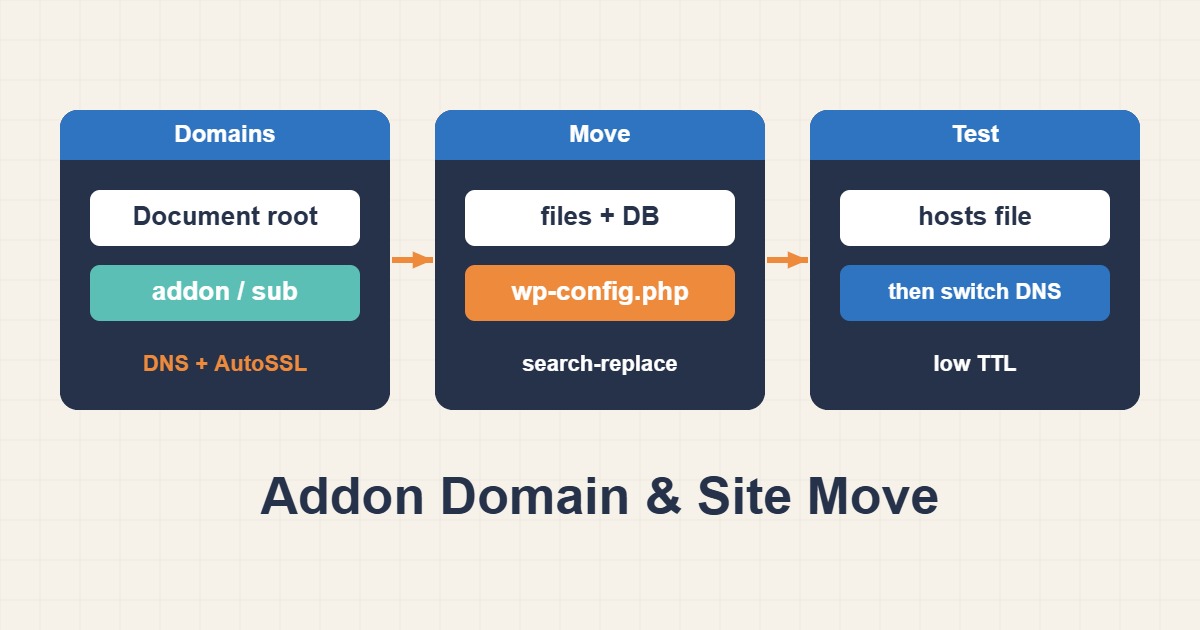
Two jobs come up constantly on cPanel hosting: adding another domain or subdomain to an account, and moving a WordPress site to a new host. Both look easy and both fail the same way, with the wrong document root, an old DNS answer or a database that was not carried over properly. This guide walks through each step, shows how to test the new server before the DNS change and lists what to check afterwards. Menu names differ between hosts and cPanel versions, so treat the labels as a guide.
1. Understand the document root first
Every domain served from an account points to a folder called the document root. The main domain usually uses public_html. Addon domains and subdomains point to whatever folder you choose when creating them, and most mistakes come from that choice, not from the domain itself. If a domain shows another site’s content, a blank directory listing or a 403, the document root is the first thing to read in the Domains screen.
2. Add an addon domain or subdomain
Open the Domains section, choose Create A New Domain, enter the name and decide the folder. A subdomain such as blog.example.com is created the same way. Two layouts are common:
# Addon domain: document root is a folder under public_html or a separate one
/home/USER/public_html/example2.com
/home/USER/example2.com
Keeping each site in its own folder outside the main site’s folder is tidier and avoids the main site’s .htaccess rules affecting it. Whichever you choose, keep it consistent so you always know where a site lives. The domain must also have its DNS pointing to this host, otherwise the new site cannot load however correct the folder is.
3. Check DNS and nameservers
If the nameservers are at this host, the zone is edited in the Zone Editor. If they are elsewhere, such as at a registrar or a CDN, the records must be made there. A wrong or missing A record is the usual reason a new domain does not load. When a name does not resolve at all, Fix DNS_PROBE_FINISHED_NXDOMAIN Errors explains how to tell a DNS problem from a server one.
4. Issue SSL for the new domain
AutoSSL normally covers new domains within a short time once DNS points to the server. Until then browsers show a certificate warning. Do not enable forced HTTPS redirects before a valid certificate exists, or visitors will meet an error instead of the site.
5. Plan a WordPress move
A move has four parts: files, database, configuration and DNS. Decide whether the domain stays the same. If it does, you can copy everything and change only the database credentials. If the URL changes, the stored URLs inside the database must be updated too. Take a backup of both sides before starting. A Practical 3-2-1 Backup Strategy for WordPress and Web Servers describes a backup approach that includes testing a restore.
6. Export the files and database
On the old host, archive the files and dump the database:
# On the old host: archive files and export the database
cd ~/public_html && tar -czf ~/site-files.tar.gz .
mysqldump -u DBUSER -p DBNAME > ~/site-db.sql
Download both files. If the host offers a full backup from the Backup screen, a partial backup of home directory and database is also fine. Large uploads folders are the slow part, so allow time for them.
7. Import on the new host
Create a database and a user in the MySQL Databases screen and give the user all privileges on that database. cPanel prefixes names with the account name, so the full names are longer than what you typed. Upload the archive to the document root, extract it, import the dump and update wp-config.php:
# On the new host: import and update wp-config.php
mysql -u NEWUSER -p NEWDB < site-db.sql

define('DB_NAME',     'newuser_wpdb');
define('DB_USER',     'newuser_wpuser');
define('DB_HOST',     'localhost');
Keep the table prefix the same as the dump. A wrong prefix makes WordPress behave as if it were a fresh install.
8. Test before changing DNS
You can view the site on the new server while the world still sees the old one by pointing your own computer at the new IP:
# Test the new host before changing DNS (hosts file on your computer)
203.0.113.10  example.com www.example.com

# Linux/macOS: /etc/hosts   Windows: C:\Windows\System32\drivers\etc\hosts
curl -I https://example.com/ --resolve example.com:443:203.0.113.10
Remember to remove that line afterwards, or you will keep seeing the new server and confuse later checks. The test also lets you confirm the certificate, the PHP version and the admin login before any visitor is affected. If a page returns a 403 on the new host, the guide on cPanel 403 errors covers permissions and ModSecurity.
9. Update URLs if the domain changes
If the site moves to a different address, use a tool that understands serialized data. A plain text replace on the SQL file can corrupt widgets and options. With WP-CLI:
# Only if the domain or URL changes (dry run first)
wp search-replace 'https://old.example' 'https://example.com' --dry-run
wp search-replace 'https://old.example' 'https://example.com' --skip-columns=guid
Always run the dry run first and read the number of replacements. Migrate WordPress URLs Safely with WP-CLI Search-Replace explains this procedure in depth.
10. Lower the TTL, then switch DNS
A day before the move, reduce the TTL of the records so the change spreads quickly. Switch the A record only after the hosts-file test passes. Old resolvers can keep the previous answer until the TTL expires, so some visitors will see the old host for a while. Avoid editing content on either side during that window, because changes made on the old host after the export would be lost.
11. Handle email separately
If email for the domain is hosted on the old server, moving the website must not break it. Check the MX, SPF and DKIM records before switching and keep mail where it is unless you also plan to migrate mailboxes. A common surprise is an A record change that also moves the mail host name.
12. After the switch: what to check
- Home page, a post, a category and the admin login load over HTTPS.
- Permalinks work; re-save them if posts return 404.
- Images and media load, and uploads can be written.
- Forms send mail and a test order or sign-up completes.
- Scheduled tasks and backups are configured on the new host.
- The old host stays active for a few days as a fallback.
13. Common mistakes
- Pointing an addon domain at the wrong folder.
- Switching DNS before the database import finished.
- Forgetting that the new database name and user carry a prefix.
- Running a text replace directly on a SQL dump.
- Leaving the hosts-file line in place.
- Cancelling the old hosting immediately.
14. A practical example
A small business moves a WordPress site to a new cPanel host with the same domain. They export the files and the database, import them, change the four database values in wp-config.php, test through the hosts file, then switch the A record with a low TTL. A day later they cancel nothing and watch the logs. This is an illustration of the sequence, not a measurement from a real site.
15. Quick checklist
- Choose the document root deliberately.
- Point DNS at the host and wait for AutoSSL.
- Back up both sides.
- Export, import and fix
wp-config.php. - Test through the hosts file.
- Replace URLs only if the address changes, then switch DNS.
More server guides are collected in the article archive.
Official references
cPanel: Domains interface · WordPress: Moving WordPress · WP-CLI: search-replace · MySQL: mysqldump