
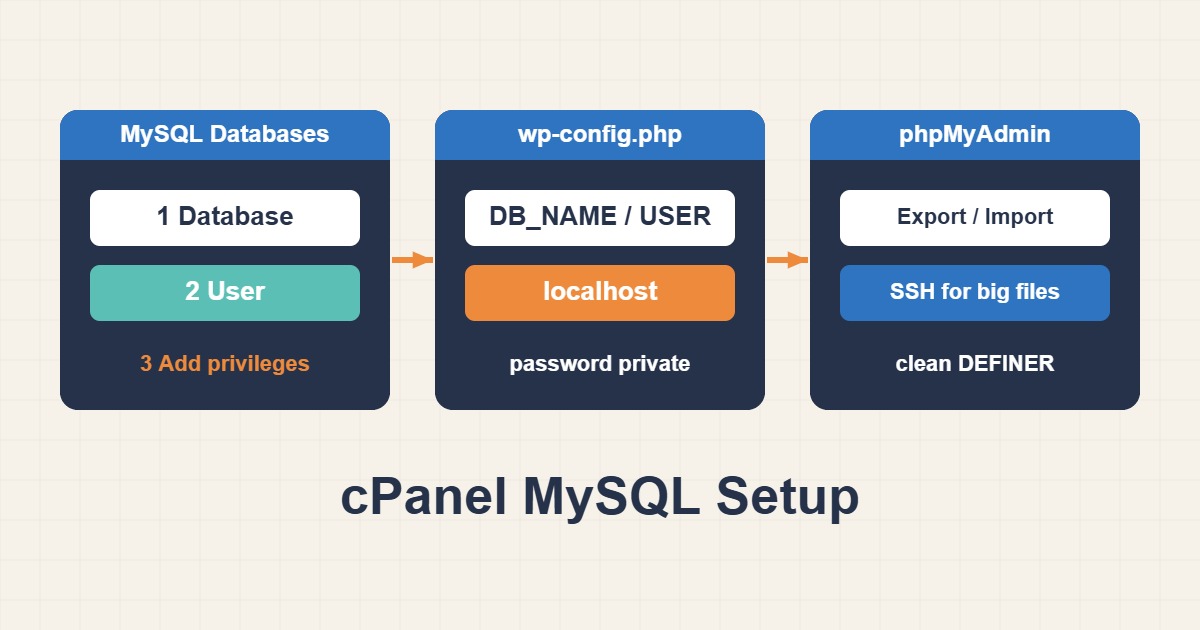
Every WordPress site needs a database, and on cPanel hosting you create it yourself in the MySQL Databases screen. It looks simple, yet it is the source of many migration headaches: a missing user, the wrong name prefix, a dump that will not import, or a timeout on a large file. This guide shows the correct creation order, how to connect WordPress, how to export and import with phpMyAdmin and the command line, and how to fix the typical import errors. Interface names can differ between cPanel versions and hosts.
1. The three steps in MySQL Databases
In cPanel, MySQL Databases has three separate actions, and all three are needed. First create the database. Second create a database user with a strong password. Third add that user to the database and choose its privileges. A database without a user attached is unreachable, and a user without privileges can connect but cannot read anything. Names are prefixed with your account name, so a database called wpdb becomes cpuser_wpdb.
2. Pick privileges deliberately
For a normal WordPress site the simplest choice is to grant all privileges on that single database, which lets WordPress create tables, update them and run updates. Never grant access to databases the site does not use. If you want a stricter setup with separate users for runtime and for schema changes, Least-Privilege MySQL Users: Separate Runtime Access from Migrations explains the idea of least privilege for MySQL users. Even on shared hosting you can create one user per site so that a leak on one site does not expose another.
3. Handle the password carefully
Use the password generator in cPanel and store the value only where it is needed: in wp-config.php and in your password manager. Do not paste it into support tickets, chats or shell commands. When a tool asks for it, use an interactive prompt. If a password was exposed, change it in MySQL Databases and update wp-config.php at once, because the site will stop connecting until both match.
4. Connect WordPress
Open wp-config.php and set the four values to what you created. On shared hosting the host is nearly always localhost:
define( 'DB_NAME', 'cpuser_wpdb' );
define( 'DB_USER', 'cpuser_wpuser' );
define( 'DB_PASSWORD', 'use-the-generated-password-here' );
define( 'DB_HOST', 'localhost' );
The password above is a placeholder, not a real secret. After saving the file, load the site. If you see a connection error, compare each value carefully, including the prefix and case, and see Fix “Error Establishing a Database Connection” in WordPress. Test from the command line if you have access:
wp db check
wp db size --tables --size_format=mb
5. Remote MySQL: open only what you need
By default the database accepts connections only from the server itself. cPanel has a Remote MySQL feature that adds allowed hosts. Add a specific IP address that you control when you need a desktop tool, and remove it when finished. Avoid allowing every address, because an exposed database invites password guessing.
6. Export with phpMyAdmin
Open phpMyAdmin from cPanel, select the database, choose Export and use a compressed format for large sites. The Quick method uses sensible defaults, and the Custom method lets you select tables and options. Export one very large table separately if the whole file is too big. A dump produced this way contains a header, table definitions and insert statements.
7. Export and import with the command line
If your plan includes SSH, mysqldump is faster and more reliable than a browser for big databases. The --single-transaction option gives InnoDB tables a consistent snapshot without long locks. The password is requested interactively, so it does not appear in the command:
mysqldump --single-transaction -u cpuser_wpuser -p cpuser_wpdb | gzip > db-$(date +%F).sql.gz
gunzip -c db-2026-10-14.sql.gz | mysql -u cpuser_wpuser -p cpuser_wpdb
When the file is on the server, importing from the shell avoids the browser timeouts and upload limits that affect phpMyAdmin.
8. Why large imports fail in phpMyAdmin
The import runs through PHP, so it is limited by the upload size, the post size and the maximum execution time of your hosting. A file larger than the limit is rejected, and a long import can stop halfway with a timeout. You can compress the dump, raise the PHP limits if your host allows it, import table by table, ask the host to import it, or use the shell. Avoid random third-party import scripts that you upload to the site, because they leave a tool with direct database access on a public server.
9. Clean the dump before import
Dumps from another server often contain lines that a shared account is not allowed to run. Look for them first:
grep -nE 'CREATE DATABASE|^USE |DEFINER=' dump.sql | headA CREATE DATABASE or USE line fails with an access error because your user cannot create databases, so remove those lines and import into the database you already created. A DEFINER clause refers to a user or privilege you may not have. If the dump came from MySQL 8 and the target is MariaDB or an older MySQL, the collation utf8mb4_0900_ai_ci is unknown there. These two commands handle both, and you should check the result before importing:
sed -E 's/DEFINER=`[^`]+`@`[^`]+`//g' dump.sql > dump-clean.sql
sed -i 's/utf8mb4_0900_ai_ci/utf8mb4_unicode_520_ci/g' dump-clean.sql
10. Typical import errors
“#1044 Access denied” usually means a CREATE DATABASE or USE line. “#1227 Access denied; you need SUPER privilege” points to a DEFINER clause. “Unknown collation” is the version mismatch above. “MySQL server has gone away” usually means a packet or timeout problem on a large statement, and Fix MySQL Server Has Gone Away Errors explains how to approach it. “Table already exists” means you are importing into a database that already has tables, so empty it first or use a fresh one, after checking you have a backup.
11. Check and repair
After an import, run a quick health check. cPanel also has a Repair Database option, and WP-CLI can import, check and repair from the command line when allowed:
wp db import dump-clean.sql
wp db check
wp db repair
Repair is for damaged tables, not for a failed import, so run it only when a check reports a problem.
12. Watch size and connections
Large databases use quota, and slow queries or many simultaneous visitors can exceed connection limits on shared hosting. If you see “Too many connections”, Fix MySQL Too Many Connections Safely describes safe ways to approach it. Keep the database lean by deleting spam and revisions, but never remove data without a verified backup.
13. Common mistakes
- Creating the database but never adding the user to it.
- Forgetting the account prefix in the name or user.
- Pasting the password into chats, tickets or commands.
- Allowing remote access from every address.
- Importing a dump that contains
CREATE DATABASEorDEFINERlines. - Importing into a database that already holds the old site.
14. A worked example
An owner moves a site to a new cPanel account. The old dump fails in phpMyAdmin with an access error. The search finds a DEFINER clause and a MySQL 8 collation. After cleaning the file, the owner imports it from SSH into a new database with a dedicated user, updates wp-config.php and runs a health check. This is an illustration of the process, not a measurement from a real site.
15. Quick checklist
- Create the database, the user and then attach the user with privileges.
- Store the password only in
wp-config.phpand a password manager. - Export with a compressed dump and a consistent snapshot.
- Clean
CREATE DATABASE,USEandDEFINERlines. - Import from the shell for large files and run a health check.
- Close remote access when finished.
More server guides are collected in the article archive.
Official references
cPanel: MySQL Databases · phpMyAdmin documentation · MySQL: mysqldump · WP-CLI: wp db