
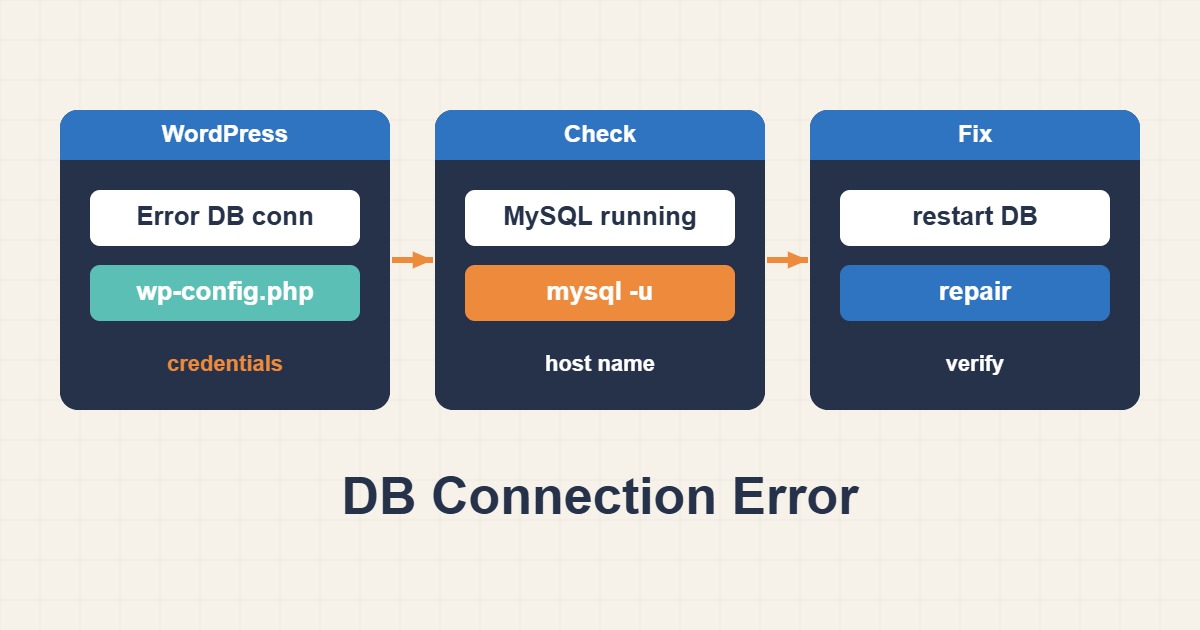
The Error Establishing a Database Connection message means PHP could not open a usable connection to the WordPress database. Random edits often make recovery slower. First decide whether the failure is permanent or intermittent, then test each layer from configuration to MySQL health.
Check the database service and network path
Inspect MySQL or MariaDB on the database host. If the database is remote, also verify DNS, TCP 3306, firewall rules, and bind-address.
systemctl status mariadb --no-pager
journalctl -u mariadb -n 100 --no-pager
ss -lntp | grep 3306
Validate wp-config.php without exposing secrets
Confirm DB_NAME, DB_USER, DB_PASSWORD, and DB_HOST. Test the same values from the PHP host. Do not place the password in shell history; let the client prompt for it.
mysql -u DB_USER -p -h DB_HOST DB_NAMETreat intermittent failures as a capacity clue
If the site works between incidents, static credentials are less likely to be the cause. Check connection count, slow queries, memory pressure, and database restarts. Raising max_connections blindly can increase RAM pressure; find leaks and long-running queries first.
mysql -e "SHOW STATUS LIKE 'Threads_connected'; SHOW VARIABLES LIKE 'max_connections';"
mysqladmin processlist
Repair tables only when logs support it
Take a backup before repair. WordPress database repair can be exposed without a login while WP_ALLOW_REPAIR is enabled, so remove the setting immediately afterward. For InnoDB, disk space and crash recovery are often more relevant than traditional table repair.
Close the root cause after service returns
Review disk capacity, OOM events, network timeouts, PHP worker pressure, connection pools, and recent changes. Add a database health check and response-time alert so the next degradation is visible before visitors see the error page.
Safe recovery checklist
- Back up the database and wp-config.php before changes.
- Capture service status and logs.
- Test the same database host and user manually.
- Correlate intermittent failures with connections and memory.
- Remove temporary repair access immediately.
Frequently asked questions
Is the database password always wrong?
No. A stopped service, full disk, connection exhaustion, DNS, firewall, or table damage can produce the same message.
Is restarting MySQL a complete fix?
It may restore service, but the issue is likely to return unless logs and resource pressure explain why it stopped responding.
Should I share wp-config.php for support?
No. It contains secrets. Share sanitized constant names and exact errors, never the credential values.
Related guides
The official WordPress troubleshooting guidance recommends removing temporary database-repair access as soon as the repair is complete.