
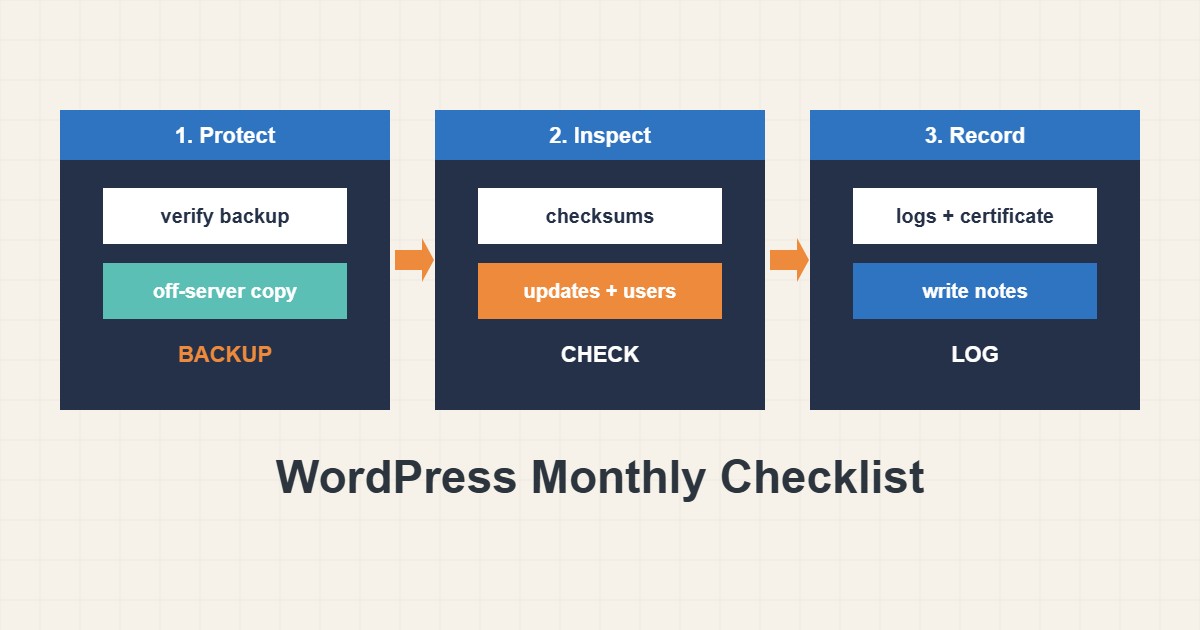
Most WordPress disasters are not sudden. They are small things nobody checked for months: a backup that stopped running, a certificate that expired, a plugin ten versions behind. A short monthly routine catches them while they are cheap. This checklist takes about thirty minutes for a normal site. It combines the dashboard, a few WP-CLI commands if you have shell access, and a note of what you changed, so the next person (or you in a year) knows the state of the site.
1. Verify the backup, do not just trust it
Open your backup tool and confirm that the newest backup exists, has a sensible size and is stored off the server. Once in a while restore one into a test copy; a backup you never restored is a hope, not a plan. The cPanel backup guide describes the details for that panel, and the same logic applies elsewhere. Do this first, because every later step is safer with a good backup.
2. Check the numbers with a few commands
With shell access, WP-CLI gives a quick read-only overview:
wp core version
wp core verify-checksums
wp plugin list --update=available --fields=name,version,update_version
wp theme list --update=available
wp db size --size_format=mb
wp cron event list --fields=hook,next_run_relative | head -15
The checksum command compares core files with the official ones and reveals unexpected changes. It prints a warning for files that should not exist, for example:
Success: WordPress installation verifies against checksums.
Warning: File should not exist: wp-content/uploads/cache.php
Treat a warning as a lead to investigate, not as proof of a hack. Some hosting setups add files legitimately.
3. Update in a safe order
Apply updates in this order: core, plugins, themes, and test after each group. Read changelogs for major versions. For the full routine with preview and rollback see the safe update guide. Remove plugins and themes you do not use instead of only deactivating them, since inactive code can still be exploited.
4. Review users and access
Check administrator accounts, application passwords and FTP or SSH users. Anyone who left the project should lose access. The article on reducing WordPress admin risk on this site describes the roles and the file editor setting in detail. Review contact forms by sending a test message, because a broken form fails silently.
5. Look at logs, certificates and speed
Read the end of the PHP error log for repeated errors, check the certificate expiry and measure the home page speed once:
echo | openssl s_client -connect example.com:443 -servername example.com 2>/dev/null | openssl x509 -noout -enddateIf the certificate has less than about two weeks left and is not renewing, investigate now. A quick look at page speed and uptime history completes the check; for slow responses see the TTFB guide. Keep a short log of the date, what you checked and what you changed.
6. Illustrative example, not a measurement
Imagine the checksum command warns about an unexpected PHP file in the uploads folder and the plugin list shows a plugin 14 versions behind (made-up findings). Neither is proof of a hack, but both are worth an hour this month rather than an emergency next month. You back up, remove the unused plugin, scan the unexpected file and compare it to a clean copy, and write the date in your notes. A monthly check turned a possible incident into routine work.
7. Common mistakes
- Assuming the backup works because the plugin says it ran.
- Updating everything at once without a rollback.
- Keeping deactivated plugins and themes forever.
- Never reviewing user accounts.
- Only checking the site when a customer complains.
- Not writing down what was changed.
8. Frequently asked questions
Is monthly enough? For many small sites yes. Busy shops or sites with many editors may need weekly checks and active monitoring.
Can I automate parts of this? Yes: backups, uptime monitoring and certificate alerts are good candidates. Still look at the results.
Do I need shell access? No. The dashboard Site Health screen covers a lot, but WP-CLI makes it faster.
What if I find a problem? Back up first, change one thing at a time and record it.
9. Quick checklist
- Verify the newest backup and its location.
- Run the read-only health commands.
- Update core, plugins and themes in order.
- Remove unused plugins and themes.
- Review users and test forms.
- Read error logs and check the certificate.
- Write down what you did.
If you need help reviewing performance or maintaining a server, see the server management services.
More server and WordPress guides are collected in the article archive.
Official references
WP-CLI: wp core verify-checksums · WordPress: Hardening WordPress · WordPress: Backups · WordPress Documentation: Site Health