
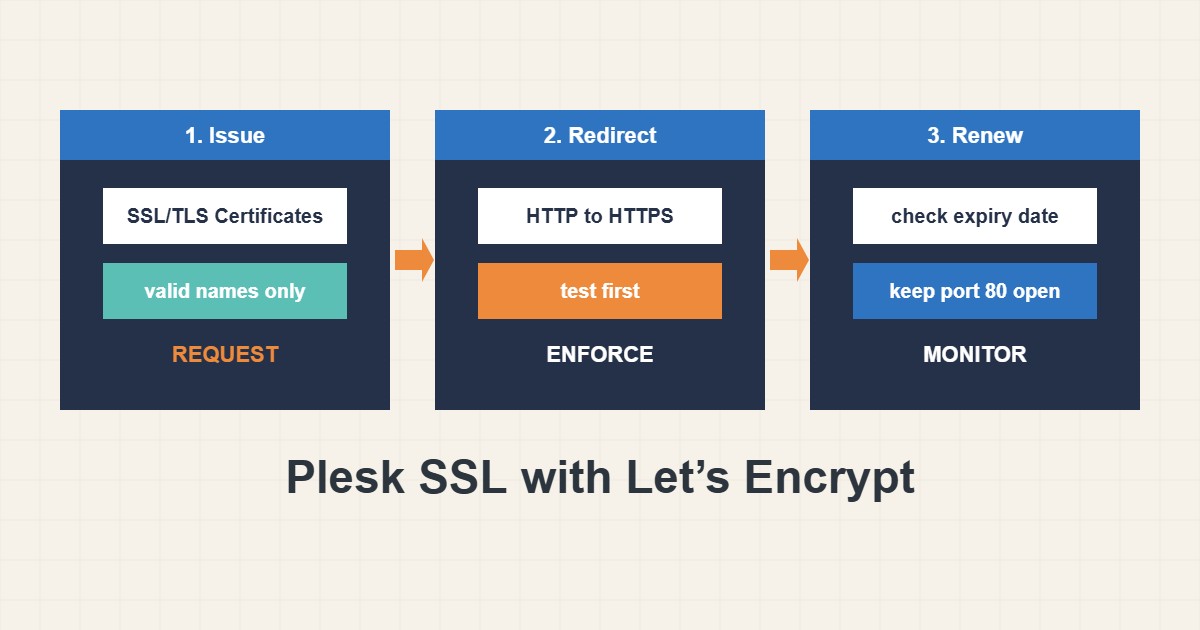
A free Let’s Encrypt certificate in Plesk is usually two clicks, which is why failures feel confusing: the button is there, the error message is short and the cause is almost always outside Plesk. The certificate authority must reach your domain over plain HTTP on port 80, find the right answer and be allowed to issue. This guide shows how to issue and renew a Let’s Encrypt certificate in Plesk, how to turn on the HTTPS redirect, and how to diagnose the four most common failures. Screens differ a little between Plesk versions.
1. Issue the certificate
Open Websites & Domains, choose the domain and open SSL/TLS Certificates or the Let’s Encrypt extension. Enter the contact email, tick the options for the main domain and the www name, and consider webmail if you use it. Click Get it free or Install. Only include names that already point to this server; one name that does not will fail the whole request.
2. Turn on the HTTPS redirect safely
Issuing a certificate does not force visitors to HTTPS. In the Hosting & DNS settings of the domain, enable the permanent SEO-safe redirect from HTTP to HTTPS. Do this after you have opened the site over HTTPS and checked that it works, because a redirect to a broken certificate makes the site unreachable. Remember to update WordPress addresses to https, and see the redirect guide for the cPanel version of this task and the Cloudflare loop guide if a CDN sits in front.
3. Check the four usual causes of failure
First, the domain must resolve to this server. Second, port 80 must be open and the challenge path reachable. Check both from your computer:
# 1. Does the domain point at this server? (compare with the server IP)
dig +short example.com A
dig +short www.example.com A

# 2. Is port 80 reachable and not redirected away from the challenge path?
curl -sS -o /dev/null -w '%{http_code} %{redirect_url}\n' http://example.com/.well-known/acme-challenge/test
Third, a redirect rule, security rule or maintenance page must not block /.well-known/acme-challenge/; WordPress plugins and firewall rules sometimes do. Fourth, Let’s Encrypt has rate limits, so repeated failed attempts can lock you out for a while; wait and fix the cause instead of clicking again. If the domain uses Cloudflare in proxied mode, validation may behave differently, so read the error text.
4. Wildcard certificates need DNS validation
A wildcard certificate covers all subdomains but must be validated through a DNS record. Plesk can do this when it manages the DNS of the domain, and it will ask for or create the record. If your DNS is hosted elsewhere, you must add the record there yourself, and automatic renewal may not work unless the provider supports it. A non-wildcard certificate listing each subdomain is simpler when you only have a few. The same DNS-based method is explained for Linux servers in the Certbot wildcard guide.
5. Renewal and monitoring
Plesk renews Let’s Encrypt certificates automatically before they expire, but it can fail silently if DNS, firewall or redirects changed after the first issue. Do not wait for a browser warning. Check the expiry date now and then:
echo | openssl s_client -connect example.com:443 -servername example.com 2>/dev/null | openssl x509 -noout -issuer -enddateRead the issuer and the end date. If less than about two weeks remain and the certificate has not renewed, look at the Plesk notifications, retry from the certificate page of the domain and recheck the four causes. Put the expiry in a calendar or a monitor as a second safety net.
6. After the certificate is installed
Open the site in a private window and check that there is no mixed content (HTTP images or scripts on an HTTPS page). If you use HSTS, add it only after the site works well on HTTPS, since it tells browsers to refuse plain HTTP for a long time. For the idea of rolling it out slowly, see the HSTS guide.
7. Illustrative example, not a measurement
Imagine the DNS check prints an old server address for www while the main name points to the new one (a made-up case). The request for a certificate with both names fails because the CA reaches the wrong machine for one of them. The fix is to correct the www record, wait for DNS to update, and request again, or to issue the certificate for the main name only until DNS is right. Clicking the button repeatedly would only use up attempts.
8. Common mistakes
- Including a name that does not point to the server.
- Forcing the HTTPS redirect before checking the certificate.
- Blocking the challenge path with a security rule.
- Clicking Install again and again after failures.
- Forgetting that a wildcard needs DNS validation.
- Never checking whether renewal worked.
9. Frequently asked questions
Is Let’s Encrypt enough for a business site? For encryption and browser trust, yes. Some organizations choose a paid certificate for other reasons, such as validation level or support.
Why does it say the domain is not accessible? The CA could not reach the challenge file. Check DNS, port 80, redirects and firewall rules.
Do I need to renew manually? Normally not, since Plesk renews it. Still check the date from time to time.
Can one certificate cover several domains? Yes, up to the limits of the CA, but all names must be validated.
10. Quick checklist
- Confirm that every name points to this server.
- Issue the certificate for the needed names only.
- Test the site over HTTPS before redirecting.
- Turn on the HTTP to HTTPS redirect.
- Keep the challenge path reachable.
- Check the expiry date regularly.
- Fix mixed content and add HSTS only when stable.
If you need help reviewing performance or maintaining a server, see the server management services.
More server and WordPress guides are collected in the article archive.
Official references
Plesk Obsidian: Securing Websites with SSL/TLS Certificates · Plesk Obsidian: Securing Plesk with SSL/TLS Certificates · Let’s Encrypt: Challenge types · Let’s Encrypt: Rate limits