
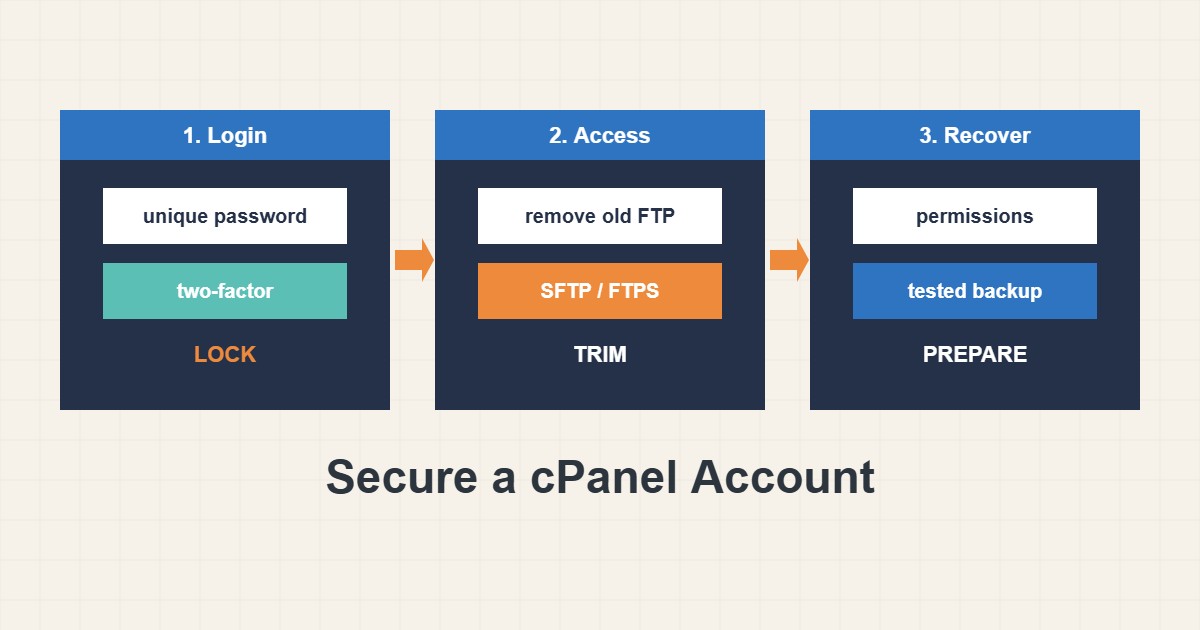
A cPanel account is the key to your whole website: files, databases, mail and DNS. If someone takes over the account, no WordPress security plugin can save you. Most takeovers are not clever; they come from reused passwords, forgotten FTP users, outdated software and open admin areas. This guide collects the cPanel security settings that give the most protection for the least work, in the order they are worth doing, and explains the limits of each. Menu names vary between cPanel versions, and some tools depend on what your host has enabled.
1. Secure the login first
Use a long unique password stored in a password manager, and never reuse the cPanel password for email or WordPress. Turn on two-factor authentication under Security, Two-Factor Authentication if your host offers it, and save the recovery information somewhere safe. A stolen password alone then cannot open the account. Also keep the contact email current, because password resets and security alerts go there; an old address is a quiet way to lose control.
2. Use secure file transfer and remove old FTP users
Open FTP Accounts and delete users that nobody needs, including accounts of former developers. Prefer SFTP or FTPS in your client instead of plain FTP, because plain FTP sends the password unencrypted. Limit each FTP user to the folder they need instead of the whole home directory. Do not create a general FTP user for a one-time job and forget it.
3. Protect sensitive folders with Directory Privacy
Directory Privacy adds a password prompt to a folder, such as a staging site or a private tools folder. It is a simple barrier for things that should not be public. It does not replace application security, and the credentials it protects folders with should be unique too. For WordPress login protection, see the other hardening guides on this site, for example keeping WordPress updated safely.
4. Block abuse, carefully
The IP Blocker tool stops specific addresses. Use it for a clear abuser from your logs, not on a guess, because a shared address or a mobile network can belong to real visitors. The same can be done in .htaccess:
# Block one address in .htaccess (Apache), only if you are sure of it
<RequireAll>
    Require all granted
    Require not ip 203.0.113.45
</RequireAll>
Be careful with rules you copy: a typo in .htaccess can take the site down. Keep a copy before editing and test. Hotlink Protection stops other sites embedding your images, which saves bandwidth, but test it so that your own pages, feeds and social previews still work.
5. Check permissions and what is exposed
Sensitive files such as wp-config.php should not be world-writable. A read-only check:
# Check permissions of sensitive files (read-only)
stat -c '%a %U %n' $HOME/public_html/wp-config.php $HOME/public_html/.htaccess
Typical safe values are 644 for files and 755 for folders, and 600 or 640 for configuration files when your host allows it. Overly open permissions are a common cause of reinfection; see the 403 guide for how permissions and errors relate. Delete backup archives, .sql dumps and old copies from the web root, since anyone can download them if they know the name.
6. Keep a tested backup and review access
Security without recovery is half a plan. Keep an off-account backup and test a restore; the cPanel backup guide shows how. Review who has access every few months: FTP users, SSH keys, email accounts, API tokens and collaborators. If you suspect a compromise, change the cPanel, FTP, database and WordPress passwords, check recent files, and contact your host before restoring.
7. Illustrative example, not a measurement
Imagine a site owner finds a forgotten FTP account for a developer who left two years ago (a made-up scenario). The password was reused from another service that later leaked. Two-factor on cPanel would not protect FTP, but deleting the unused account would. This shows why access reviews matter: one forgotten login can undo every other precaution.
8. Common mistakes
- Reusing one password for cPanel, FTP and WordPress.
- Leaving FTP users alive after a project ends.
- Blocking IP ranges on a guess and locking out real visitors.
- Leaving SQL dumps and backup zips in the web root.
- Setting folders to 777 to “fix” an error.
- Having no tested backup before changing security settings.
9. Frequently asked questions
Is two-factor authentication available on every host? Not always. It depends on the cPanel version and your host. If it is missing, ask whether it can be enabled.
Is Directory Privacy enough to protect a staging site? It is a good first barrier, but also stop search engines from indexing it and keep it free of real customer data.
Should I use a security plugin as well? A plugin helps with the application, but it cannot protect the account itself. Use both layers.
What if I think the account is hacked? Change passwords, contact the host and compare files to a clean copy before restoring.
10. Quick checklist
- Set a unique password and enable two-factor.
- Update the contact email.
- Delete unused FTP users and use SFTP or FTPS.
- Protect private folders with Directory Privacy.
- Block only clear abusers by IP.
- Check permissions and remove dumps from the web root.
- Keep and test an off-account backup.
If you need help reviewing performance or maintaining a server, see the server management services.
More server and WordPress guides are collected in the article archive.
Official references
cPanel Documentation: Two-Factor Authentication · cPanel Documentation: IP Blocker · cPanel Documentation: Directory Privacy · WordPress: Hardening WordPress