
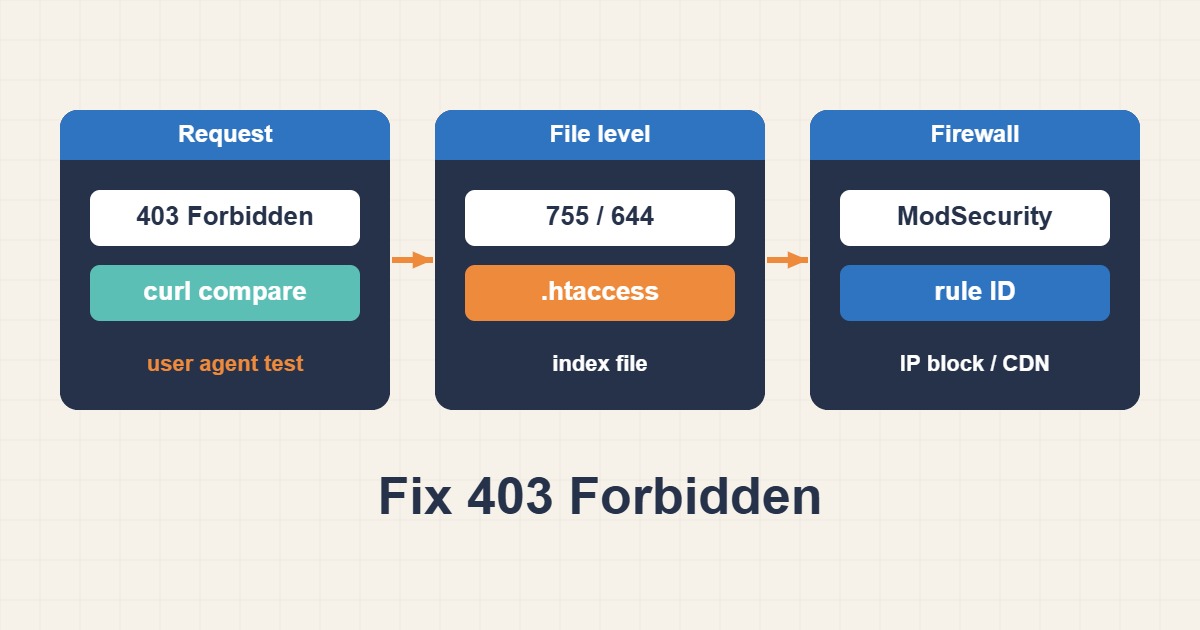
“403 Forbidden” means the server understood the request and refused it. On cPanel hosting the refusal has a handful of usual sources: file permissions or ownership, rules in .htaccess, a missing index file, a firewall such as ModSecurity, or a block on your IP address. Guessing wastes time, but each source leaves a recognizable trace. This guide shows how to tell them apart, which permission values are normal, how to read a ModSecurity entry and what to ask your host when the cause is outside your control. Menu names and security tools vary between providers.
1. Decide where the 403 comes from
Start by noting exactly which URL returns 403: the whole site, only the admin area, only one file, or only one action such as saving a post. A whole-site 403 suggests permissions, the index file or an account-level block. A 403 only in /wp-admin/ or on a form submission suggests a firewall rule. A 403 on a single file suggests a rule or the file’s own permissions. Also note whether it affects everyone or only you, since a block on your IP address affects only you.
2. Compare requests with curl
Requests that look different to a firewall can get different answers. Compare the response with different user agents:
curl -I https://example.com/wp-admin/
curl -I -A 'Mozilla/5.0' https://example.com/wp-admin/
curl -I -A 'curl-test' https://example.com/wp-admin/
If the browser-like request succeeds and the plain one fails, a firewall or bot rule is judging the request. If every request fails the same way, look at permissions, the index file and .htaccess. If it only fails from your network, suspect an IP block.
3. Check file permissions and ownership
On most cPanel servers, directories should be 755 and files 644, owned by your account user. Look at what you actually have:
ls -la ~/public_html | head -n 20
stat -c '%U:%G %a %n' ~/public_html/wp-config.php ~/public_html/index.php
Folders with too strict permissions, like 700 for the web server’s access, or files that belong to a different user, can produce 403. Files owned by root, for example after a restore done by the host, can also behave oddly, and only the host can change the owner.
4. Set normal permissions
You can reset the standard values from SSH or the File Manager. These commands apply 755 to folders and 644 to files, and tighten the configuration file:
find ~/public_html -type d -exec chmod 755 {} \;
find ~/public_html -type f -exec chmod 644 {} \;
chmod 600 ~/public_html/wp-config.php
Use the same values the File Manager shows as normal for your host. The tight value for wp-config.php works when PHP runs as your own user, which is common on modern cPanel setups, and a looser value such as 640 or 644 may be needed on others. Run these commands only inside the site folder, and think before running a recursive command anywhere else.
5. Never use 777
Giving everything full permissions to everyone is a bad fix. It lets any other process on the machine write to your files, and on many cPanel servers the PHP handler refuses to run files or folders with such permissions, which produces a 500 or 403 error. If an installer or plugin demands 777, treat that as a sign of an ownership or handler problem and look for the real cause. Fix Nginx Permission Denied and 403 Errors explains the same idea for Nginx servers.
6. A missing index file
If a folder has no index file and directory listing is turned off, Apache returns 403 instead of showing the file list. This is normal and also good for security. The fix is to add the right index file, or to make sure the directory index setting names the files you use:
DirectoryIndex index.php index.html
Options -Indexes
A WordPress site needs an index.php in the document root. If it is missing after a move, restore it from the original package.
7. Look at .htaccess rules
A deny rule can block more than you intended, and security plugins add many. Look for blocks like these and for leftover old-style lines that deny everyone:
    Require all denied

# leftover lines from old rules that may block everyone:
# Order deny,allow
# Deny from all
To test, rename .htaccess for a moment and reload. If the 403 disappears, the cause is inside it. Restore the file and bisect by commenting out blocks. Remember that WordPress may rewrite the file when you re-save permalinks. If the site shows a 500 error after an edit, Fix WordPress 500 Internal Server Error helps.
8. Recognize a ModSecurity block
ModSecurity is a web application firewall used by many hosts. When it blocks a request, it returns 403 and writes a line in the error log, with a rule ID and a message. Typical triggers are content that looks like code or SQL, which can appear when you save a post that includes a code sample, a long query string, or a plugin that submits unusual data. A log entry looks like this:
[error] [client 203.0.113.50] ModSecurity: Access denied with code 403 (phase 2).
Matched "Operator `Rx' with parameter ..." [id "949110"] [msg "Inbound Anomaly Score Exceeded"]
[hostname "example.com"] [uri "/wp-admin/admin-ajax.php"]
Search the log for such entries around the time you reproduced the error:
tail -n 100 ~/public_html/error_log | grep -iE 'modsecurity|denied|forbidden'The important parts are the rule ID, the message and the URI. If the same ID appears every time you hit the error, you have found the cause.
9. What to do about ModSecurity
Do not simply ask for the firewall to be switched off, because it protects you from real attacks. Send the host the time, your IP address, the URL and the rule ID and ask them to adjust or whitelist that rule for that path. If cPanel gives you a per-domain switch, use it only briefly for testing. As a user you can sometimes avoid the trigger by changing what you submit, for example by moving a code sample into a block that does not look like an attack.
10. Other blocks: IP, hotlink protection and directory privacy
cPanel has an IP Blocker that can deny an address or range, and a Hotlink Protection feature that can deny image requests from other sites and sometimes from your own with a wrong setting. Directory Privacy can password-protect a folder, and an unexpected password or refusal there looks like a 403. Many hosts also run intrusion tools that automatically block an IP after repeated failed logins, so a locked-out administrator needs the host to unblock the address. Check each of these screens for entries you did not create.
11. Cloudflare and other proxies
A CDN or proxy can return its own 403 page before the request reaches the server. The page usually names the proxy and includes a reference number. In that case check the firewall events in its dashboard, because the cause is a rule there and not on the host. To protect the login page without blocking yourself, Configure Nginx Rate Limiting for Login and API Abuse covers rate limiting that does not lock out real users.
12. When the files changed by themselves
If permissions or .htaccess changed and you did not do it, or if you see unknown files, take that seriously. A compromised site can have its rules modified to hide malware or deny access. See Clean a Hacked WordPress Site: Malware and Backdoors for how to investigate before you simply reset the values.
13. Common mistakes
- Fixing permissions recursively on the wrong folder.
- Using 777 as a quick fix.
- Leaving a stray
Deny from allin.htaccess. - Switching off ModSecurity instead of finding the rule ID.
- Forgetting that a CDN can return its own 403.
- Testing from a blocked IP and assuming everyone is blocked.
14. A worked example
An editor gets 403 when saving a post that contains a code sample, while the rest of the site works. The error log shows a ModSecurity entry with a rule ID for the admin AJAX path. The owner sends the host the time, the URL and the ID, and the host adjusts the rule for that path. Saving works again. This is an illustration of the process, not a measurement from a real site.
15. Quick checklist
- Note which URLs and users get the 403.
- Compare curl requests with different user agents.
- Reset standard permissions and check ownership.
- Review
.htaccessand the index file. - Search the error log for ModSecurity entries and send the host the rule ID.
- Check IP blocks, hotlink settings and any CDN firewall.
More server guides are collected in the article archive.
Official references
Apache: .htaccess howto · Apache: mod_authz_core (Require) · OWASP ModSecurity Core Rule Set · WordPress: Hardening