
A white page or a “500 Internal Server Error” tells you almost nothing. The real reason is written in a log, and on cPanel hosting there are several of them in different places. Reading the right line takes a few minutes, while guessing by disabling things can take hours. This guide shows where cPanel and PHP write errors, how to read a message down to the file that caused it, how to turn on WordPress logging without showing errors to visitors, and how to switch it off again. Menu names can differ slightly between cPanel versions.
1. Start with the Errors page
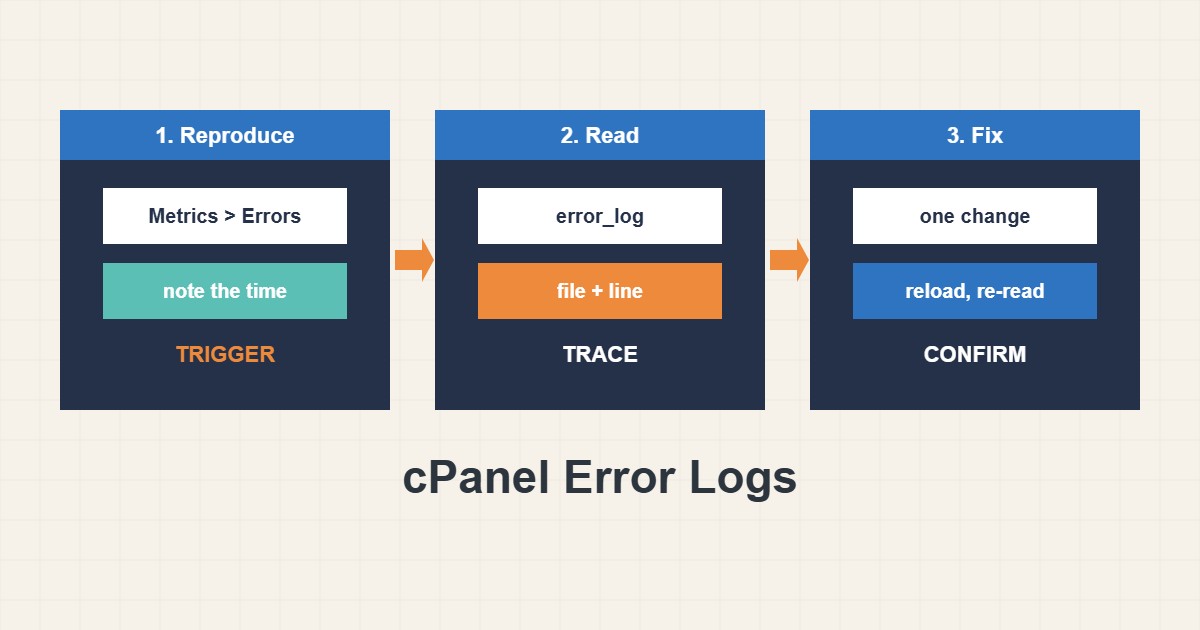
In cPanel open Metrics, then Errors. It shows the most recent lines of the web server’s error log for the domains of the account. Reproduce the problem, reload the page, and look at the newest entries with the matching time. Each line has a time, a client address and a message. If nothing appears, the error may be written by PHP to a different file, which is the next step.
2. Find the PHP error_log file
PHP often writes its own error_log file in the folder of the script that failed, so check the site root and the wp-content folder. A quick way to look in Terminal:
cd $HOME/public_html
ls -lt error_log wp-content/error_log 2>/dev/null
tail -n 50 error_log
Sort by time and read the newest lines first, because an old file can be full of past, unrelated errors. Use File Manager if you have no Terminal, and enable hidden files. A file that is gigabytes large means an error repeats on every request; fix the cause, then see the 508 limit guide if the account is also hitting limits.
3. Read a message down to the cause
A PHP fatal error has a standard shape: what happened, then the file and line. The path usually names the culprit:
[20-Oct-2026 10:14:03 UTC] PHP Fatal error:  Uncaught Error: Call to undefined function example_function()
 in /home/user/public_html/wp-content/plugins/example-plugin/main.php:88
This line says that a function does not exist, and the path points to a plugin named example-plugin. The usual fix is to deactivate or rename that plugin’s folder in wp-content/plugins, check that its version matches the PHP version (see the PHP version guide) and update it. Look also for “Allowed memory size exhausted”, “Maximum execution time exceeded” and “Permission denied”, each of which points to a different fix. Limits are covered in the PHP limits guide.
4. Turn on WordPress logging safely
If the server log does not explain it, let WordPress write its own log without printing errors on the page:
// wp-config.php, before the line 'That's all, stop editing!'
define('WP_DEBUG', true);
define('WP_DEBUG_LOG', true);
define('WP_DEBUG_DISPLAY', false);

// Log: wp-content/debug.log. Turn WP_DEBUG back to false when finished.
Reproduce the problem, then read wp-content/debug.log. Do not leave debugging on permanently, because the log can grow large and may contain paths and details you do not want exposed. Make sure the log file is not publicly readable on your host, and remove it when you finish.
5. Check PHP error settings
In MultiPHP INI Editor or a .user.ini file, production sites should log errors but not display them:
; Safe production values (MultiPHP INI Editor or .user.ini)
display_errors = Off
log_errors = On
error_reporting = E_ALL
Showing errors to visitors leaks file paths and can help an attacker. If the page is blank because a fatal error stops output, the log still has the message even though the screen has none.
6. Other common causes of a 500
If the log shows an Apache message such as “Invalid command” or “syntax error” near .htaccess, a rule is wrong; rename the file temporarily and test. A “403” or permission message points to ownership and permissions; see the 403 guide. After you find the cause, restore the renamed files you used for testing and note the fix.
7. Illustrative example, not a measurement
The example log line above (made up for illustration) shows how to turn a vague 500 page into one action. The message names the problem (an undefined function), the file (main.php) and the plugin folder. You rename that one folder, reload the site, and either it recovers or the log now shows a different line. Each step changes one thing and gives new information.
8. Common mistakes
- Disabling all plugins at once and learning nothing about the cause.
- Turning on
display_errorson a live site. - Reading an old error_log and chasing errors that are no longer happening.
- Leaving WP_DEBUG on for weeks.
- Deleting
.htaccessinstead of renaming it, so the original rules are lost. - Ignoring a log file that is getting huge.
9. Frequently asked questions
Where is the error log on cPanel? Look at Metrics, Errors, and at error_log files in the site root and in the folder of the failing script.
Why is debug.log empty? Either no error happened in that request, or the constants were not set before the line where WordPress loads. Check the order in wp-config.php.
Is it safe to share log lines? Remove usernames, paths and addresses first. They can reveal how your account is organized.
Does the log help with slow pages? Only for errors. For slowness, measure time and queries instead.
10. Quick checklist
- Reproduce the error and note the time.
- Read Metrics, Errors for matching lines.
- Find the newest error_log files and read the tail.
- Follow the path in the message to the plugin or theme.
- Use WP_DEBUG_LOG with display turned off if needed.
- Change one thing, reload, and read the log again.
- Turn debugging off and remove temporary files.
If you need help reviewing performance or maintaining a server, see the server management services.
More server and WordPress guides are collected in the article archive.
Official references
cPanel Documentation: Errors · WordPress: Debugging in WordPress · PHP Manual: Error handling configuration · Apache HTTP Server: Log files