
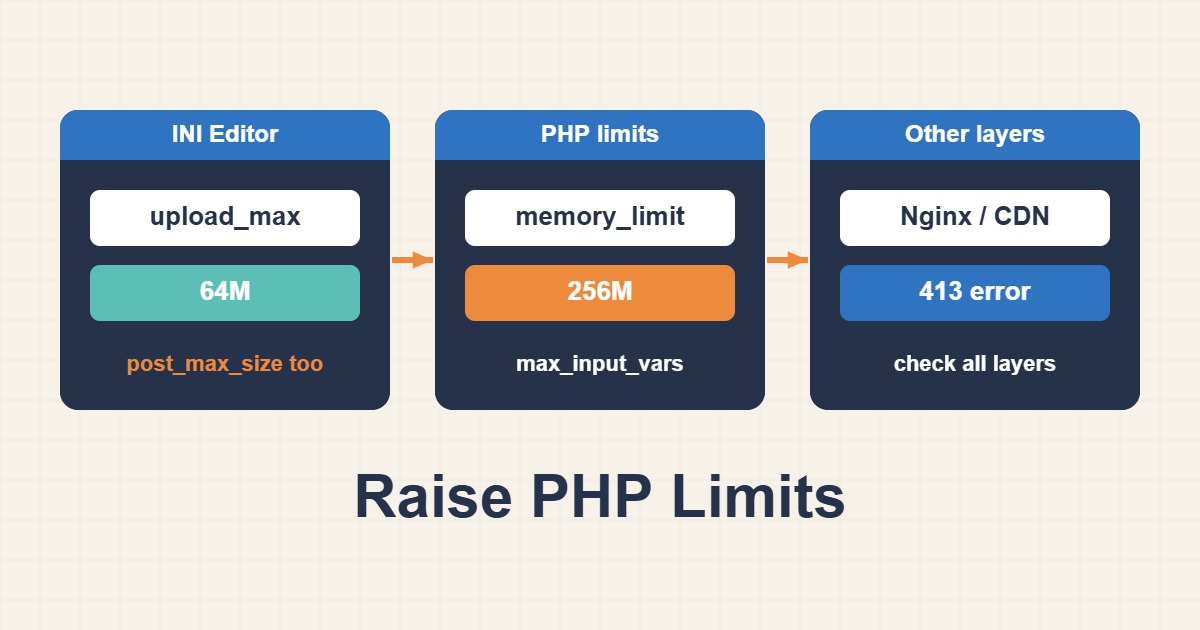
“The uploaded file exceeds the upload_max_filesize directive”, “Maximum execution time of 30 seconds exceeded” and a silent failure when saving a large menu are three faces of the same problem: shared hosting ships with conservative PHP limits. cPanel lets you change many of them yourself through the MultiPHP INI Editor, but the values depend on each other, and some limits live outside PHP altogether. This guide explains which settings matter, how to change them safely, how to confirm the new values and what to check when nothing changes.
1. The limits behind the common errors
Five settings cover most cases. upload_max_filesize is the largest single file PHP accepts. post_max_size is the largest total request body, so it must be at least as big as the upload limit. memory_limit caps what one request may use. max_execution_time stops a script that runs too long, and max_input_time limits how long PHP may spend reading the request. A sixth, max_input_vars, limits how many form fields PHP accepts and explains menus or option pages that save only part of their data.
2. See the current values first
In WordPress, the Media upload screen shows the maximum upload size, and Site Health under Info and Server lists several limits. With WP-CLI you can read the values that PHP uses in the WordPress context:
wp eval 'echo ini_get("upload_max_filesize"), " | ", ini_get("post_max_size"), " | ", ini_get("memory_limit"), " | ", ini_get("max_execution_time"), PHP_EOL;'Remember that the command line may read a different configuration from the web server, so use the website screens as the final word on what visitors’ requests get.
3. Understand how the values relate
Keep a sensible order: memory_limit larger than post_max_size, and post_max_size at least as large as upload_max_filesize. If you raise only the upload limit to 64M while post_max_size stays at 8M, uploads still fail, and the error can look like an empty request. Raise them together and add a margin, because a form carries more than the file itself.
4. Use MultiPHP INI Editor
In cPanel open MultiPHP INI Editor. Basic Mode shows common directives with fields you can change, and Editor Mode lets you edit the configuration text for a chosen location. Select the domain or home directory, set the values and save. The editor writes the setting in a file that the PHP handler reads, so you do not have to touch the server configuration. Typical values for a content site look like this:
upload_max_filesize = 64M
post_max_size = 64M
memory_limit = 256M
max_execution_time = 120
max_input_time = 120
max_input_vars = 3000
These numbers are an example. Choose what your content really needs and keep them modest, because a huge limit lets a single request hog resources.
5. .user.ini and the delay
Many hosts store per-directory PHP settings in a file named .user.ini in the site folder. PHP re-reads this file only periodically, by default every few minutes, so a change may not appear instantly. If you do not see the new values right away, wait a little before concluding the edit failed. You can inspect the file from File Manager or over SSH:
ls -la ~/public_html/.user.ini
cat ~/public_html/.user.ini
If your host uses a different mechanism, follow the editor, because it knows which file the handler reads.
6. Why php_value in .htaccess can break the site
Old tutorials say to add lines like these to .htaccess:
php_value upload_max_filesize 64M
php_value post_max_size 64M
They work only when PHP runs as an Apache module. With PHP-FPM or LSAPI, which many cPanel servers use, those directives are not allowed and can cause a 500 error. If a site breaks right after you add them, remove the lines and use the INI Editor or .user.ini instead. For other causes of a 500 error see Fix WordPress 500 Internal Server Error.
7. Limits outside PHP
Raising PHP limits does not help if another layer rejects the request first. A web server in front of PHP may have its own body size limit, such as client_max_body_size in Nginx. A firewall rule such as ModSecurity can block large or unusual uploads, and a proxy like Cloudflare limits request size depending on the plan. If you see a 413 error instead of a PHP message, the limit is probably in one of these layers, and Fix Nginx 413 Request Entity Too Large explains the Nginx side:
client_max_body_size 64m;On shared hosting you often cannot change the web server yourself, so ask the provider.
8. Execution time and long tasks
Raising max_execution_time is a bandage for slow work. A large import, a backup or an image regeneration run through the web may still hit a timeout in the web server or proxy, even after PHP allows more time. Run heavy work where timeouts do not apply, such as WP-CLI over SSH when your plan allows it, or split the job into smaller batches:
wp db import backup.sql
wp media regenerate --yes
Scheduled tasks that run too long are another source of timeouts, which Fix WP-Cron with a Real System Cron Job helps with.
9. When max_input_vars is the real problem
A WordPress menu with many items, a large options page or a page builder can send more fields than the default allows. PHP silently drops the extra ones, so some items vanish after saving with no error. Raising max_input_vars to a few thousand fixes it. Test by saving the same screen again and comparing the result.
10. Confirm the new values
After saving, re-open the WordPress Media upload page or Site Health and check that the numbers changed. If they did not, look for a more specific configuration overriding yours, such as a setting in a subdirectory, in the WordPress wp-config.php for memory only, or in the host’s account-level limits. Some providers set hard caps that you cannot exceed, and the support team must raise them.
11. A safe testing routine
Change one group of settings at a time and test the exact action that failed. Upload a file just below the new limit and one just above it, so you can see the error behave as expected. Keep a note of the old values. If something odd happens, restore them. Avoid leaving a debugging page that prints the full configuration publicly accessible.
12. Common mistakes
- Raising
upload_max_filesizebut notpost_max_size. - Adding
php_valuelines to.htaccesson a PHP-FPM server. - Expecting
.user.inichanges to appear within seconds. - Setting huge limits that let one request exhaust the account.
- Ignoring web server, firewall or CDN limits.
- Using longer timeouts instead of splitting heavy jobs.
13. Related errors
If a failing upload shows “Allowed memory size exhausted”, the limit to raise is memory_limit, not the upload size. If the page returns a database error after you save a large import, check the database side as described in Fix “Error Establishing a Database Connection” in WordPress. Match the exact message to the setting before changing anything.
14. A worked example
An editor cannot upload a 30 MB PDF, and the media screen shows a 2 MB limit. In MultiPHP INI Editor the administrator sets 64M for both the upload and post sizes and 256M for memory, saves and waits a few minutes. The media screen now shows 64M. A 30 MB test upload works, while a 70 MB file is rejected with the expected message. This is an illustration of the process, not a measurement from a real site.
15. Quick checklist
- Read the exact error and the current limits in WordPress.
- Raise
upload_max_filesize,post_max_sizeandmemory_limittogether. - Use MultiPHP INI Editor or
.user.ini, notphp_valueon PHP-FPM. - Wait for the file to be re-read and confirm the new numbers.
- Check web server, firewall and CDN limits if errors persist.
- Move heavy jobs to WP-CLI or smaller batches.
More server guides are collected in the article archive.
Official references
cPanel: MultiPHP INI Editor · PHP manual: core php.ini directives · PHP manual: .user.ini files · PHP manual: file upload pitfalls