
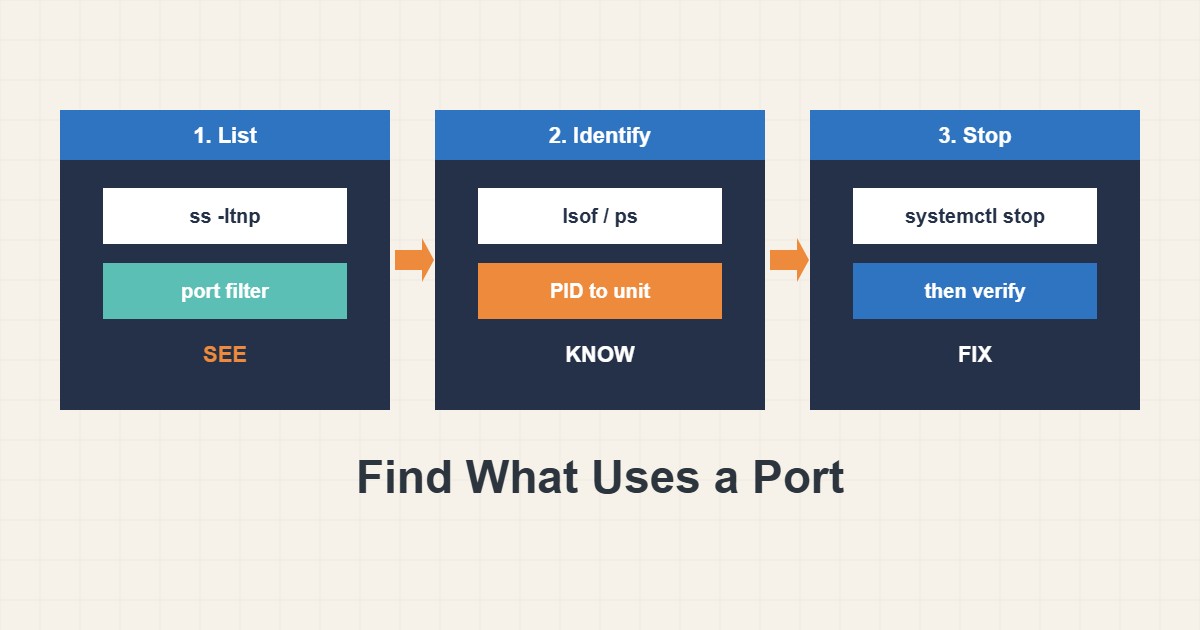
You start a service and it fails with Address already in use, or a port you thought was closed answers requests. Both questions have the same first step: find out which process owns the port, and whether it is the process you expect. On Linux two read-only tools answer this quickly, ss and lsof. This guide shows how to read their output, how to turn a port number into a service name, and how to free the port without killing the wrong thing on a production server.
1. Confirm the symptom first
Read the exact error before you search. bind: Address already in use or EADDRINUSE means another socket holds that address and port. Connection refused means nobody is listening. A timeout usually means a firewall or a wrong address. Only the first case needs the steps below. Also note which port and which address the service tried to use, because 127.0.0.1:8080 and 0.0.0.0:8080 are different bindings that can conflict in surprising ways.
2. List listening sockets with ss
ss replaces the older netstat and is installed on nearly every distribution:
sudo ss -ltnpThe flags are -l for listening sockets, -t for TCP, -n for numbers instead of names (faster and unambiguous) and -p for the owning process. Without sudo you only see processes that belong to your own user, so a missing process column often means missing privileges, not a missing process. To look at one port, filter instead of scrolling:
# Who listens on port 8080?
sudo ss -ltnp 'sport = :8080'
Use -lunp in place of -ltnp when you suspect a UDP service such as DNS.
3. Read the local address carefully
The Local Address:Port column tells you who can reach the service. 127.0.0.1:8080 is reachable only from the same machine. 0.0.0.0:8080 listens on every IPv4 address, and [::]:8080 listens on IPv6 and often IPv4 as well. A database or admin panel on 0.0.0.0 is a common exposure, even when you believed it was private. If you find one, bind it to loopback or a private interface, and check that your firewall matches your intention; the safe firewall changes guide explains how to do that without locking yourself out of SSH.
4. Cross-check with lsof
A second tool is useful when the two disagree or when you want the file descriptor view:
sudo lsof -nP -iTCP:8080 -sTCP:LISTEN-n and -P skip name lookups, -iTCP:8080 selects the port and -sTCP:LISTEN keeps only listeners. The output gives the command, the PID and the user. If lsof is not installed, ss alone is enough for most cases, so do not install tools on a production server just for this.
5. Turn a PID into a service
A PID alone is not an answer. You need to know what it is and who started it:
# Replace 1234 with the PID you found
ps -o pid,ppid,user,etime,cmd -p 1234
systemctl status 1234
The ps line shows the owner, the parent process, how long it has been running and the full command. On a systemd machine, systemctl status with a PID prints the unit that owns the process, which is the name you will use to stop it. A parent PID of 1 with a long runtime often means a managed service, while a short runtime may mean a crash loop that keeps restarting and grabbing the port.
6. Free the port the right way
Stop the process through whatever started it, not with kill first:
sudo systemctl stop myapp.service
# Then confirm the port is free
sudo ss -ltnp 'sport = :8080'
If the unit has Restart=always, killing the process only makes it come back and take the port again. If there is no service manager and you must signal the process, send the polite signal first (kill PID sends SIGTERM) and wait a few seconds so it can finish requests. Use kill -9 only as a last resort, because it gives no chance to close files or connections. Before stopping anything on a live site, confirm it is not the web server or database that serves real traffic.
7. When nothing shows up
Several situations look like an empty answer. You may be running without sudo. The port may belong to a container, where the host shows a Docker proxy process; list published ports with:
docker ps --format 'table {{.Names}}\t{{.Ports}}'Ports in the TIME_WAIT state belong to closed connections waiting to expire, not to a listening process, and they do not block a listener that sets address reuse correctly:
ss -tan state time-wait '( sport = :8080 )' | headIf the service still fails to bind, look at its own configuration for a duplicate Listen or listen line, which makes the same program conflict with itself. For connection queues that fill up under load rather than conflicts, see the listen queue overflow guide, and for containers see the Docker published ports guide.
8. Illustrative example, not a measurement
Imagine the filtered command returns one line like this (made-up values):
State  Recv-Q Send-Q Local Address:Port Peer Address:Port Process
LISTEN 0      511    0.0.0.0:8080       0.0.0.0:*         users:(("nginx",pid=2210,fd=6))
It says that nginx, PID 2210, listens on every IPv4 address on port 8080. If you expected a development app there, you found the conflict, and systemctl status 2210 tells you whether nginx is a managed service you must not break. If port 8080 was supposed to be private, the 0.0.0.0 binding is the finding to fix.
9. Common mistakes
- Running
sswithoutsudoand concluding that no process owns the port. - Killing the PID instead of stopping the service, so it restarts and the problem returns.
- Using
kill -9as the first move and corrupting a half-written file or dropping connections. - Ignoring the bind address and leaving a private service open on all interfaces.
- Confusing TCP and UDP, or IPv4 and IPv6 listeners.
- Stopping a process on a production server without checking what depends on it.
10. Frequently asked questions
Is it safe to run ss and lsof on a live server? Yes. Both only read information and change nothing, though a very large number of connections can make the output long.
Why does the port still look busy after I stopped the service? Check for a second instance, a supervisor that restarts it or a container. Run the filtered ss command again and read the process column.
Can two programs share one port? Normally no. Some servers use SO_REUSEPORT on purpose to share a port between workers of the same program, which is a deliberate setting and not a conflict.
Should I just change the port? Sometimes, for a development tool. For a public service, find the owner first, because changing the port also means updating proxies, firewall rules and monitoring.
11. Quick checklist
- Read the exact error and the port and address involved.
- Run
sudo ss -ltnpwith a port filter. - Read the local address to see who can reach it.
- Cross-check with
lsofif needed. - Identify the owner with
psandsystemctl status PID. - Stop it through the service manager, signalling gently only if you must.
- Confirm the port is free and the right service starts.
If you need help reviewing performance or maintaining a server, see the server management services.
More server and WordPress guides are collected in the article archive.
Official references
Linux man-pages: ss(8) · lsof manual (man7.org) · systemd: systemctl · Linux man-pages: signal(7)