
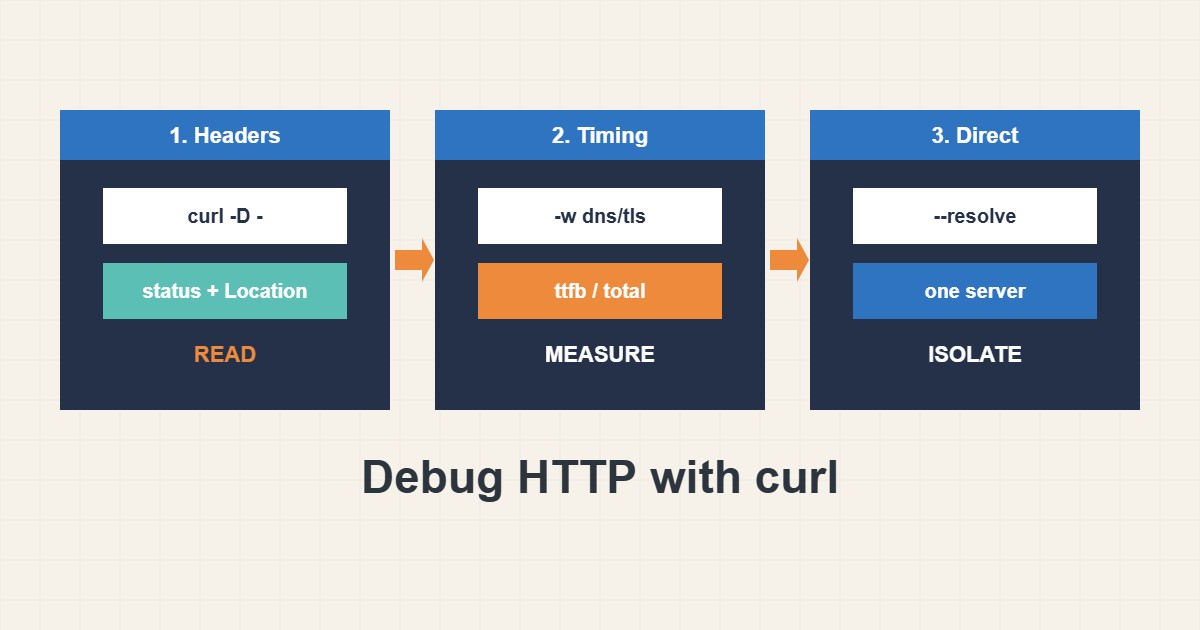
When a page is slow, redirects forever or shows the wrong certificate, a browser hides most of the evidence. curl shows it in plain text: the exact status code, every header, each redirect and the time spent in each stage. It is installed on almost every server, it changes nothing on the site, and a single line often answers a question that would take an hour in the browser. This guide builds a small, repeatable set of curl commands for debugging a website, in the order you will usually need them.
1. Start with headers only
The first question is simply what the server answers. Ask for the headers and throw the body away:
# Headers only, body discarded
curl -sS -o /dev/null -D - https://example.com/
-sS hides the progress meter but still prints errors, -o /dev/null discards the page and -D - prints the response headers to the screen. Read the status line first (200, 301, 403, 502), then the headers that explain behaviour: Location for redirects, Cache-Control and Age for caching, Server and Content-Type, and Set-Cookie if a cache might be skipped because of cookies. This is a plain GET request, which is more faithful than -I, because some servers answer a HEAD request differently.
2. Follow and count redirects
Redirect problems are usually two rules fighting each other. Let curl follow them and report where it ended:
curl -sSL -o /dev/null -w 'final=%{url_effective} code=%{http_code} redirects=%{num_redirects}\n' http://example.com/A healthy site ends on the final HTTPS address with one redirect, or none. Many redirects, a final URL you did not expect or the error Maximum (50) redirects followed means a loop. To see each hop, run the headers command without -L and follow the Location value by hand. For the common causes on shared hosting see the HTTP to HTTPS and www guide, and if Cloudflare is in front, the Cloudflare redirect loop guide.
3. Measure where the time goes
The -w option prints timing variables after the transfer. These five separate network time from server time:
curl -sS -o /dev/null -w 'dns=%{time_namelookup} connect=%{time_connect} tls=%{time_appconnect} ttfb=%{time_starttransfer} total=%{time_total}\n' https://example.com/The values are cumulative seconds from the start. dns is name resolution, connect is the TCP connection, tls is the end of the TLS handshake and ttfb is the moment the first byte of the response arrived. Subtract neighbouring values to get a stage: a large gap between tls and ttfb is time the server spent building the response, while a large dns or connect points at the network or resolver. Run it three to five times, because one sample is noise. If the wait is on the server side, continue with the TTFB guide.
4. Test one server directly
During a migration, behind a load balancer or a CDN, you often need to ask a specific IP address while keeping the real hostname. --resolve does that without editing any file:
# Ask one specific IP, keep the real hostname for TLS and Host
curl -sS -o /dev/null -D - --resolve example.com:443:203.0.113.10 https://example.com/
The request goes to the chosen address, but curl still sends the correct Host header and uses the hostname for TLS, so the certificate check stays meaningful. Compare the answer with the normal one: if only the direct request is fast, the problem is in front of the server (CDN, DNS or proxy); if both are slow, look at the server itself.
5. Inspect the certificate and the handshake
When a browser shows a certificate warning, curl can show the same facts in a few lines:
curl -svI https://example.com/ 2>&1 | grep -E 'subject:|issuer:|expire date|SSL connection|HTTP/'You will see the subject, the issuer, the expiry date and the negotiated protocol. A failure such as SSL certificate problem: unable to get local issuer certificate often means the server sends an incomplete chain. Do not use -k to make the error disappear: it disables verification, so it hides the very problem you are trying to find. Use it only as a short experiment, and never in scripts that run unattended.
6. Send what a browser sends
Sometimes a page behaves differently for a browser than for curl. Add the things browsers add one at a time and see which one changes the answer:
curl -sS -o /dev/null -D - --compressed -A 'Mozilla/5.0' -H 'Accept-Language: en' https://example.com/--compressed asks for gzip or Brotli and decodes it, -A sets the User-Agent and -H adds any header. If a firewall or security plugin blocks unknown clients, the User-Agent is the first suspect. If you need a logged-in view, do not paste a real session cookie into a ticket, chat or shell history that others can read: test with a throwaway account or a test cookie, and delete it afterwards.
7. Illustrative example, not a measurement
Imagine the timing command prints this (made-up numbers, only to show how to read them):
dns=0.004 connect=0.021 tls=0.063 ttfb=1.480 total=1.530DNS, connection and TLS together take about 0.06 seconds, so the network is fine. The first byte arrives at 1.48 seconds, so roughly 1.4 seconds went into producing the page on the server, and downloading it took only 0.05 seconds. The next step is on the server (page cache, slow plugin, database), not in the browser or the CDN.
8. Common mistakes
- Judging speed from one request. Repeat it and compare, and check a warm and a cold cache.
- Using
-Ionly. Some applications answer HEAD differently from GET, so confirm with a normal request. - Forgetting that curl does not run JavaScript. It shows what the server sends, not what the page builds later.
- Testing from the server itself and assuming users see the same. DNS, CDN and firewalls can differ from the outside.
- Leaving
-kin a command or script, which hides certificate errors for good. - Pasting cookies, tokens or authorization headers into public places.
9. Frequently asked questions
Why does curl show a different result from my browser? The browser has cookies, cache, extensions and JavaScript. Add headers or cookies to curl one by one until the difference appears, or test the browser in a private window.
What does a 301 versus a 302 mean here? A 301 is permanent and browsers cache it hard, so a mistake can linger on visitors’ machines. A 302 is temporary. While you test a new rule, use a temporary redirect first.
Can I use curl to check that a site is up? Yes, for a quick check. Use -w '%{http_code}' and a timeout such as --max-time 10, and for permanent monitoring use a proper monitoring tool instead of a loop.
Is it safe to run curl against my own production site? A few requests are harmless. Do not run it in a fast loop, and do not test with large downloads at peak time.
10. Quick checklist
- Print the status line and headers with a normal GET.
- Follow redirects and check the final URL and the number of hops.
- Measure the five timing values several times.
- Ask a specific server with
--resolveto separate front and back end. - Check the certificate subject, issuer and expiry.
- Add browser headers one at a time if the answers differ.
- Keep secrets out of commands and shared output.
If you need help reviewing performance or maintaining a server, see the server management services.
More server and WordPress guides are collected in the article archive.
Official references
curl: Manual page · Everything curl: write-out · MDN: HTTP response status codes · RFC 9110: HTTP Semantics