
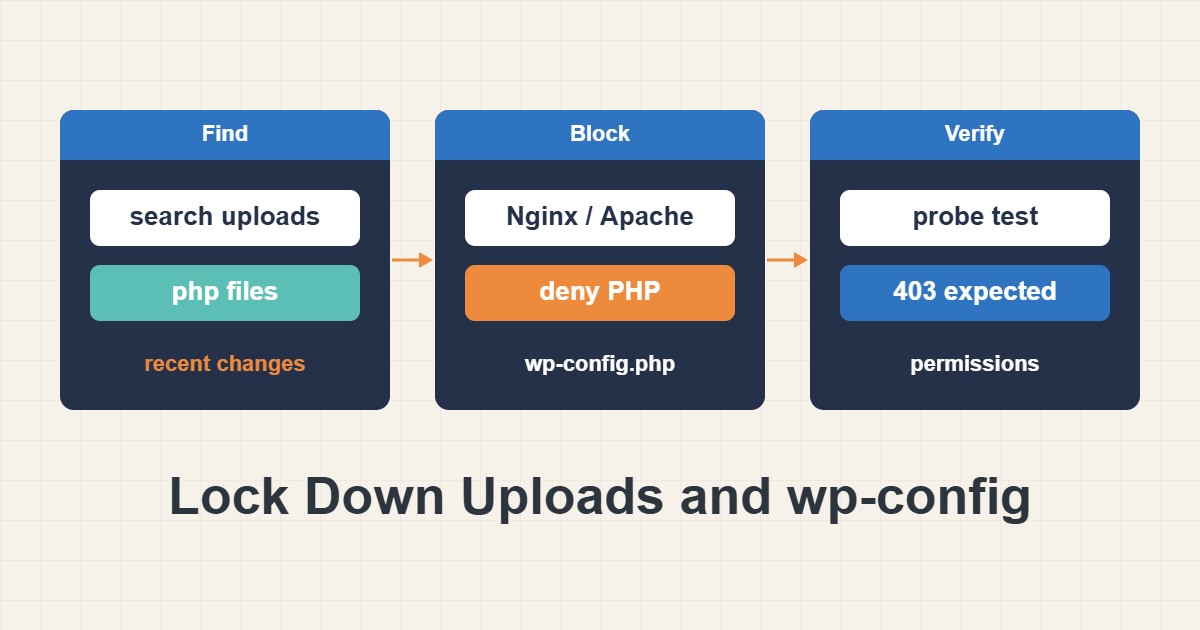
When a WordPress site is compromised, the attacker usually needs two things: a way to put a PHP file on the server and a way to run it. The uploads folder is the classic meeting point, because it is writable by the web server and full of user-supplied files. If PHP cannot run from that folder, a whole class of uploaded backdoors becomes harmless. This guide shows how to block PHP execution in uploads on Nginx and Apache, how to check that nothing suspicious is already there, how to set sane file permissions and how to protect wp-config.php. Every step has a test, because a rule you have not tested is a rule you only hope works.
1. Understand the risk
An upload form, a vulnerable plugin or a stolen account can write a file into wp-content/uploads. A harmless image is just a file, but a file ending in .php is a program. If the server runs it, the attacker can read the database password, create administrators and send spam. Blocking execution in that one folder does not fix the vulnerability that let the file in, but it stops the most common next step and gives you time to find the real problem.
2. Check what is already in uploads
Before adding a rule, look for code files that should not exist. Normal uploads contain images, PDFs, archives and similar media, not PHP:
# Find code files that should not exist in uploads
find wp-content/uploads -type f \( -name '*.php' -o -name '*.phtml' -o -name '*.phar' \) -print

# Files changed in the last 7 days (review the list, do not delete blindly)
find . -type f -name '*.php' -mtime -7 -not -path './wp-content/cache/*' | head -50
The first command lists PHP-like files in the uploads tree. A few legitimate exceptions exist, for example an index.php that contains only a comment, which WordPress puts in some folders as a directory-listing guard. Anything else deserves a look. The second command lists recently changed PHP files so you can compare them with what you installed or updated. Do not delete files you have not read; open them or ask someone who can. If you find a real backdoor, stop here and follow the cleanup procedure in Clean a Hacked WordPress Site: Malware and Backdoors before continuing.
3. Block PHP execution on Nginx
Nginx decides what to do with a request through location blocks. Add a rule that refuses PHP-like files under uploads. It must come before the general PHP handler, so check the order in your server block:
# Nginx: never execute PHP from the uploads folder
location ~* ^/wp-content/uploads/.*\.(php|phtml|phar)$ {
    deny all;
}
# Also hide the main config file and its sample copy
location ~* /(wp-config\.php|wp-config-sample\.php)$ { deny all; }
Test the configuration and reload only when the test passes. If the site stops serving images, the rule is too broad or in the wrong place. Note that this rule matches the request path, so it works only for files that Nginx would otherwise pass to PHP.
4. Block PHP execution on Apache
On Apache you can place a small .htaccess file inside the uploads folder, or add the same block to the virtual host. The directive uses the modern Require syntax. The second block shows how to protect the main configuration file:
# Apache: wp-content/uploads/.htaccess
<FilesMatch "\.(php|phtml|phar|php[0-9])$">
  Require all denied
</FilesMatch>
Options -Indexes

# Apache: protect wp-config.php (in the site's .htaccess)
<Files wp-config.php>
  Require all denied
</Files>
Directory listing is turned off with Options -Indexes, so a visitor cannot browse the folder. If your host uses an older Apache or a different handler, the syntax can differ; if the rule causes a 500 error, remove it and check the error log. Fix Nginx Permission Denied and 403 Errors and Fix 403 Forbidden in cPanel Hosting help you read the errors that blocked requests produce.
5. Prove the rule works
Create a harmless probe file, request it and remove it. The expected result is a refusal such as 403 or 404, not the text printed by the file:
# Prove the rule works: create a harmless probe, request it, remove it
printf '<?php echo "probe-ok";' > wp-content/uploads/probe.php
curl -s -w '\n[HTTP %{http_code}]\n' https://example.com/wp-content/uploads/probe.php
rm wp-content/uploads/probe.php
If you see probe-ok in the response, PHP is still executing in uploads and the rule is not applied. Common causes are a rule placed after the PHP handler on Nginx, an AllowOverride setting that ignores .htaccess on Apache, or a cache in front of the site. Remove the probe immediately after the test either way.
6. Set sane file permissions
Files that any process can write are an easy target. The usual starting point is 755 for folders and 644 for files, with a stricter setting for the configuration file:
# Standard permissions (run inside the WordPress folder only)
# 1) Guard + rollback record: only continue inside a WordPress root
test -f wp-config.php && find . -printf '%m %p\n' > ~/perms-before.txt   # GNU find
# 2) Apply
test -f wp-config.php && find . -type d -exec chmod 755 {} \;
test -f wp-config.php && find . -type f -exec chmod 644 {} \;
test -f wp-config.php && chmod 640 wp-config.php   # use 600 if PHP runs as your own user
Before running: check owner and group with ls -ld . wp-config.php and continue only if the owner is your own account and PHP runs as that account or the right group. Some hosts (for example with suPHP or their own defaults) expect different modes, so ask your host if unsure. Folders WordPress must write to (such as wp-content/uploads) must stay writable for PHP. The ~/perms-before.txt file records the previous modes so you can restore specific paths if something breaks; it is not an automatic rollback and does not replace a full backup.
The last line depends on how PHP runs. If PHP runs as your own account, 600 works. If the web server user must read the file, 640 with the right group is safer than making it world-readable. Never use 777 as a fix; it only hides an ownership problem. Run these commands inside the WordPress folder and only after a backup, because a recursive change in the wrong directory is hard to undo.
7. Protect wp-config.php
This file holds the database credentials and the secret keys. The web server should never serve it as text. In normal operation PHP executes it and returns nothing visible, but a misconfiguration after a server change can expose the source. The rules above deny direct requests to it. Also keep backup copies such as wp-config.php.bak out of the web root, because they are served as plain text.
8. Reduce what an attacker can change
Where your host allows, run WordPress under a user that does not own the code files, so the web process can write uploads and cache but not the plugin folders. This is more work to maintain, because updates then need a different user, and it is not available on every host. If you cannot do it, the execution block in uploads and regular backups are still worth having.
9. What can break
- Some plugins store generated PHP, templates or caches under uploads and need execution allowed in one subfolder.
- A rule placed in the wrong location block can also block legitimate images or downloads.
- A strict permission change can stop uploads or updates if the owner is wrong.
- An old Apache may not understand the
Requiresyntax.
If a plugin truly needs PHP in uploads, allow only that exact subfolder and review the plugin, because that is also a risky design.
10. A worked example
A site owner runs the find command and discovers an odd PHP file in a month folder inside uploads. Instead of deleting it, the owner saves a copy for analysis, follows a cleanup procedure and then adds the execution block. A probe test returns 403. Later, a vulnerable gallery plugin lets someone upload another PHP file, but requesting it returns 403 instead of running. This is an illustration of the sequence, not a measurement from a real site.
11. Common mistakes
- Adding the rule and never testing it.
- Deleting suspicious files before understanding how they got there.
- Using 777 permissions to make an upload error go away.
- Placing the Nginx rule after the PHP handler.
- Leaving backup copies of configuration files in the web root.
- Assuming this rule replaces updates and a second factor on logins.
12. Quick checklist
- Search uploads for PHP-like files and review recent changes.
- Add the execution block for Nginx or Apache.
- Test with a harmless probe and remove it.
- Set 755 and 644 and a stricter mode for
wp-config.php. - Deny direct requests to configuration files.
- Keep backups outside the web root.
- Keep core, themes and plugins updated.
If you need help reviewing performance or maintaining a server, see the server management services.
More server and WordPress guides are collected in the article archive.
Official references
WordPress: Hardening · WordPress: Editing wp-config.php · Nginx: location directive · Apache: mod_authz_core (Require)