
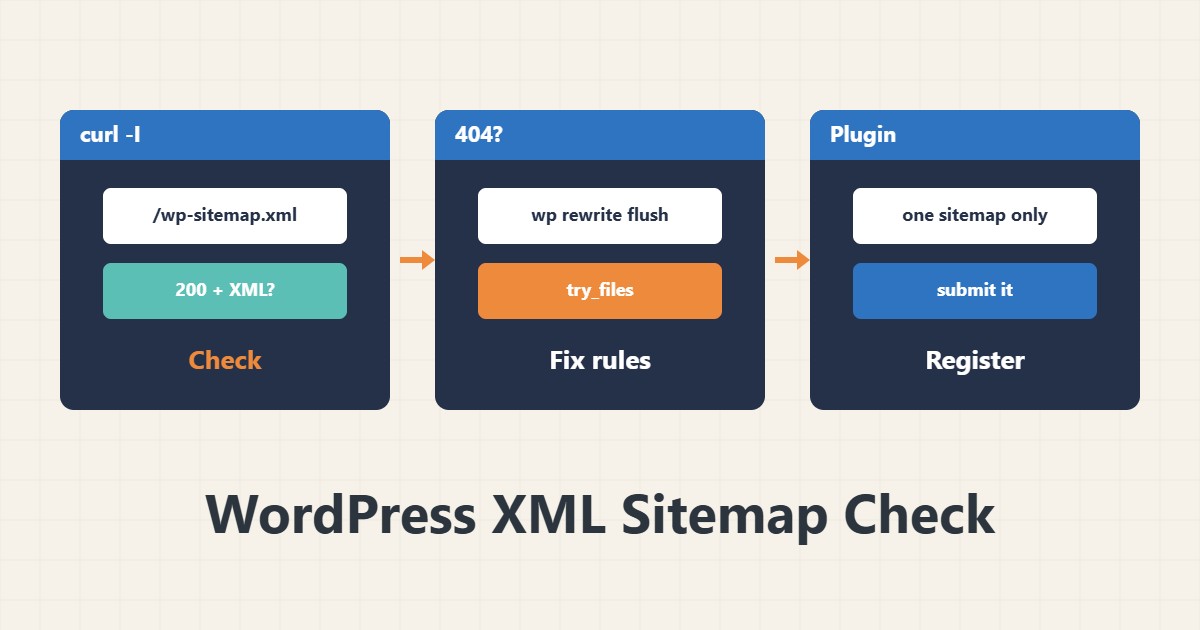
WordPress has had a built-in XML sitemap since version 5.5. Many sitemap problems come from a plugin conflict, a half-finished setting or broken rewrite rules. This guide first checks whether the sitemap really works and then finds why it fails.
1. A quick check
curl -I https://example.com/wp-sitemap.xml
curl -s https://example.com/wp-sitemap.xml | head -20
A 200 response with XML content means the sitemap is healthy. The domain example.com is a sample. If you get 404, a rewrite rule or sitemap setting is wrong. If you get HTML, another page has probably taken its place.
2. Common causes of 404
If permalinks are Plain, the sitemap sits at /?sitemap=index. If the Nginx try_files rule is wrong or the rewrite rules were not saved, it returns 404. Rebuild the rules with wp rewrite flush. See the structure in the try_files guide.
3. Plugin conflict
SEO plugins usually build their own sitemap and disable the default one. In that case wp-sitemap.xml may redirect to another address. Register only one of the two in Search Console. If both are active, turn one off.
4. Search engine visibility
If “Discourage search engines from indexing this site” is on in Reading settings, WordPress does not serve the sitemap and adds noindex. Keep that setting off for a live site. If the site is missing from Google, also check redirect loops that may block crawlers.
5. Register and validate
Sitemap: https://example.com/wp-sitemap.xmlWrite this line in robots.txt and submit the URL in Search Console. The sitemap lists only indexable URLs. A “Couldn’t fetch” status usually means a non-200 response or broken XML. Read the output with curl and see that it starts with an XML declaration.
6. Illustrative example, not a measurement
Suppose a sitemap showed “Couldn’t fetch” in Search Console. curl showed wp-sitemap.xml redirecting to an SEO plugin address that returned 404. After re-saving permalinks and unifying the address, the sitemap worked. This scenario is an invented illustration, not a measurement.
7. Common mistakes
- Submitting two overlapping sitemaps in Search Console.
- Leaving “discourage indexing” on after launch.
- Not reading the HTTP response with curl.
- Forgetting to flush rewrite rules.
8. Frequently asked questions
Where is the default sitemap? At /wp-sitemap.xml.
What should I do with an SEO plugin? Keep one of the two sitemaps and submit that one.
Why is it empty? You may have no indexable content or noindex is on.
9. Quick checklist
- curl returned 200 and XML.
- Rewrite rules were saved.
- Plugin conflict was checked.
- The discourage-indexing option is off.
- The URL was added to robots.txt and Search Console.
If you need help reviewing performance or maintaining a server, see the server management services.
More server and WordPress guides are collected in the article archive.
Official references
WordPress Core: XML sitemaps in 5.5 · WordPress Developer: wp_sitemaps_get_server · sitemaps.org protocol