
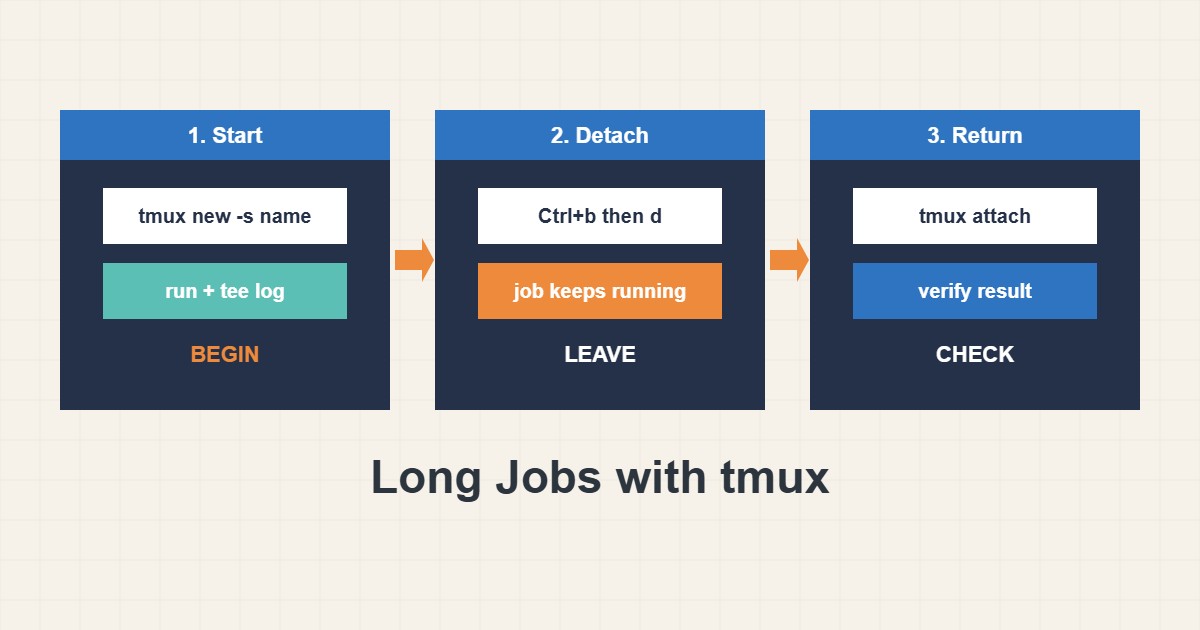
A long task started in a plain SSH session dies when the connection drops. A migration, a big import or a long backup can be half done and left in an unknown state. tmux solves the first problem by keeping the shell alive on the server, so you can disconnect and return. This guide shows a safe routine: start a named session, run the job with logging, detach, reattach and clean up. It also explains when tmux is the wrong tool and a service or a transient unit is better.
1. Start a named session
Name sessions so you can find them later, especially when several people use the server:
tmux new -s migrate        # start a named session
# run your long command inside it, for example:
rsync -a --info=progress2 /var/www/ backup-host:/srv/www-copy/
# detach: press Ctrl+b, then d
Everything you run inside the session continues even if your SSH connection breaks or your laptop sleeps. Detaching with Ctrl+b then d leaves the job running and returns you to the normal shell.
2. Come back later
Reconnect over SSH and list the sessions, then attach:
tmux ls                    # list sessions
tmux attach -t migrate     # come back to the running job
tmux kill-session -t migrate   # when finished
You see the screen exactly as you left it, including the output. Kill the session only when the job has finished and you have saved the result. If you do not see your session, someone may have restarted the server, which ends all sessions.
3. Log the output
Scrollback is not a record. For anything important, send the output to a file as well, for example with | tee job.log or by redirecting. Logs let you prove what happened and diagnose a failure after the session is gone. Also record the time you started and the exact command.
4. Simpler options when you do not need a screen
For one fire-and-forget command, nohup may be enough:
# One long job that logs to a file and survives a closed terminal
nohup ./long-task.sh > long-task.log 2>&1 &
tail -f long-task.log
It survives a closed terminal but you cannot interact with it. For a task that should be managed with limits and logging by the system, a transient systemd unit is neater:
# Run a command as a transient systemd unit (needs root or user systemd)
sudo systemd-run --unit=reindex --property=Nice=10 ./reindex.sh
journalctl -u reindex -f
The unit appears in the journal, can be stopped with systemctl stop and can have CPU priority or limits. See the systemd timers guide for scheduling jobs instead of running them by hand.
5. Safety habits for long jobs
Test with a dry run before the real one when the tool supports it, take a backup before changing data and check free disk space beforehand. Do not run a heavy job at peak traffic on a production web server. A permanent service should be a systemd unit, not a tmux session, because tmux sessions do not restart after a reboot. For heavy jobs watch the load; the resource limits guide explains what can go wrong on shared hosting.
6. Illustrative example, not a measurement
Imagine you are copying 80 GB of site files to another server and the first attempt in a plain SSH window died at 60 percent when your wifi dropped (made-up scenario). With a tmux session named migrate, the copy keeps running through the disconnect. You reattach an hour later, see that it finished, check the log for errors and verify the file count on both sides. Re-running the command is safe because the copy tool only transfers what is missing.
7. Common mistakes
- Running a long job in a plain SSH window.
- Treating tmux as a permanent service manager.
- Not logging the output.
- Killing a session before verifying the result.
- Running heavy jobs at peak traffic.
- Leaving sessions around for months with old credentials in the shell history.
8. Frequently asked questions
Is tmux installed everywhere? Not always. Install it with your package manager if allowed, or use nohup or systemd-run.
Does it survive a reboot? No. After a reboot the sessions are gone, so use a service for anything permanent.
Is screen the same? It does a similar job. Use whichever your team knows.
Can two people share a session? Yes, but agree on who types to avoid mistakes on production.
9. Quick checklist
- Check disk space and take a backup.
- Start a named tmux session.
- Log the output to a file.
- Detach and reattach to test.
- Verify the result before closing the session.
- Use a service for permanent tasks.
- Record the command and time.
If you need help reviewing performance or maintaining a server, see the server management services.
More server and WordPress guides are collected in the article archive.
Official references
tmux: Wiki · Linux man-pages: nohup(1) · systemd: systemd-run · rsync manual