
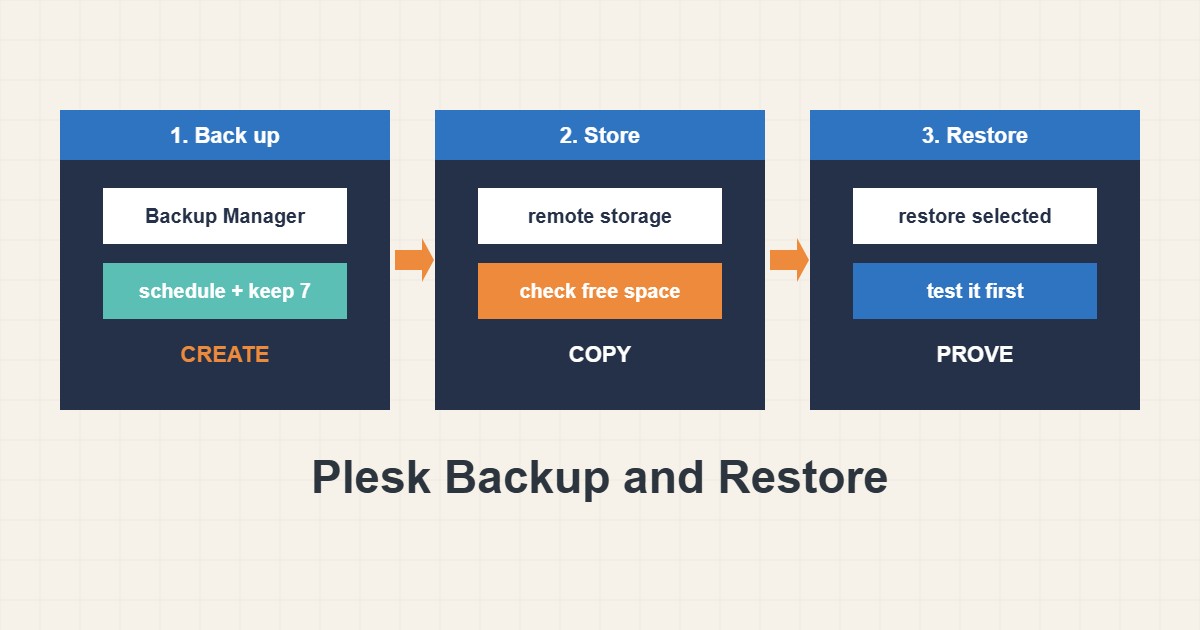
Plesk includes a Backup Manager that can save a whole subscription: files, databases, mail and settings. That is useful only if three things are true: the backup really runs, it is stored somewhere other than the server it protects, and you have tried restoring it. This guide walks through creating a backup in Plesk, scheduling it, choosing remote storage, restoring safely and checking the result. Screens differ slightly between Plesk versions and licence editions, and some options depend on your hosting provider.
1. Open Backup Manager and make a first backup
In Plesk go to Websites & Domains, open the domain’s subscription and choose Backup & Restore; administrators also find Backup Manager under Tools & Settings. Click Back Up, give the backup a clear name that includes the date and purpose, and choose the type: the full content of the subscription or configuration only. For a website, you want content. Add a short comment, such as “before PHP update”, so a future you knows why it exists. Wait for the task to finish and check the status instead of assuming.
2. Schedule backups and set retention
Use Scheduled Backup Settings to run a daily or weekly backup, and set how many to keep. A site that changes daily needs a daily backup; a brochure site may be fine weekly. Keep a few generations, not one, because a damaged site can overwrite the only good copy if you keep just the latest. Each backup uses space, so retention is a balance between safety and disk usage. Use a time of low traffic, since a backup creates load.
3. Store a copy somewhere else
A backup on the same disk is lost with the disk. Configure remote storage: Plesk can send backups to an FTP server and, with extensions, to cloud storage. Choose a destination under a different account and keep its credentials in a password manager, never in a shared message. Check disk space locally as well, because the default local folder can fill up:
# Free space where Plesk stores local backups by default
df -h /var/lib/psa/dumps
ls -lh /var/lib/psa/dumps | tail -n 10
If the folder fills, new backups fail, and a failed backup might not alert you unless you check the status or enable notifications. See the cPanel backup guide for the same ideas on cPanel.
4. Restore carefully
Open the backup and use Restore. You can often restore only some items, for example one database or the files without mail, which is safer than restoring everything. Read the options about overwriting existing content: a restore replaces what is there, so it can destroy changes made after the backup. If you are unsure, create a fresh backup of the current state first, and restore during a quiet period. Warn people who use the site or mailboxes before you begin.
5. Prove it works
The only real test of a backup is restoring it. If your plan allows, restore into a test subscription or a staging copy and check the pages, logins, forms and email. Look at the Plesk task log for warnings, and compare the size of the backup with what you expect. Note the time the restore needed, because that is your real recovery time, which is often longer than people guess.
6. Special cases
Large media libraries make backups big; check whether you need every old upload in every backup. Databases are included in a subscription backup, but if you run a very busy database, ask whether you also need a separate dump. When you migrate between servers, a Plesk backup is a handy transport file, yet always test it on the target first.
7. Illustrative example, not a measurement
Imagine a small site with a 4 GB backup that runs nightly and keeps 7 copies (made-up numbers). That needs about 28 GB for retention on the destination. If the local disk has only 20 GB free, the backup will start failing in a few days without an obvious error on the website. The fix is not more hope but a smaller retention, a larger destination or remote storage, and a monthly check that the newest backup exists.
8. Common mistakes
- Keeping the only backup on the same server.
- Never testing a restore.
- Keeping just one generation.
- Restoring everything when only one database was damaged.
- Ignoring failed backup notices.
- Putting remote storage credentials in an open message.
9. Frequently asked questions
Does a Plesk backup include email? A full subscription backup normally includes mail content, but check the options and test them on your version.
How often should I back up? As often as you can afford to lose data. For an active store that may be several times a day; for a static site, weekly.
Can I download a backup? Depending on your setup, yes, from the backup list. Treat the file as sensitive, since it contains databases and configuration.
Is a hosting provider backup enough? Not on its own. Keep your own copy outside the provider as well.
10. Quick checklist
- Create a manual backup with a clear name.
- Schedule backups and keep several generations.
- Send a copy to remote storage.
- Check free space and the task status regularly.
- Restore only what you need and warn users first.
- Test a restore into a safe copy.
- Record how long recovery really takes.
If you need help reviewing performance or maintaining a server, see the server management services.
More server and WordPress guides are collected in the article archive.
Official references
Plesk Obsidian: Backing Up and Restoring · Plesk Obsidian: Backing Up Data · Plesk Obsidian: Restoring Data · CISA: Backup and recovery guidance