
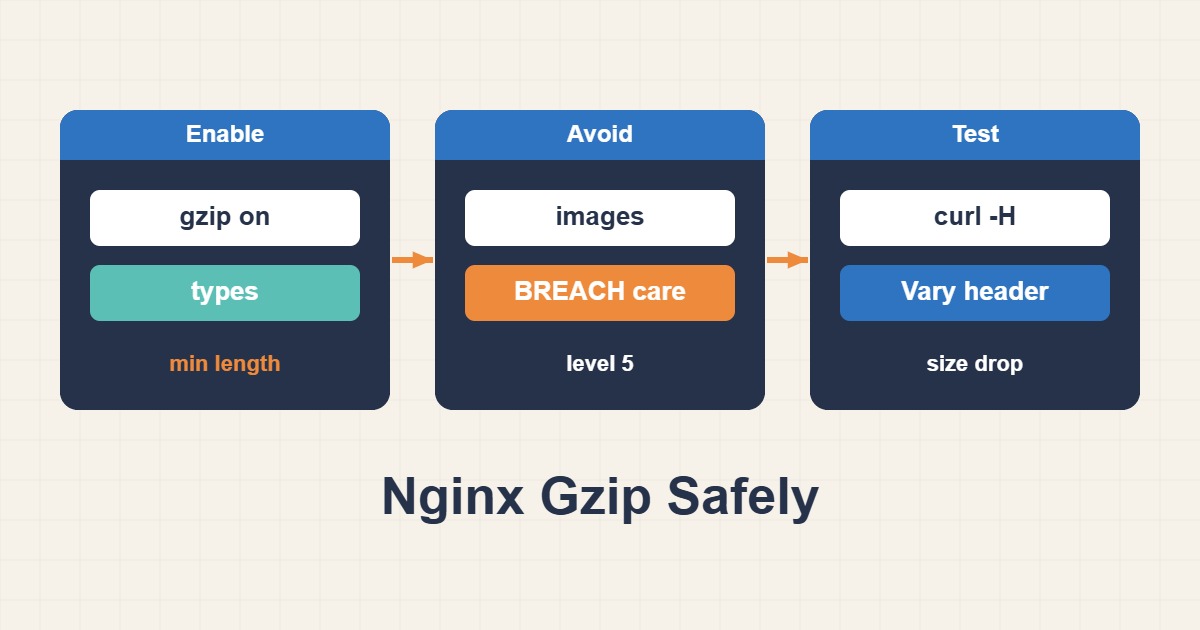
Compression is one of the cheapest speed improvements you can make on a web server. Text files such as HTML, CSS and JavaScript shrink dramatically, so pages download faster and bandwidth bills drop. It is also easy to configure badly: compress the wrong files and you burn CPU for nothing, forget one header and a cache serves compressed bytes to a client that cannot read them. This guide shows how to enable Nginx gzip compression safely, when to add pre-compressed files or Brotli, and how to verify the result with curl instead of trusting a speed-test score.
1. What compression should and should not touch
Compression works on repetitive text: HTML, CSS, JavaScript, JSON, XML, SVG and plain text. It does almost nothing for formats that are already compressed, such as JPEG, PNG, WebP, MP4, ZIP and WOFF2 fonts, and trying anyway wastes CPU. Your configuration should list text types explicitly and leave everything else alone.
2. Check what is already enabled
curl -sI -H 'Accept-Encoding: gzip' https://example.com/ | grep -i -E 'content-encoding|vary'
sudo nginx -T 2>/dev/null | grep -i gzip
Nginx ships with gzip off by default, but many distribution packages include a partial gzip block in nginx.conf, and hosting panels add their own. The second command prints the effective configuration so you can see every gzip directive in one place. If the first command already shows Content-Encoding: gzip for your CSS, you only need to review the settings, not add new ones.
3. A reasonable baseline
gzip on;
gzip_comp_level 5;
gzip_min_length 256;
gzip_vary on;
gzip_proxied any;
gzip_types text/css text/plain text/xml text/javascript application/javascript application/json application/xml image/svg+xml;
HTML is compressed whenever gzip is on, so text/html does not need to appear in the list. gzip_min_length 256 skips tiny responses where the header overhead outweighs the saving. gzip_proxied any lets Nginx compress responses to requests that arrive through a proxy or CDN. Put the block in the http context so it applies to every site, and override it in a server block only when you must.
4. Pick a sensible compression level
gzip_comp_level runs from 1 (fast, larger output) to 9 (slow, slightly smaller output). Levels 4 to 6 capture most of the benefit at a modest CPU cost. Level 9 can double the CPU time for a saving of a few percent, which is rarely worth it on a busy server. Start with 5 and change it only if monitoring shows a reason.
5. Do not forget Vary: Accept-Encoding
gzip_vary on adds Vary: Accept-Encoding to compressed responses. That header tells shared caches and CDNs to store the compressed and uncompressed versions separately. Without it, a cache can hand gzip bytes to a client that did not ask for them. If you are also tuning a cache, see Safe Nginx Proxy Caching Without Leaking Private Pages.
6. Serve pre-compressed static files
For assets that rarely change, compressing on every request is wasteful. Compress them once at build time and let Nginx serve the .gz file next to the original:
gzip_static on;This needs the ngx_http_gzip_static_module, which many packages include but not all. With it enabled, a request for app.js returns app.js.gz when the client accepts gzip and the file exists. Build the .gz files with a high level such as 9, since you pay the cost only once.
7. Brotli as a second step
Brotli usually compresses text a few percent better than gzip, and browsers support it over HTTPS. Nginx does not include it in the default build, so it needs the third-party ngx_brotli module or a package that bundles it:
brotli on;
brotli_comp_level 5;
brotli_types text/css text/plain text/javascript application/javascript application/json application/xml image/svg+xml;
Keep gzip enabled as the fallback for clients without Brotli, and measure before and after. If installing a module on a production server feels risky, gzip alone is a perfectly good answer.
8. The BREACH caveat
Compressing HTTPS responses that reflect a secret and also contain attacker-controlled input can leak that secret through response sizes, an attack known as BREACH. The practical rule is to avoid compressing dynamic pages that echo session tokens or CSRF tokens next to user input, or to mask those tokens. Static CSS, JavaScript and images do not have this problem, which is another reason to compress only the types you list.
9. Test and verify
curl -s -o /dev/null -w '%{size_download} bytes\n' https://example.com/style.css
curl -s -H 'Accept-Encoding: gzip' -o /dev/null -w '%{size_download} bytes\n' https://example.com/style.css
sudo nginx -t && sudo systemctl reload nginx
Compare the two sizes: the second should be much smaller for text. Then confirm Content-Encoding: gzip and Vary: Accept-Encoding in the headers. Always run nginx -t before the reload, and check one HTML page, one CSS file and one JSON endpoint rather than just the homepage.
10. Measure the savings in your own logs
Nginx exposes the achieved compression ratio as the $gzip_ratio variable. Add it to a dedicated log format and you can see, request by request, which responses compress well and which do not:
log_format compress '$remote_addr "$request" $status $body_bytes_sent gz=$gzip_ratio';
access_log /var/log/nginx/access.log compress;
In this format $body_bytes_sent is the size after compression, and $gzip_ratio is the original size divided by the compressed size, so a value of 4.0 means the response shrank to a quarter. Responses without a ratio were not compressed at all, which is how you spot a content type missing from gzip_types. Use the format for a day, look at the numbers, then return to your normal log format so log volume does not grow.
11. Overrides for downloads and proxied apps
Global settings are a starting point, not a law. Large archives and media downloads should not be compressed, and API locations behind proxy_pass sometimes need the directives repeated explicitly:
location /downloads/ {
    gzip off;
}

location /api/ {
    proxy_pass http://127.0.0.1:3000;
    gzip on;
    gzip_proxied any;
}
Compressing a multi-gigabyte download wastes CPU and breaks resumable transfers, so turn it off for such paths. For proxied applications, remember that Nginx compresses the response after it receives it from the backend, so a backend that is already compressing should be configured once, in one place. When behaviour looks strange, compare the headers from the backend directly with the headers that Nginx returns.
12. Watch for double compression
If a backend such as PHP, Node.js or a CDN already compresses its responses, do not compress again at the same hop. Nginx will not recompress a response that already has a Content-Encoding, but a misconfigured CDN can compress twice or strip headers. Request the public URL, not only the origin, so you see what visitors actually receive.
13. Common mistakes
- Adding image types to
gzip_types, which wastes CPU. - Setting
gzip_comp_level 9on a busy server. - Omitting
gzip_varyand caching mixed variants. - Enabling Brotli without keeping a gzip fallback.
- Compressing dynamic pages that reflect secrets.
- Judging success from a speed-test score instead of response headers and sizes.
14. A note on ETags and byte ranges
When Nginx compresses a response on the fly it changes how validators behave. A strong ETag from the backend is turned into a weak one, because the compressed bytes are no longer identical to the original representation. Conditional requests still work for most clients, but if you depend on strong validators or on partial downloads of large files, serve those files uncompressed or as pre-compressed static files with gzip_static. This is another good reason to keep media and archives out of gzip_types.
15. A worked example
Take a WordPress site that serves a 180 KB combined stylesheet and a 90 KB JSON response from an API. With the baseline above, text assets of this kind often shrink by well over half, so you would expect the stylesheet to leave the server at a fraction of its size. Treat those figures as an illustration rather than a promise: measure the exact bytes with the curl commands above on your own files. If the savings are small, check that the Content-Type of the response matches an entry in gzip_types.
16. Quick checklist
- Run the curl and
nginx -Tchecks to see what is already on. - Set
gzip on, a level around 5, a minimum length and an explicit type list. - Add
gzip_vary on. - Consider
gzip_staticfor build-time assets and Brotli as an optional extra. - Verify sizes and headers on the public URL.
For related reading, see Optimize WordPress wp_options Autoload Data and Tune PHP-FPM and Fix 504 Gateway Timeout: A Practical Pool Guide. More server guides are collected in the article archive.
Official references
Nginx ngx_http_gzip_module · Nginx ngx_http_gzip_static_module · MDN: Content-Encoding · ngx_brotli module