
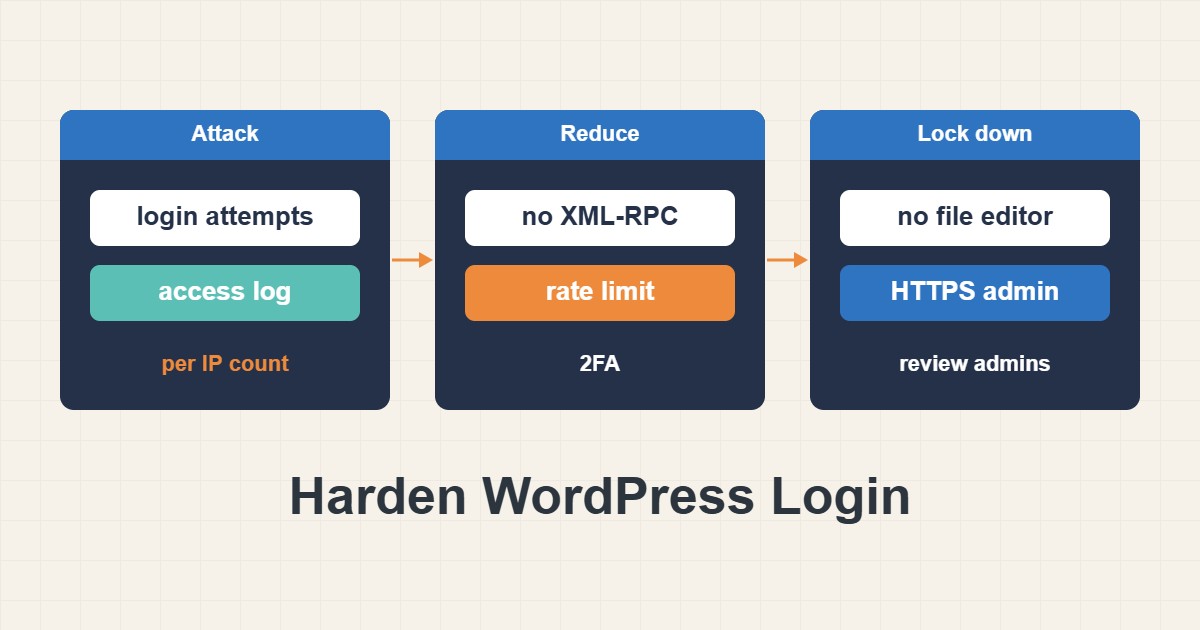
The WordPress login page is the front door of the site, and it gets knocked on all day. Most of those requests are automated guesses, not targeted attacks, but a weak account or an exposed endpoint turns guesses into a hack. The good news is that a handful of measures, applied in the right order, removes almost all of the risk without breaking the features you use. This guide shows how to see what is actually hitting your login, which measures are worth it, and what each one can break. Examples assume a Linux server with Nginx or Apache and shell access; on shared hosting you can usually do the same things through plugins or the control panel.
1. Look at the traffic before changing anything
Hardening is easier to judge when you know what is happening. Count login attempts per IP address in the web server access log:
# Who is hammering the login? (top IPs by POST count)
grep 'POST /wp-login.php' /var/log/nginx/access.log \
  | awk '{print $1}' | sort | uniq -c | sort -nr | head
A few addresses with hundreds of attempts mean a simple brute-force bot. Thousands of addresses with one or two attempts each mean a distributed attack, where blocking single IPs helps little and rate limits or a second factor matter more. Write the numbers down so you can compare after the changes.
2. Stop leaking usernames
Attackers need a valid username first, and WordPress offers several ways to find one. The author archive redirects /?author=1 to the author’s page, and the REST API lists public authors. Check your own site:
# Does the site reveal usernames?
curl -sI "https://example.com/?author=1" | head -5
curl -s "https://example.com/wp-json/wp/v2/users?per_page=5" | head -c 300
If the first command redirects to an author URL that contains the login name, or the second returns user slugs, the username is discoverable. Many sites accept this because authors are public anyway, and that is a fair choice, but then the display name and the login name must be different. Change the login name of any account that matches its public slug, and never keep an account literally called admin.
3. Decide about XML-RPC
The XML-RPC endpoint allows a method that tries many passwords in a single request, which makes it a favorite of bots. Modern WordPress does not need it for the editor or the REST API. Some tools do: the old mobile apps, some Jetpack features and certain publishing or backup services. Decide with evidence: check the access log for legitimate requests to /xmlrpc.php before you block it.
# Nginx: block XML-RPC (only if nothing you use needs it)
location = /xmlrpc.php { deny all; }

# Apache (.htaccess)
<Files xmlrpc.php>
  Require all denied
</Files>
If you block it and something stops working, remove the rule and restrict it by IP instead. Do not leave it open “just in case”.
4. Limit attempts at the server, not only in PHP
A plugin that counts failed logins still makes PHP and the database do work for every request. A rate limit in the web server or a ban by a log-watching tool stops the request earlier and costs far less. Configure Nginx Rate Limiting for Login and API Abuse shows a safe rate limit for login and API paths, and Fail2ban for Nginx: Block WordPress Login Abuse shows how to ban repeat offenders from the log. Keep the limits loose enough for real users: a few attempts per minute per address is a sensible start, and you can tighten it after watching the logs.
5. Add a second factor
A second factor is the strongest single measure, because a stolen or guessed password is no longer enough. Use an authenticator app or a hardware key rather than SMS, and enable it at least for every administrator and editor. Keep recovery codes somewhere safe and offline. Test that a second administrator can still log in before you enforce it for everyone, so a lost phone does not lock you out of your own site.
6. Turn off the file editor and force HTTPS for admin
If an attacker or a compromised account reaches the admin area, the built-in theme and plugin editor lets them write PHP directly. Switching it off removes that shortcut. Forcing HTTPS for the admin area stops cookies and passwords from travelling in clear text:
// wp-config.php: before "That's all, stop editing!"
define('DISALLOW_FILE_EDIT', true);   // no theme/plugin editor in wp-admin
define('FORCE_SSL_ADMIN', true);      // login and admin only over HTTPS
Do this only when the site already works over HTTPS everywhere; otherwise you will create a redirect problem instead of solving one. Plugin and theme updates still work normally with the editor disabled.
7. Review who is an administrator
Old accounts are a quiet risk. A former contractor with administrator rights and a reused password is easier to attack than your own account. List administrators and remove or downgrade anything you do not recognize:
# WP-CLI: review admins, rotate salts, end all sessions
wp user list --role=administrator --fields=ID,user_login,user_email,user_registered
wp config shuffle-salts
wp user session destroy 1 --all
Give each person the lowest role that lets them do their job. Editors rarely need to install plugins, and authors never do. After removing a user, rotating the salts and ending sessions forces everyone to log in again, which also kicks out anyone who stole a cookie.
8. Keep the update path healthy
Most real compromises come from outdated plugins, not from guessed passwords. Enable automatic updates for security releases of core and for plugins you trust, delete plugins and themes you do not use, and remove nulled or abandoned ones. A hardened login does not help if a vulnerable plugin lets an attacker create an administrator without logging in.
9. What can break
- Blocking XML-RPC can break old mobile apps and some Jetpack or backup connections.
- Hiding the REST users list can break headless front ends that read authors.
- Strict rate limits can lock out a whole office that shares one IP address.
- Forcing HTTPS before the certificate and redirects are right causes redirect loops.
- Enforcing a second factor without recovery codes can lock out the owner.
Change one thing at a time and test the login, the editor and any integration you use after each change.
10. A worked example
A small site sees several hundred login attempts a day from a few dozen addresses. The owner counts attempts in the log, blocks XML-RPC after confirming nothing uses it, adds a rate limit on the login path, turns on a second factor for the two administrators and removes an unused account. The next week’s log shows far fewer requests reaching PHP, and the login still works for the team. This is an illustration of the order of work, not a measurement from a real site.
11. If you suspect the site is already compromised
Hardening does not remove a backdoor that is already there. If you see unknown administrators, changed files or strange redirects, follow a cleanup procedure first: Clean a Hacked WordPress Site: Malware and Backdoors explains how to find and remove malware safely before you change passwords and salts.
12. Common mistakes
- Installing three security plugins that overlap and slow the site.
- Blocking IP addresses one by one instead of rate limiting.
- Keeping an account named admin with a reused password.
- Skipping backups before editing
wp-config.phpor server rules. - Trusting a “hidden login URL” as the only protection.
- Forgetting that REST and XML-RPC are separate paths from
wp-login.php.
13. Quick checklist
- Count login attempts per IP in the access log.
- Check whether usernames leak through
?author=1and the REST API. - Block or restrict XML-RPC after checking real use.
- Add a server-level rate limit or log-based ban.
- Enable a second factor for all privileged users.
- Disable the file editor and force HTTPS for admin.
- Review administrators, rotate salts, end old sessions.
- Keep core and plugins updated and remove unused ones.
If you need help reviewing performance or maintaining a server, see the server management services.
More server and WordPress guides are collected in the article archive.
Official references
WordPress: Hardening · WordPress: Editing wp-config.php · WP-CLI: config shuffle-salts · Nginx: ngx_http_limit_req_module