
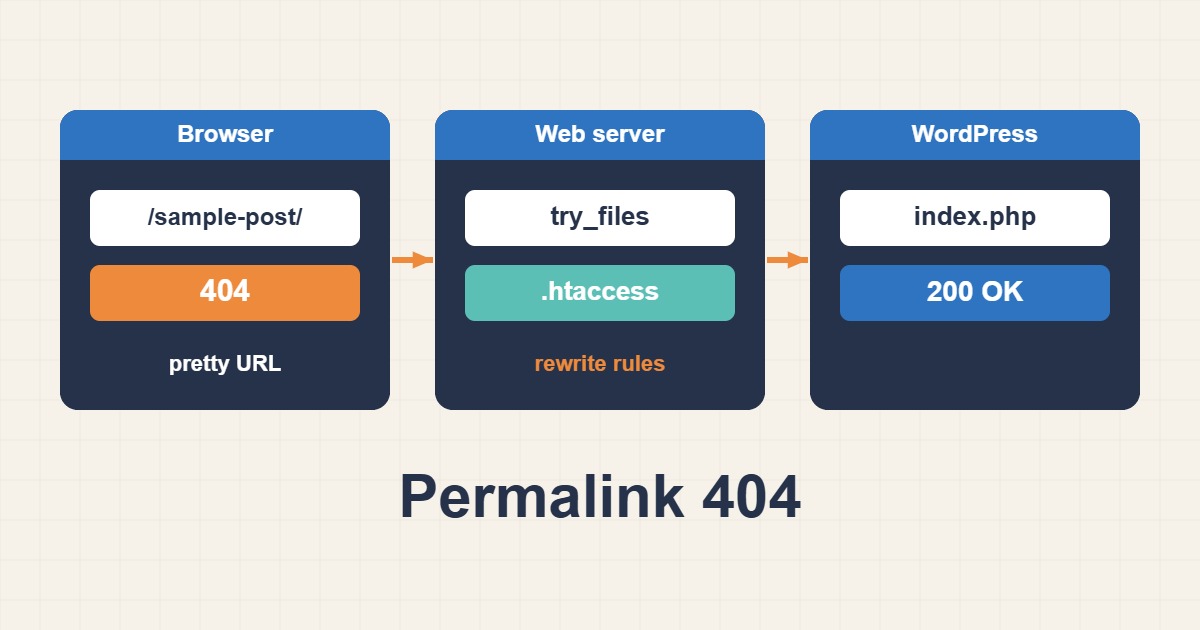
You change the permalink structure, or move a site to a new server, and suddenly the home page works while every post and page returns 404 Not Found. Nothing is deleted. WordPress simply never receives the request, because the web server does not know that pretty URLs such as /sample-post/ must be handed to index.php. This guide explains how pretty permalinks work, how to find which layer is failing, and how to fix it on Apache and Nginx without guessing.
1. How pretty permalinks actually work
There is no file called sample-post on disk. WordPress stores posts in the database and builds the page when asked. To make that work, the web server must send any URL that is not a real file or directory to index.php. WordPress then reads the requested path, matches it against its rewrite rules and loads the right content. If the server never forwards the request, you get the server’s own 404 page instead of the WordPress one, and that difference is your first clue.
2. Tell a server 404 from a WordPress 404
Open a missing URL and look at the page. A themed 404 inside your site design means WordPress ran and found no match, so suspect a stale rewrite rule set or a wrong slug. A plain, unstyled 404 from Apache or Nginx means the request never reached WordPress, so suspect the server configuration. Check both from the command line:
curl -I https://example.com/sample-post/
curl -I https://example.com/index.php?p=1
If ?p=1 style URLs work but pretty ones fail, the application is healthy and the rewrite layer is the problem.
3. Start with the cheapest fix: re-save permalinks
In the dashboard open Settings, then Permalinks, and press Save without changing anything. WordPress rebuilds its rewrite rules and tries to rewrite the .htaccess file. This fixes a large share of cases after a plugin change or an import. With WP-CLI the same step is scriptable:
wp rewrite structure '/%postname%/' --hard
wp rewrite flush --hard
wp rewrite list --format=table
The --hard flag also rewrites .htaccess on Apache. On Nginx there is no .htaccess, so only the database rules are refreshed.
4. Apache: check the .htaccess file
On Apache, WordPress writes the rules into .htaccess in the site root. The standard block looks like this:
# BEGIN WordPress

RewriteEngine On
RewriteBase /
RewriteRule ^index\.php$ - [L]
RewriteCond %{REQUEST_FILENAME} !-f
RewriteCond %{REQUEST_FILENAME} !-d
RewriteRule . /index.php [L]

# END WordPress
If the file is missing, empty or has no WordPress block, pretty URLs fail. Restore the block exactly as shown, or re-save permalinks to regenerate it. A site with a broken file can also return a 500 error, which Fix WordPress 500 Internal Server Error covers.
5. Apache: make sure mod_rewrite is enabled
The rules do nothing if the rewrite module is not loaded. On Debian and Ubuntu you can check and enable it:
sudo a2enmod rewrite
sudo systemctl reload apache2
apachectl -M | grep rewrite
On shared hosting you usually cannot change modules, so ask the provider if rewrite support is available. Most hosts enable it by default.
6. Apache: AllowOverride must permit .htaccess
Even with the module loaded, Apache ignores .htaccess when the virtual host says AllowOverride None. This is a very common cause after moving to a new server, because the default configuration is stricter than many shared hosts. Set it for the site directory:
    AllowOverride All
    Require all granted
Reload Apache after the change. For performance some administrators move the rules directly into the virtual host and set AllowOverride None, which is valid as long as the rewrite block is copied into the host configuration.
7. Nginx: use try_files
Nginx never reads .htaccess. Copying the file from an Apache server does nothing, and this is the usual reason a migrated site breaks. The equivalent rule lives in the server block:
location / {
    try_files $uri $uri/ /index.php?$args;
}
The directive tries the exact file, then the directory, then falls back to index.php with the original query string. Always validate and reload:
sudo nginx -t
sudo systemctl reload nginx
If you see 403 errors instead of 404, the problem is permissions or the index setting rather than rewrites, and Fix Nginx Permission Denied and 403 Errors walks through that.
8. Nginx: check the PHP location
The fallback to /index.php only works if a separate location ~ \.php$ block passes PHP files to PHP-FPM. If that block is missing, the browser downloads the PHP file or shows an error. Confirm the block exists, points to the correct socket, and that the PHP-FPM service is running.
9. File ownership and permissions
If WordPress cannot write .htaccess, saving permalinks shows a notice and the rules are never updated. The web server user needs write access to that one file at least while you regenerate it:
ls -la /var/www/example.com/public_html/.htaccess
sudo chown www-data:www-data /var/www/example.com/public_html/.htaccess
sudo chmod 644 /var/www/example.com/public_html/.htaccess
Adjust the user and path to match your system. After the rules are written you may tighten the permissions again if your policy requires it.
10. Custom post types and plugins
If only one section of the site returns 404, such as a custom post type or a shop, the cause is often a plugin that registers its rules late. Deactivate recently added plugins, re-save permalinks, then reactivate them one by one. Some plugins also change the permalink base for categories or products, so two content types can end up with clashing paths. Look at the Permalinks screen for a custom base that overlaps another one.
11. After a migration
A site that moved between hosts often fails for a mix of reasons: a different web server, a missing .htaccess, a changed document root or old URLs inside the database. Fix the server rules first, then check the stored addresses, which Migrate WordPress URLs Safely with WP-CLI Search-Replace explains. Clear any page cache and CDN cache afterwards, because a cached 404 can survive a correct fix.
12. Common mistakes
- Treating a server 404 as a WordPress problem and reinstalling plugins.
- Copying
.htaccessto an Nginx server and expecting it to work. - Leaving
AllowOverride Nonein the virtual host. - Forgetting to reload the web server after editing its configuration.
- Testing while a cache still serves the old 404.
- Switching permalink structure on a live site without redirects for old URLs.
13. Changing structure safely on a live site
Changing the permalink structure changes every public URL. Search engines and visitors that hold the old addresses will land on errors unless redirects exist. WordPress redirects some old forms automatically, but it cannot cover every change. If the site has search traffic, plan the change, test on a copy first and keep a list of important URLs to check afterwards. Prefer a stable structure such as post name and avoid changing it again later.
14. A worked example
An administrator moves a site from Apache shared hosting to a new Nginx server. The home page loads but every article gives a plain 404. The page is unstyled, which points to the server. The copied .htaccess is ignored, and the server block has no try_files fallback. Adding the rule, running nginx -t and reloading fixes it in a minute, and a final curl -I shows 200. This is an illustration of the flow, not a measurement from a specific site.
15. Quick checklist
- Decide whether the 404 comes from the server or from WordPress.
- Re-save permalinks or run
wp rewrite flush --hard. - Apache: check
.htaccess, mod_rewrite and AllowOverride. - Nginx: add
try_filesand verify the PHP location. - Check file ownership so WordPress can write its rules.
- Clear page and CDN cache, then test with
curl -I.
More server guides are collected in the article archive.
Official references
WordPress: Customize Permalinks · Apache: mod_rewrite · Apache: AllowOverride · Nginx: try_files · WP-CLI: wp rewrite flush