
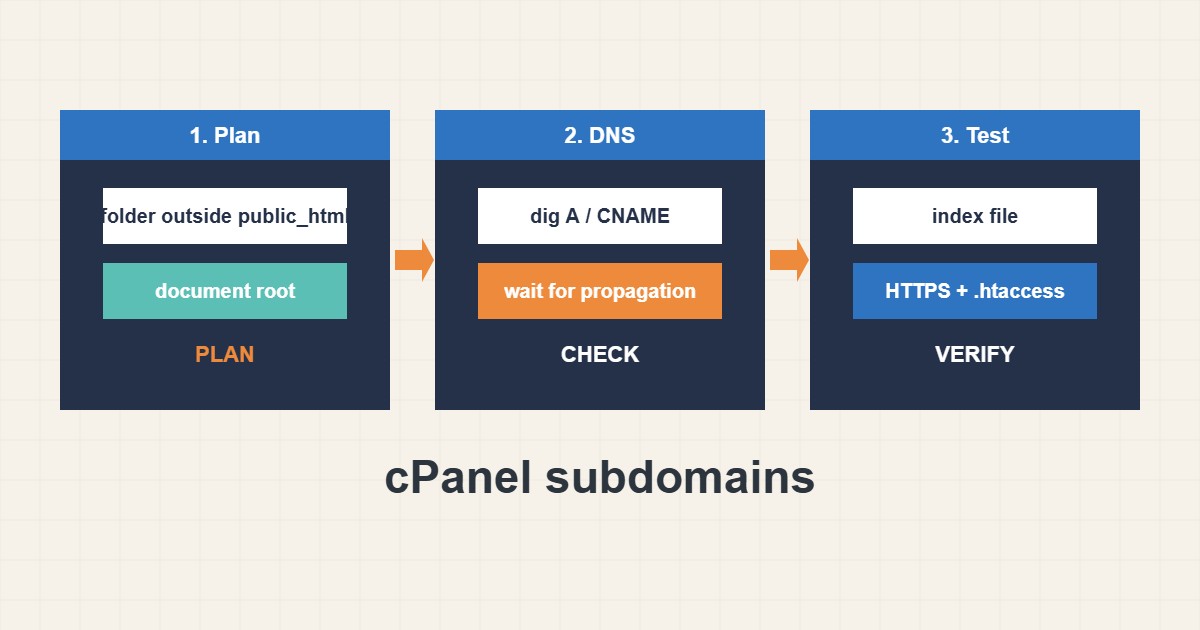
Subdomains such as blog.example.com or app.example.com are easy to create in cPanel, but two details cause most problems: where the document root points, and how the main site’s rules affect it. This guide explains a clean layout, how to check that DNS and the folder are correct, and which mistakes make a subdomain show the wrong site or a 404. Menu names are from my own knowledge and can differ by cPanel version.
1. Choose the document root deliberately
When you create a subdomain in the Domains area, cPanel proposes a folder. Many people accept a folder inside public_html, which works but mixes two sites. A folder outside public_html is cleaner, because the main site’s rules and files do not touch it:
# Typical layout in a cPanel account
/home/USER/public_html            # main domain
/home/USER/public_html/blog       # subdomain folder inside the main site (not ideal)
/home/USER/blog.example.com       # subdomain folder outside public_html (cleaner)
Decide this before you upload files, because moving later means changing the setting and the application paths.
2. Check DNS first
The subdomain needs a DNS record that points to your server. If your DNS is managed at the registrar or a CDN rather than in cPanel, you may have to add the record there. Check what the world sees:
dig +short blog.example.com A
dig +short blog.example.com CNAME
curl -sI http://blog.example.com | head -n 5
curl -sI https://blog.example.com | head -n 5
If DNS does not answer yet, wait for propagation instead of changing the server. For general redirect behavior see the redirects guide.
3. Check the folder and index file
Open a terminal or the file manager and confirm that the folder exists and has an index file. A missing index with directory listing disabled produces 403 or 404:
# Inside the subdomain document root
ls -la /home/USER/blog.example.com
find /home/USER/blog.example.com -maxdepth 1 -name 'index.*'
tail -n 20 /home/USER/logs/blog.example.com-error_log 2>/dev/null
The error log for the subdomain often explains the problem in one line.
4. Avoid rule conflicts with the main site
If the subdomain folder lives inside public_html, the main site’s .htaccess can affect it. A catch-all rewrite rule may send requests to the wrong application:
# .htaccess in public_html applies to subfolders too
RewriteEngine On
RewriteRule ^(.*)$ /index.php [L]   # may capture subdomain folders placed inside public_html
Put the subdomain folder outside public_html, or add the needed exclusions to the rules. Remember also that WordPress inside a subfolder has its own URL settings. For additional domains see the addon domain guide.
5. SSL for the new name
Each hostname needs a valid certificate. AutoSSL usually adds one after the subdomain exists and DNS works, but it can take some time. Test both HTTP and HTTPS with curl and make sure the certificate name matches. A wildcard certificate covers all subdomains if you have one.
6. Illustrative example, not a measurement
Imagine a subdomain (made-up) that shows the main site’s home page. The DNS record is correct, but the folder is inside public_html and a catch-all rewrite in the main .htaccess handles the request first. Moving the folder outside public_html and updating the document root in cPanel makes the subdomain serve its own files.
7. Common mistakes
- Accepting the default folder without thinking.
- Uploading files before choosing the document root.
- Forgetting the DNS record when DNS is outside cPanel.
- Letting main-site rewrite rules catch the subdomain.
- Missing index file.
- Testing HTTPS before the certificate exists.
8. Frequently asked questions
Can I change the document root later? Yes, in the Domains area, but you must also update the application’s paths and move the files.
Why does my subdomain show the main site? Often because of DNS pointing, a wrong document root or a catch-all rewrite.
Do I need a separate certificate? Each hostname must be covered, either by AutoSSL or a wildcard certificate.
Is a folder inside public_html a problem? It works, but main-site rules can interfere. A separate folder is cleaner.
9. Quick checklist
- Plan the folder outside public_html.
- Create the subdomain.
- Check DNS with dig.
- Upload files with an index.
- Review .htaccess rules.
- Check the subdomain error log.
- Test HTTPS and the certificate name.
If you need help reviewing performance or maintaining a server, see the server management services.
More server and WordPress guides are collected in the article archive.
Official references
cPanel docs: Domains interface · cPanel docs: Subdomains · cPanel docs: DNS knowledge base · Apache: mod_rewrite