
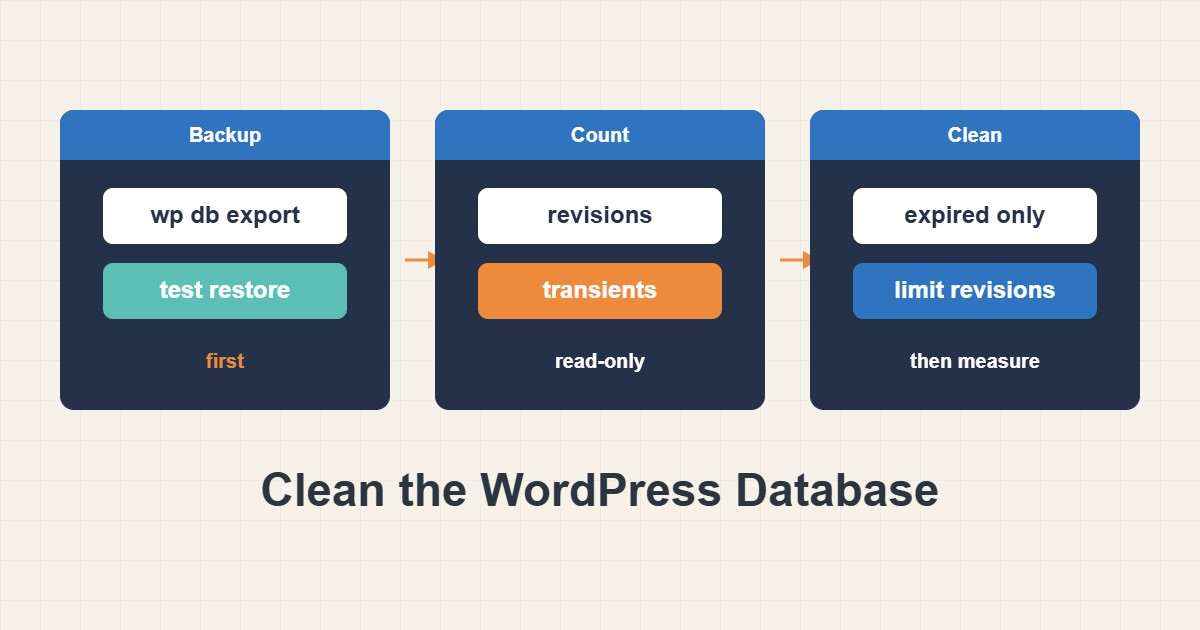
A WordPress database grows quietly: post revisions pile up, plugins leave expired cached values behind, and deleted content can leave orphaned rows. A bigger database is not automatically a slower site, so cleaning should be measured and cautious rather than a ritual. This guide shows how to take a backup, count what is actually there, remove only the safe items first, limit future revisions and check the effect. It uses WP-CLI, which many hosts include, and every destructive step comes after a restorable backup.
1. Decide whether cleaning is worth it
Start with size. If the whole database is a few dozen megabytes, cleaning will not change much, and the risk is not worth it. The cases where it helps are a very large wp_posts from years of revisions, a bloated wp_options table, or backups and exports that have become slow and large. If your real problem is a slow first response, look at Reduce WordPress TTFB: Page Cache, OPcache and Slow Plugins first, because the database is only one of several causes.
2. Take a backup you can restore
Export the database before touching anything, and note the file name and size:
# 1) Backup first, then see which tables are large (WP-CLI, run in the WordPress folder)
wp db export ~/before-cleanup-$(date +%F).sql
wp db size --tables --size_format=mb | head -20
A file that exists is not yet a backup you can rely on. Load it into a test database at least once, as explained in Verify MySQL Backups by Restoring Them, and keep a copy off the server, in line with cPanel Backups: Full Backup and Safe Restore. The second command lists the largest tables so you know where the space really is.
3. Count before you delete
Read-only counts show whether there is anything worth removing:
# 2) Read-only counts: nothing is changed here
wp post list --post_type=revision --format=count
wp post list --post_status=auto-draft --format=count
wp db query "SELECT COUNT(*) FROM $(wp db prefix)options WHERE option_name LIKE '\_transient\_%';"
wp db query "SELECT COUNT(*) FROM $(wp db prefix)postmeta pm LEFT JOIN $(wp db prefix)posts p ON p.ID = pm.post_id WHERE p.ID IS NULL;"
The first two lines count revisions and auto-drafts. The third counts transients stored in the options table. The fourth counts post metadata rows whose post no longer exists. These are counts only, and nothing is changed. Write the numbers down. If revisions are in the thousands and transients are in the hundreds of thousands, cleaning will be visible. If they are small, stop here.
4. Remove expired transients first
Transients are temporary cached values. WordPress deletes them over time, but when the schedule is blocked or the site is busy, expired ones can remain. Deleting only the expired ones is the safest step:
# 3) Expired transients only (safe: they were already dead)
wp transient delete --expired
Avoid deleting all transients unless you understand what uses them. Some plugins store state there, and if you use a persistent object cache, transients live in the cache and not in the database at all. Expired-only is enough in almost every case.
5. Handle revisions deliberately
Revisions are the edit history of posts and pages. Removing them cannot be undone without a backup, and you lose the ability to roll back old edits. If you are happy with that, delete them in batches so the command line does not overflow:
# 4) Revisions: this removes edit history, so only after a verified backup
wp post list --post_type=revision --format=ids | xargs -r -n 100 wp post delete --force
Then limit future growth with a constant in wp-config.php:
// 5) wp-config.php, above the line "That's all, stop editing!"
define('WP_POST_REVISIONS', 5);
Five is a common compromise. The constant limits how many new revisions are kept per post, but it does not remove existing ones, so you still need the deletion step. Be careful with the file itself, and keep the edit above the final comment line.
6. Be careful with orphans and auto-drafts
Orphaned metadata rows are harmless leftovers that take up space. Many cleanup plugins delete them with a single click, but a wrong query can also remove data a plugin still expects. If your count is small, leave it alone. If it is large, remove it only after a verified backup and on a staging copy first, using a query you have reviewed line by line. Auto-drafts are created when you open the new post screen, and WordPress clears old ones on its own, so they are rarely a problem.
7. Optimize and measure again
Table optimization rebuilds tables and reclaims space:
# 6) Optional, off-peak: rebuild tables and re-measure
wp db optimize
wp db size --tables --size_format=mb | head -20
Run it at a quiet hour, because rebuilding can lock tables for a moment on a large database. The gain is often modest, so treat optimize as a final step, not as the cure. Compare the new size with the one you saved and open the dashboard and a few pages to confirm everything still works.
8. A worked example
This example is illustrative, not a measurement of a real site. Suppose a ten-year-old blog has 120 posts and 9,000 revisions, and the database is 450 MB. A backup, a revision cleanup and a limit of five revisions might shrink it to around 150 MB, and exports and backups get faster as a result. A tiny site with a 30 MB database would see no real change, which is exactly why you count first.
9. Common mistakes
- Cleaning without a restorable backup.
- Deleting all transients while a plugin keeps state in them.
- Running one-click cleanup plugins on a live site without reading what they will remove.
- Assuming a smaller database makes the whole site faster.
- Setting a revision limit and thinking old revisions are gone.
10. Frequently asked questions
Will fewer revisions affect SEO? No. Revisions are not shown to visitors or search engines.
Can I schedule this? You can, but a monthly review of the counts is usually enough, and deletion should stay a manual decision.
What about WooCommerce data? Do not clean order or customer tables by hand. Use the plugin’s own tools and its documentation.
Do I need the table prefix? The examples read it with wp db prefix, so they work even when your prefix is not wp_.
I do not have SSH or WP-CLI. What now? Make the backup with your host’s tool, then run the same counts as read-only SELECT queries in phpMyAdmin. Do not run any delete query that you do not fully understand.
Will transients come back? Yes. Plugins recreate them when they need them, and that is normal. You only remove the expired ones.
11. Quick checklist
- Export the database and test the restore once.
- Check table sizes to see where the space is.
- Run the read-only counts and save the numbers.
- Delete expired transients only.
- Delete revisions only after a verified backup, then set a limit.
- Optimize off-peak, compare sizes and test the site.
If you need help reviewing performance or maintaining a server, see the server management services.
More server and WordPress guides are collected in the article archive.
Official references
WordPress: wp-config.php · WP-CLI: transient · WP-CLI: db · WordPress: Transients API