
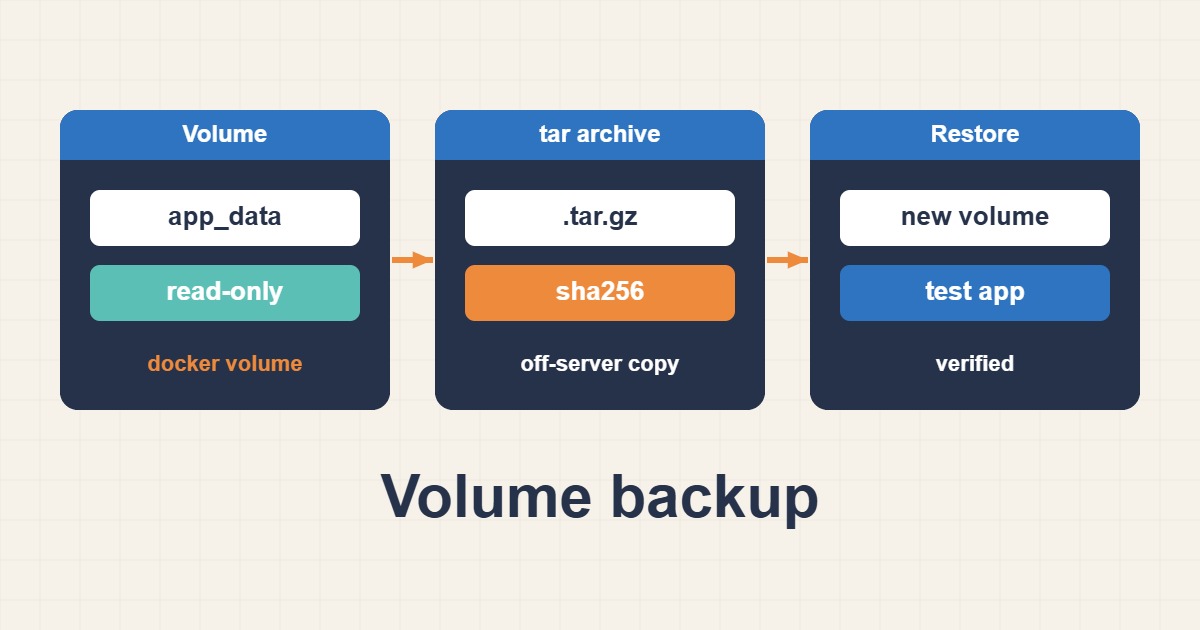
A container is disposable, but the data in its Docker volume usually is not. Databases, uploads and application state live in volumes, and a deleted volume or a failed disk means that data is gone. Many teams back up their compose files and forget the volumes, then discover the gap during an incident. This guide shows how to find your volumes, back them up with a throwaway container, restore them safely, handle databases correctly and prove that a backup actually works.
1. Know what lives where
Docker has named volumes, bind mounts and the container’s own writable layer. Named volumes are managed by Docker and live under its data directory. Bind mounts are ordinary host directories you chose. The writable layer vanishes when the container is removed. Only the first two survive, so only they need a backup plan, and your first job is to list what each container actually mounts:
docker volume ls
docker volume inspect app_data
docker ps --format '{{.Names}}	{{.Mounts}}'
Write down every volume that holds data you would be unhappy to lose. Volumes that only hold caches can be skipped.
2. Why you should not copy the volume directory by hand
Named volumes sit on the host under a path owned by Docker, and copying that path directly is fragile. It depends on the storage layout, needs root and breaks on remote Docker hosts. The portable method is to mount the volume into a short-lived container and archive it from inside. This works on any host that can run Docker.
3. Back up a volume with tar
This command mounts the volume read-only, mounts the current directory as the destination and writes a dated archive:
docker run --rm \
  -v app_data:/data:ro \
  -v "$PWD":/backup \
  alpine:3.20 \
  tar czf /backup/app_data-$(date +%F).tar.gz -C /data .
The :ro flag protects the source from accidents. The -C /data . part stores paths relative to the volume root, which makes the archive easy to restore into any volume name. The container is removed when it exits.
4. Restore into a fresh volume
Restore into a new volume first, not over the live one. That lets you inspect the result before you switch anything:
docker volume create app_data_restore
docker run --rm \
  -v app_data_restore:/data \
  -v "$PWD":/backup:ro \
  alpine:3.20 \
  tar xzf /backup/app_data-2026-10-14.tar.gz -C /data
Once you have confirmed the contents, point your compose file at the restored volume, or copy the data into the original after stopping the service.
5. Think about consistency
An archive of files that are being written can be inconsistent. A busy application may have half-written files. The simplest safe approach is to stop the service for the short time the backup takes, then start it again:
docker compose stop app
# run the backup or restore command here
docker compose start app
For services that must stay up, use the application’s own snapshot or export tool instead of file-level copies, as the next section explains.
6. Back up databases with their own tools
A database volume copied while the database is running can produce a backup that will not start. Use the database’s dump tool, which creates a consistent logical backup while the service runs:
docker compose exec -T db sh -c 'mysqldump --single-transaction -u root -p"$MYSQL_ROOT_PASSWORD" appdb' > appdb-$(date +%F).sql
docker compose exec -T db sh -c 'pg_dump -U postgres appdb' > appdb-$(date +%F).dump
The --single-transaction option gives MySQL InnoDB a consistent snapshot without locking tables. Keep the dump as the primary database backup and treat the volume archive as a secondary copy. Tools and options differ between engines, so read the documentation of the one you run, and see A Practical 3-2-1 Backup Strategy for WordPress and Web Servers for how copies fit into a wider plan.
7. Protect secrets in dumps and archives
Backups contain everything the volume contains, including user data, tokens and sometimes credentials. Store them with restricted permissions, encrypt them before they leave the server, and never put a database password on the command line where other users can see it. The examples above read the password from the container’s environment instead of typing it in. Keep the compose file, the environment file and the backups in separate places with different access.
8. Verify every archive
A backup that has never been checked is only a hope. At minimum record a checksum and confirm the archive can be read:
sha256sum app_data-2026-10-14.tar.gz > app_data-2026-10-14.tar.gz.sha256
sha256sum -c app_data-2026-10-14.tar.gz.sha256
tar tzf app_data-2026-10-14.tar.gz | head
A checksum proves the file did not change in storage, and listing the archive proves it is readable. Neither proves the application will start from it, which is why a real restore test matters.
9. Run a restore test
Periodically restore the latest backup into a scratch volume and start a copy of the service against it. Confirm that the data is present and the application works:
docker run --rm -v app_data_restore:/data:ro alpine:3.20 ls -la /data
docker compose up -d
docker compose logs --tail 50 app
Run this on a staging host or with a different project name and ports, so the test never touches production. A restore test that fails today is far cheaper than one that fails during an outage.
10. Move volumes between servers
The same archive method moves data to a new host. Create the archive, copy it securely, create a volume on the new server and extract into it. Move the compose file separately and keep image versions identical until the migration is confirmed. If the new host uses a different user ID for the application, file ownership inside the archive may need adjusting after the restore.
11. Rotate and retain
Backups pile up. Decide how many daily, weekly and monthly copies to keep, copy at least one off the server, and delete old files by rule rather than by hand. A listing command shows what a rule would remove before you run it with a delete action:
find /srv/backups -name 'app_data-*.tar.gz' -mtime +14 -printKeep at least one copy elsewhere, since a backup on the same disk fails together with the disk. Container logs also grow, and Prevent Docker Log Disk Exhaustion with Rotation shows how to stop them from filling the disk that holds your backups.
12. Clean shutdown matters
A container that is killed instead of stopped may leave files half written. Give applications time to finish their work when you stop them, and make sure the main process receives the stop signal. Graceful Docker Shutdown: SIGTERM, PID 1 and Stop Timeouts explains how stop signals and timeouts work, which directly affects whether a backup taken after a stop is consistent.
13. Common mistakes
- Backing up only the compose file and not the volumes.
- Copying a running database’s files and expecting a clean restore.
- Restoring straight over the live volume without a trial copy.
- Keeping every backup on the same disk as the data.
- Never testing a restore.
- Putting passwords on the command line or in shared scripts.
14. A worked example
A small team runs an application and a database in compose. They stop the app briefly each night, archive the data volume with tar, take a logical dump of the database and copy both files off the server with checksums. Once a month they restore the latest pair into a scratch environment and open the application to confirm the data is there. The first test reveals a missing environment file, which they add to their notes. This is an illustration of a routine, not a measurement from a real team.
15. Quick checklist
- List the volumes and bind mounts that hold real data.
- Archive them through a throwaway container with a read-only mount.
- Use the database’s own dump tool for databases.
- Record checksums and keep a copy off the server.
- Restore into a fresh volume and test the application.
- Repeat the restore test on a schedule and rotate old backups.
More server guides are collected in the article archive.
Official references
Docker: Volumes (backup, restore, migrate) · Docker Compose: Volumes reference · GNU tar manual