
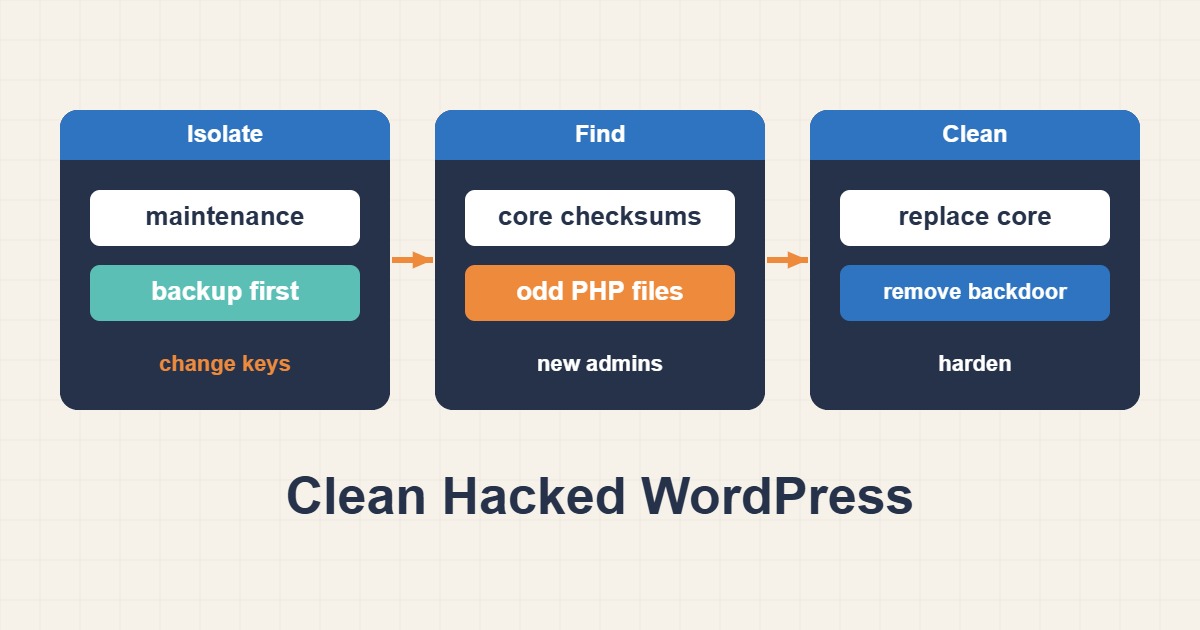
To clean a hacked WordPress site safely, isolate it and preserve evidence before attempting to remove WordPress malware, backdoors, rogue administrator accounts, hidden cron events, or injected database content.
Find WordPress Malware and Backdoors
wp core verify-checksums
wp plugin verify-checksums --all
find wp-content -type f -mtime -7 -ls
grep -R --line-number "base64_decode\|eval(" wp-content
Malware scan and grep results are leads, not proof; legitimate plugins may use similar functions. Replace core files from an official package and reinstall plugins from trusted sources.
Check Persistence and Credentials
Review administrators, suspicious options, cron, mu-plugins, PHP files under uploads, and wp-config secrets. Rotate WordPress, database, API, SSH, and control-panel credentials from a clean device.
Recover the Hacked Site Safely
- Keep a forensic snapshot.
- Rebuild a known-good copy in isolation.
- Migrate user data carefully.
- Review web, WAF, and authentication logs for the entry point.
- Patch components and reduce write permissions.
After launch, run external checks, audit accounts, and monitor file integrity. Do not declare recovery complete until the original entry point is closed.
Related WordPress Security and Recovery Guides
- 3-2-1 Backup Strategy and Restore Testing
- Fix WordPress 500 Internal Server Errors
- Harden SSH on a Linux Server
Short answer
Cleaning a hacked WordPress site requires containment, evidence preservation, credential rotation, file and database review, and removal of the original entry point. Reinstalling core files alone is insufficient when a backdoor remains in uploads, mu-plugins, cron jobs, administrator accounts, or the database.
Common symptoms
- Unknown administrators or scheduled tasks
- Modified PHP files in uploads or recently changed plugins
- Outbound spam, redirects, or reinfection after cleanup
Likely causes
- Vulnerable plugin or abandoned theme
- Stolen administrator, hosting, or SSH credentials
- Writable files combined with weak isolation
Diagnostic commands and sample output
wp core verify-checksums
wp plugin list --update=available
wp user list --role=administrator
find wp-content/uploads -type f -name "*.php" -print
Sample:
Warning: File should not exist: wp-includes/example.phpHow to verify the fix
Run checksums again, inspect access and authentication logs, and monitor file hashes and outbound traffic for at least one business cycle. Confirm no unknown admin, cron hook, or PHP file remains.
Risks and rollback
Deleting evidence too early can hide the entry point. Take a filesystem and database snapshot, isolate the host, and record hashes. Roll back only to a verified clean backup and patch before reconnecting.
Anonymized field scenario
A site was repeatedly reinfected after core replacement. Review found a PHP backdoor in uploads and a stolen admin account; removing both and patching the vulnerable plugin stopped new file changes.
Official references
Last reviewed: 2026-10-01