
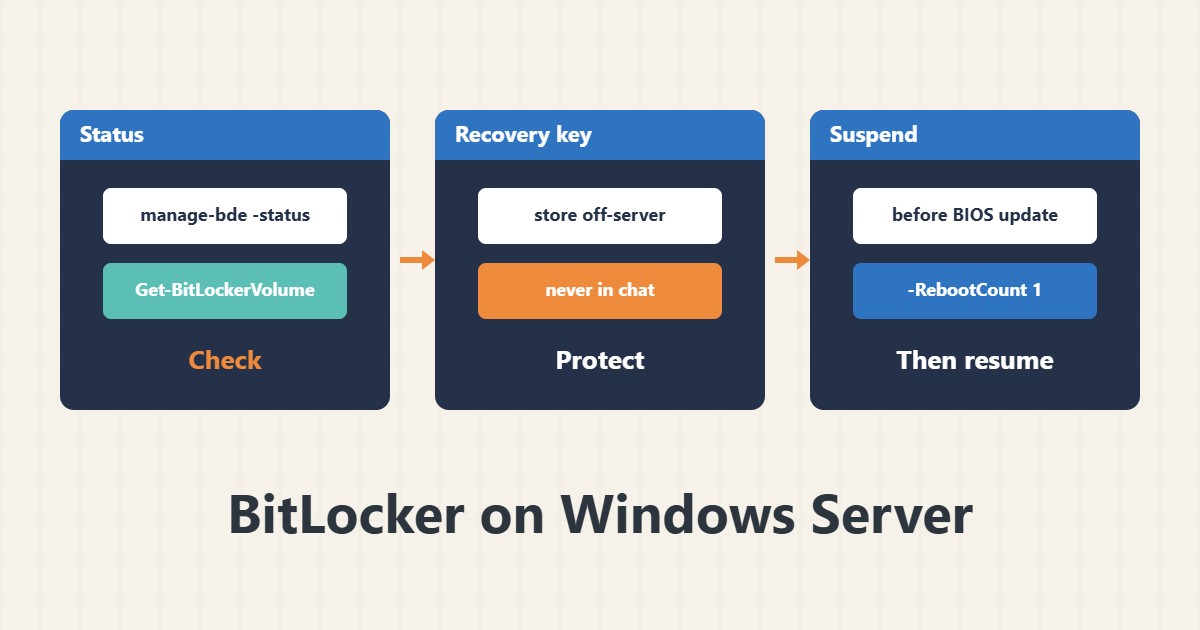
BitLocker encrypts the disk so that data cannot be read if a disk or server is stolen. But its biggest risk is losing the recovery key: without it, data cannot be recovered. This guide covers checking status and keeping the key properly.
1. Check the status
manage-bde -status
Get-BitLockerVolume | Format-List MountPoint, VolumeStatus, ProtectionStatus, EncryptionPercentage
The output shows whether each drive is encrypted and whether protection is on or off. Run both commands as Administrator. If a command is not recognised, the BitLocker feature is not installed on the server.
2. Install the feature on Windows Server
Install-WindowsFeature BitLocker -IncludeAllSubFeature -IncludeManagementToolsOn Windows Server this feature is not installed by default, and installing it requires a restart. Coordinate the restart in a maintenance window. Try turning on encryption on a test instance before a real server.
3. The recovery key
manage-bde -protectors -get C:This command shows the drive protectors and the recovery key ID. Keep the recovery key somewhere separate from the server itself, such as an organisational password manager or AD, and never put it in a ticket or chat. A key that exists only on the encrypted disk is useless.
4. Suspend before hardware changes
Suspend-BitLocker -MountPoint "C:" -RebootCount 1Before a BIOS update or boot setting change, suspend protection for one restart. Otherwise the server may ask for the recovery key after restarting. The suspension re-enables itself after the set number of restarts.
5. Relation to other maintenance
Encryption does not replace backups. Combine backups with the Windows security guide and restore tests, and know the order in repairing system files. Check that a disk is healthy before any operation on it.
6. Illustrative example, not a measurement
Suppose a server’s BIOS was due for an update. Beforehand BitLocker was suspended once with Suspend-BitLocker and the recovery key was also stored in the password manager. After the restart the server came up without asking for the key and protection turned back on automatically. This scenario is an invented illustration, not a measurement.
7. Common mistakes
- Not storing the recovery key outside the server.
- Putting the key in a ticket or chat.
- Updating the BIOS without suspending BitLocker.
- Assuming encryption replaces backups.
8. Frequently asked questions
What if I lose the key? The data is usually not recoverable, so store the key separately from the start.
Does BitLocker slow things down? On modern hardware the effect is usually small, but measure on your own server.
Does suspending remove encryption? No; it only turns protection off temporarily and the data stays encrypted.
9. Quick checklist
- The BitLocker feature is installed.
- Drive status was read.
- The recovery key was stored off the server.
- Protection was suspended before a BIOS change.
- A recovery was tested once.
If you need help reviewing performance or maintaining a server, see the server management services.
More server and WordPress guides are collected in the article archive.
Official references
Microsoft Learn: manage-bde · Microsoft Learn: Get-BitLockerVolume · Microsoft Learn: Suspend-BitLocker