
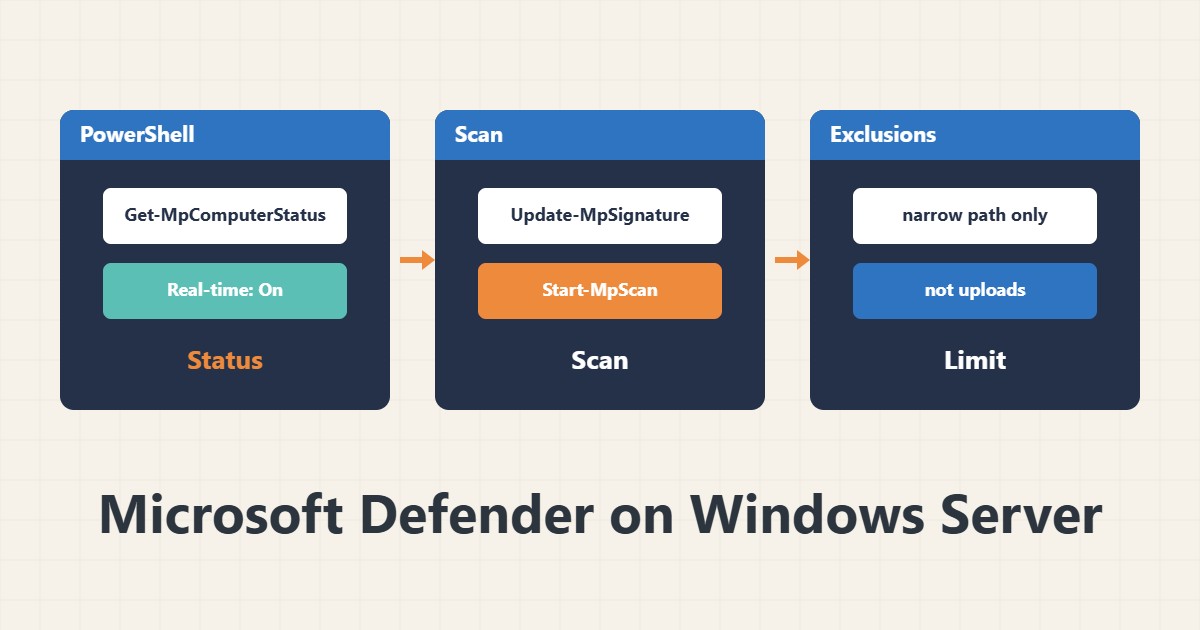
On Windows Server, antivirus can both cause sudden disk slowness and, if exclusions are careless, open a security hole. This guide shows how to see the state and exclude only what has a clear reason.
1. Read the status
Get-MpComputerStatus | Select-Object AMServiceEnabled, RealTimeProtectionEnabled, AntivirusSignatureLastUpdated
Get-MpThreatDetection
Make sure real-time protection is on and signatures are fresh. The second command lists detected threats. Console labels vary between versions.
2. Update and scan
Update-MpSignature
Start-MpScan -ScanType QuickScan
A full scan (FullScan) is heavy; run it in a quiet hour. You can schedule it with Windows Task Scheduler.
3. Only the exclusions you need
Windows Server applies some exclusions itself for installed roles (such as IIS or DNS); look at the current list before adding any by hand:
Get-MpPreference | Select-Object ExclusionPath, ExclusionProcess, ExclusionExtension4. Add and remove an exclusion
Add-MpPreference -ExclusionPath "D:\Backups\Staging"
Remove-MpPreference -ExclusionPath "D:\Backups\Staging"
Give a specific, narrow path, not a whole drive. Never exclude a user upload directory or a web scripts folder, because that is exactly where an attacker drops files. Write down the reason for every exclusion.
5. After the change
If you added an exclusion to fix slowness, compare before and after with performance counters. And after Windows Server updates, check the Defender state again.
6. Illustrative example, not a measurement
Suppose the temporary folder of a nightly backup job slowed down while writing large files. Excluding only that folder, not the rest of the drive, shortened the job. This scenario is an invented illustration, not a measurement.
7. Common mistakes
- Excluding a whole drive or C:\.
- Excluding the web upload folder.
- Turning off real-time protection to fix slowness.
- Forgetting to update signatures.
8. Frequently asked questions
Is Defender enough on a server? For many servers it is a good baseline; your real needs and organisational policy decide.
Do exclusions always speed things up? No; only if scanning that path is really the bottleneck, so measure.
How do I remove an exclusion? With Remove-MpPreference and the same value.
9. Quick checklist
- Real-time protection is on.
- Signatures updated.
- Current exclusions listed.
- New exclusions are narrow paths with a reason.
- The effect of the change was measured.
If you need help reviewing performance or maintaining a server, see the server management services.
More server and WordPress guides are collected in the article archive.
Official references
Microsoft Learn: Add-MpPreference · Microsoft Learn: Get-MpComputerStatus · Microsoft Learn: Defender exclusions