
When a Windows server runs the DNS role, slow or failing names reach every client. Most problems come from unsuitable forwarders or a stale cache. This guide shows how to see the state and change it safely.
1. Read the current state
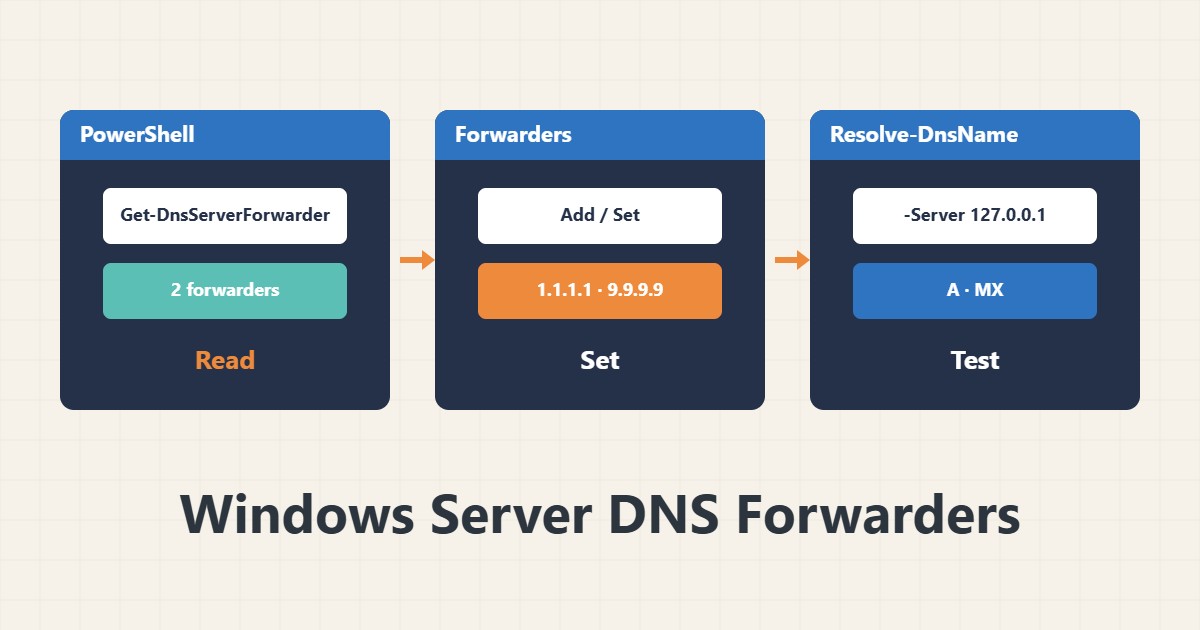
Get-DnsServerForwarder
Get-DnsServerZone
The first command shows forwarders and the second the hosted zones. Names and the DNS Manager console menus differ a little between versions.
2. What a forwarder is and why
For names it cannot answer itself, a DNS server either asks a forwarder or starts from the root hints. Reliable forwarders, such as your provider’s DNS or a trustworthy public resolver, are usually simpler and more predictable. Set at least two independent forwarders.
3. Change forwarders
Add-DnsServerForwarder -IPAddress 1.1.1.1
Set-DnsServerForwarder -IPAddress 1.1.1.1,9.9.9.9
Add appends to the list, while Set replaces the whole list, so note the current list before using Set. The addresses are examples; use a source you trust.
4. Clear the cache and test
Clear-DnsServerCache
Resolve-DnsName example.com -Server 127.0.0.1
Resolve-DnsName example.com -Type MX -Server 127.0.0.1
Clear the cache only when a record has just changed. To compare answers with the outside, run the dig toolkit from a Linux machine.
5. If clients still get errors
Look in the DNS Server event log for forwarder or zone errors. Domain clients should use only internal DNS, with no external DNS beside it, or internal names will sometimes fail to resolve. For the Linux side of the comparison, troubleshooting systemd-resolved helps.
6. Illustrative example, not a measurement
Suppose one of two forwarders stopped answering and name resolution sometimes took several seconds. After replacing it with a healthy forwarder, Resolve-DnsName answered at once. This scenario is an invented illustration, not a measurement.
7. Common mistakes
- Putting external DNS next to internal DNS on domain clients.
- Running Set-DnsServerForwarder without noting the old list.
- Relying on a single forwarder.
- Clearing the cache instead of finding the cause.
8. Frequently asked questions
Forwarders or root hints? Both are valid; forwarders are usually simpler but make you depend on that service.
Is clearing the cache risky? No, answers are just slower for a short while until the cache refills.
How does Resolve-DnsName differ from nslookup? Both work; Resolve-DnsName returns structured PowerShell output.
9. Quick checklist
- Current forwarders recorded.
- At least two healthy forwarders set.
- Cache cleared with Clear-DnsServerCache.
- Resolve-DnsName answered A and MX correctly.
- Clients use internal DNS only.
If you need help reviewing performance or maintaining a server, see the server management services.
More server and WordPress guides are collected in the article archive.
Official references
Microsoft Learn: Set-DnsServerForwarder · Microsoft Learn: Resolve-DnsName · Microsoft Learn: Clear-DnsServerCache