
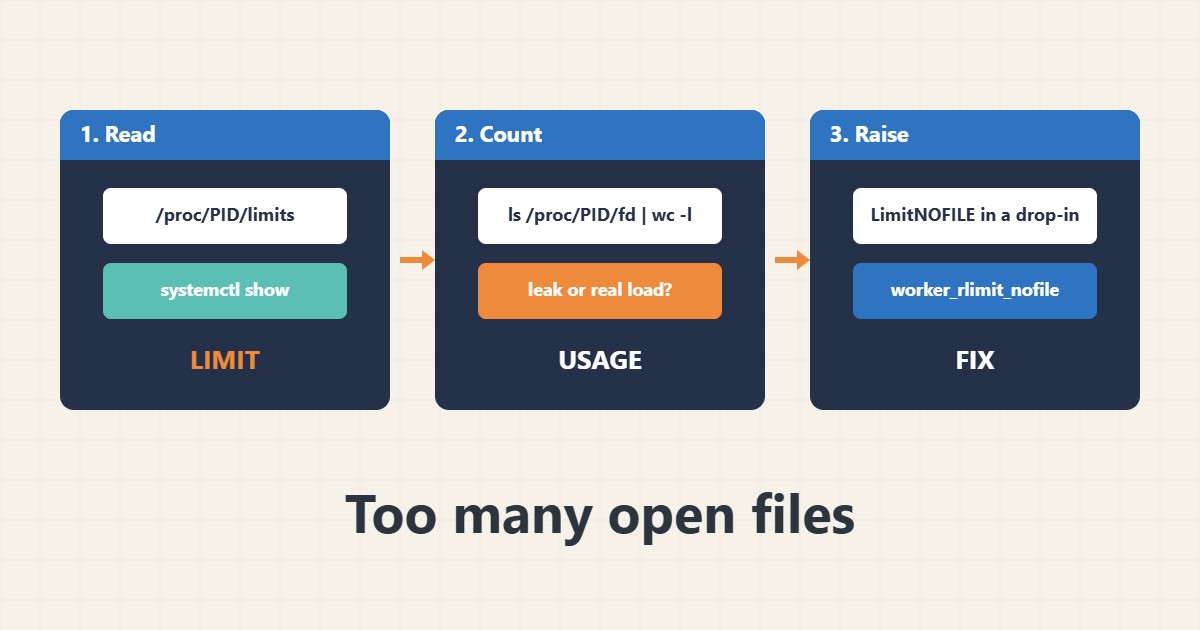
The error “Too many open files” means a process reached its limit of file descriptors. Every file, socket and connection counts. The common mistake is raising the limit in the wrong place: your shell’s ulimit and limits.conf do not apply to services started by systemd. This guide shows how to read the real limit of a running process, count what it uses and raise it correctly. Commands follow the Linux and systemd documentation; I did not run them on your server.
1. Read the real limit of the process
Check the limit of the running service, not your login shell:
ulimit -n                                  # soft limit for this shell
ulimit -Hn                                 # hard limit
cat /proc/$(pgrep -o nginx)/limits | grep -i 'open files'
systemctl show nginx -p LimitNOFILE
The line for open files shows soft and hard limits.
2. Count what it is using
Compare the number of descriptors with the limit and see what kind they are. A steady climb suggests a leak; spikes with traffic suggest real load:
PID=$(pgrep -o nginx)
ls /proc/$PID/fd | wc -l                   # open descriptors now
sudo lsof -p $PID | awk '{print $5}' | sort | uniq -c | sort -rn | head
cat /proc/sys/fs/file-nr                   # system-wide: used  unused  max
Many sockets in a waiting state may point to connection handling; see the reverse proxy guide and the Apache tuning guide.
3. Raise the limit for the service
For systemd services use a drop-in, and tell the application as well:
# systemd service (preferred): sudo systemctl edit nginx.service
[Service]
LimitNOFILE=65536

# Nginx itself also needs to know
# /etc/nginx/nginx.conf
worker_rlimit_nofile 65536;
events { worker_connections 8192; }
See the systemd unit guide for drop-ins and the service hardening guide for related options.
4. Apply and verify
Reload, restart and confirm the new value and that the error stopped:
sudo systemctl daemon-reload
sudo systemctl restart nginx
cat /proc/$(pgrep -o nginx)/limits | grep -i 'open files'
grep -c 'Too many open files' /var/log/nginx/error.log
Also read service logs; see the journalctl guide.
5. Mistakes to avoid
These errors keep the problem alive:
Editing /etc/security/limits.conf for a systemd service   # systemd ignores it
Setting 1000000 without understanding the leak     # hides a descriptor leak
Raising the limit but not worker_rlimit_nofile      # Nginx still hits the old value
Checking only your shell's ulimit                    # the service has its own limit
Raise the limit moderately and keep monitoring descriptor counts.
6. Illustrative example, not a measurement
Imagine a busy proxy (made-up) logging “Too many open files” at peak hours. The process limit shows 1024 while it holds about 1000 sockets. After setting LimitNOFILE and worker_rlimit_nofile to 65536 and restarting during a quiet period, the count rises with traffic and the error no longer appears.
7. Common mistakes
- Using limits.conf for a systemd service.
- Checking only the shell ulimit.
- Setting a huge value without checking for leaks.
- Forgetting the application’s own setting.
- Not restarting the service.
- Not monitoring afterwards.
8. Frequently asked questions
Why does ulimit -n show 1024? That is a common default soft limit for a shell.
Does limits.conf apply to systemd? Not for services; use LimitNOFILE.
How do I know it is a leak? The descriptor count keeps rising without a matching rise in traffic.
Is a bigger limit always safe? It uses more memory resources; raise it moderately.
9. Quick checklist
- Read the service limit.
- Count open descriptors.
- Look for a steady climb.
- Set LimitNOFILE.
- Set the application value.
- Restart and verify.
- Monitor the count.
If you need help reviewing performance or maintaining a server, see the server management services.
More server and WordPress guides are collected in the article archive.
Official references
getrlimit(2) · systemd.exec: LimitNOFILE · limits.conf(5) · lsof(8)