
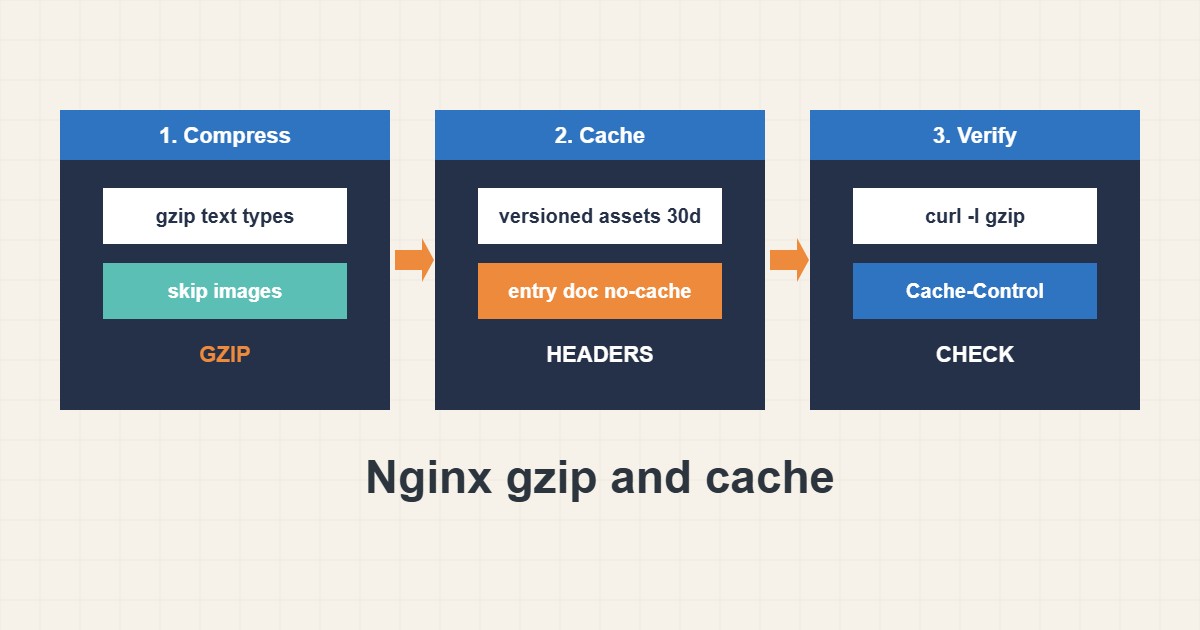
Compressing text files and letting browsers cache static assets are two of the cheapest speed improvements on a web server. Done carelessly they can also leave visitors with stale CSS or double-compress files for nothing. This guide shows a balanced gzip setup, cache headers for static files, how to avoid stale content and how to verify everything with curl. Commands follow the nginx and MDN documentation; I did not run them on your server.
1. Enable gzip for text
Compress only types that benefit: HTML, CSS, JavaScript, JSON and SVG. A medium level and a minimum size keep CPU cost low:
# http { } or server { }
gzip on;
gzip_comp_level 5;
gzip_min_length 1024;
gzip_vary on;
gzip_types text/css application/javascript application/json image/svg+xml text/plain;
Images such as JPEG and PNG are already compressed, so leave them out.
2. Cache static files
Browsers can keep files that rarely change. Use a long lifetime for versioned assets and no-cache for the entry document:
location ~* \.(?:css|js|woff2|svg|jpg|jpeg|png|webp|avif)$ {
    expires 30d;
    add_header Cache-Control "public, max-age=2592000, immutable";
    access_log off;
}

location = /index.html { add_header Cache-Control "no-cache"; }
Long caching is safe only when the file name changes with each release, for example through a version query or a hash.
3. Verify with curl
Test the syntax, reload and look at the real response headers and size:
sudo nginx -t && sudo systemctl reload nginx
curl -sI -H 'Accept-Encoding: gzip' https://example.com/style.css | grep -i -E 'content-encoding|cache-control|vary|expires'
curl -s -o /dev/null -w '%{size_download} bytes\n' -H 'Accept-Encoding: gzip' https://example.com/style.css
Check both that Content-Encoding: gzip appears and that Cache-Control matches what you intended.
4. WordPress and CDN notes
On WordPress, a cache plugin may already add some headers, so avoid setting the same thing twice. A CDN in front may also compress and cache; check which layer answers. For page-level speed see the TTFB guide, and for Cloudflare behavior see the Cloudflare guide.
5. Common mistakes
These are the usual problems:
gzip_types image/jpeg image/png;         # already compressed: wastes CPU
expires 1y on files whose names never change   # visitors keep stale CSS/JS
add_header inside a child location             # replaces headers inherited from the parent
After a deployment, bump the asset version so visitors fetch the new file, and keep an eye on the headers with the method you tested above.
6. Illustrative example, not a measurement
Imagine a site (made-up) whose main stylesheet is 200 KB. With gzip enabled the transfer drops to a fraction of that, and a 30-day cache header means returning visitors load it from the browser. After a redesign the file is renamed with a new version, so nobody sees the old style.
7. Common mistakes
- Compressing already compressed images.
- Using long cache on unversioned files.
- Setting headers twice in different layers.
- Using add_header in a child location without repeating needed headers.
- Not testing with curl.
- Forgetting to bump versions on release.
8. Frequently asked questions
Which gzip level should I use? Levels 4 to 6 are a good balance.
Is brotli better? It often compresses better but needs an extra module; gzip is the safe baseline.
What does immutable do? It tells browsers the file will not change during its lifetime, so they skip revalidation.
How do I force a refresh after a release? Change the file name or version string.
9. Quick checklist
- Enable gzip for text types.
- Skip image types.
- Set long cache for versioned assets.
- Use no-cache for the entry document.
- Run nginx -t and reload.
- Verify headers with curl.
- Version assets on release.
If you need help reviewing performance or maintaining a server, see the server management services.
More server and WordPress guides are collected in the article archive.
Official references
nginx: ngx_http_gzip_module · nginx: ngx_http_headers_module · MDN: HTTP caching · MDN: Cache-Control