
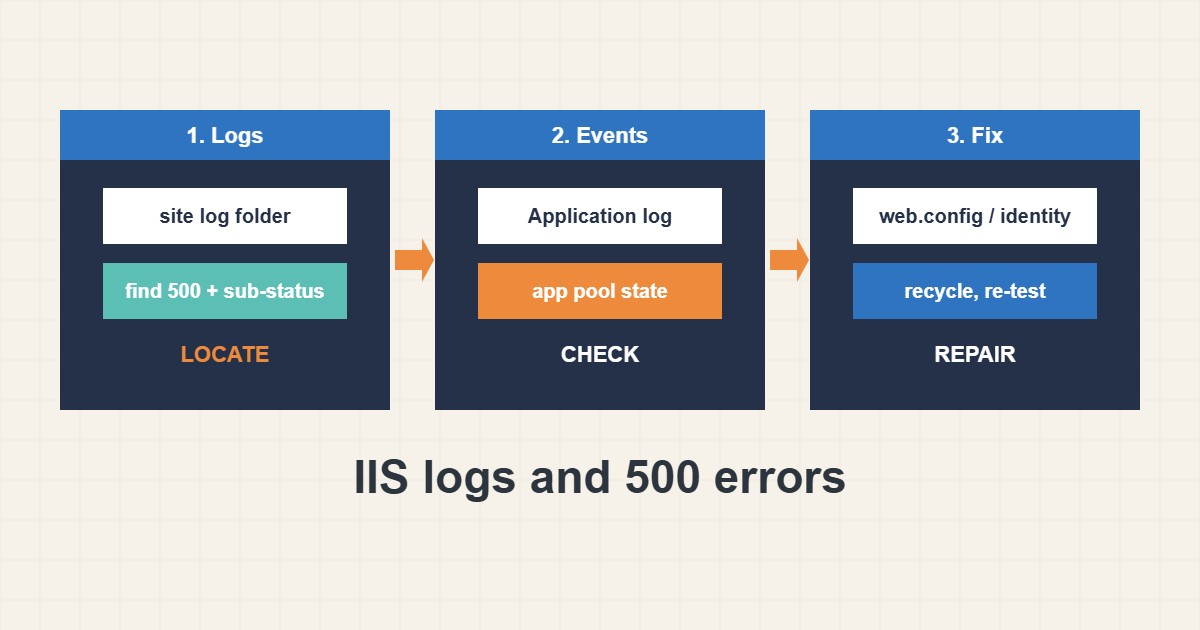
A plain “500 Internal Server Error” from IIS says almost nothing. The details are in the logs and in two extra numbers: the sub-status and the Win32 status. This guide shows where IIS writes its logs, how to find the failing requests, which other places to check and how to turn on detailed errors safely. Paths and cmdlets come from Microsoft documentation, but I did not run them on a real server, and the exact fields depend on your log format.
1. Find the log files
Each site has its own log folder named after its site ID. Locate it from PowerShell instead of guessing:
# Default IIS log folder (per site ID)
C:\inetpub\logs\LogFiles\W3SVC1\

Get-Website | Select Name, Id, @{n='LogDir';e={$_.logFile.directory}}
Get-ChildItem C:\inetpub\logs\LogFiles\W3SVC1 | Sort LastWriteTime -Descending | Select -First 3
The newest file is usually the one that matters. Logs use UTC by default, so convert times when you match them with a user’s report.
2. Search for the failing requests
Filter for status 500, then read the columns that follow it. The sub-status separates different causes, for example 500.19 points to configuration, while a Win32 status can reveal permission or file problems:
# Find recent 500 responses
Select-String -Path C:\inetpub\logs\LogFiles\W3SVC1\u_ex*.log -Pattern " 500 " | Select -Last 10

# Look at the sub-status and Win32 status columns for the real clue
# The #Fields line at the top of each log shows the column order
The #Fields line shows the column order, which can be customized, so check it before you rely on a position.
3. Check Windows events and app pools
Many 500 errors are really application crashes or app pool failures. Application and System event logs often contain the exception, and a stopped app pool explains a sudden outage:
Get-WinEvent -LogName Application -MaxEvents 20 | Where-Object { $_.ProviderName -match 'ASP|IIS|\.NET' } | Format-List TimeCreated, Message
& "$env:windir\System32\inetsrv\appcmd.exe" list apppool
& "$env:windir\System32\inetsrv\appcmd.exe" list wp
A recycled or crashing pool, a missing runtime or a bad identity can all appear here.
4. Show detailed errors carefully
Detailed error pages help while debugging, but they reveal paths and code to visitors. Prefer showing them only for local requests, or enable Failed Request Tracing for a specific URL and status:
<!-- web.config -->
<system.web>
  <customErrors mode="Off" />   <!-- shows details to every visitor; use only briefly, or limit to local requests -->
</system.web>
Turn the setting back after the investigation. Also verify file and folder permissions for the app pool identity. Do not weaken the firewall to test; see the firewall guide for safe changes.
5. Common causes
Typical reasons include a syntax error in web.config, a missing module or runtime version, a database connection failure, an app pool identity without permission, and an unhandled exception in the application. The sub-status and event log together usually point to one of these.
6. Illustrative example, not a measurement
Imagine a site (made-up) that returns 500 after a deployment. The IIS log shows 500.19 for every request, and the Win32 status points to a configuration error. The event log mentions an invalid element in web.config. Removing the bad element and recycling the pool restores the site, and the next log lines show 200.
7. Common mistakes
- Ignoring the sub-status code.
- Reading UTC logs as local time.
- Leaving customErrors off in production.
- Not checking the Windows event log.
- Assuming the app is at fault when the pool is stopped.
- Forgetting permissions for the app pool identity.
8. Frequently asked questions
Where are IIS logs stored? By default under C:\inetpub\logs\LogFiles in a folder per site ID.
What does 500.19 mean? A configuration problem, often a bad or locked section in web.config.
Why can I not see the error details? Custom errors hide them for remote users. Use local requests or Failed Request Tracing.
Do logs use local time? IIS logs use UTC by default.
9. Quick checklist
- Locate the site’s log folder.
- Find 500 entries.
- Read sub-status and Win32 status.
- Check the Application event log.
- Check app pool state.
- Enable detailed errors only briefly.
- Verify permissions and recycle.
If you need help reviewing performance or maintaining a server, see the server management services.
More server and WordPress guides are collected in the article archive.
Official references
Microsoft Learn: IIS log file settings · Microsoft Learn: IIS HTTP status codes · Microsoft Learn: Failed Request Tracing · Microsoft Learn: AppCmd